Sorry, you need to enable JavaScript to visit this website.
Skip to main content

Printing

Printing Locations

NMU students, faculty, staff, and guests have access to black-and-white and color printing at multiple campus locations. To print, users must have CatCa$h loaded on their University ID Card or Guest Wildcat Express Card.

Campus printers are networked, allowing print jobs to be sent from most computers on campus to the available printer locations below:

  • CatCa$h Add-Value Station - A CatCa$h machine is available in Room 121 for adding funds to your Wildcat Express Card.
  • Jacobetti Complex - A black-and-white printer is located in the commons area near Room 123.
  • Lydia M. Olson Library - Two HP black-and-white printers and one Xerox copier/scanner/color printer are available in the Library lobby.
  • Physical Education and Instructional Facility (PEIF) - A black-and-white printer is available in the commons area near the second-floor classrooms.

Prices

Lydia M. Olson Library offers black-and-white and color printing and copying services. Payments must be made using CatCa$h via an NMU ID or Guest Wildcat Express Card. Copying also accepts cash. The default setting for printers is double-sided, though this can be changed for individual print jobs. If you need assistance converting bills to coins or vice versa, please visit the Information Services Desk.

Printing Prices

  • Black & White: $0.05 per page
  • Color: $0.15 per page
  •  Paper Sizes:
    • Letter (8 1/2 x 11 in)
    • Legal (8 1/2 x 14 in)
    • Tabloid (11 x 17 in) 

Copying Rates

  • Black & White: $0.10 per page
  • Color: $0.15 per page
  •  Paper Sizes:
    • Letter (8 1/2 x 11 in)
    • Legal (8 1/2 x 14 in)
    • Tabloid (11 x 17 in) 

Adding CatCa$h to Your Account

CatCa$h can be added to your NMU ID (Wildcat Express Card) in two ways:

  • In Person: Use the CatCa$h machine located in the lobby of Lydia M. Olson Library. A minimum of $1 is required.
  • Online: Add funds using a credit card via the GET system. A minimum of $10 is required for credit card deposits.

Steps for Using the CatCa$h Machine

  1. Insert your ID card.
  2. Follow the directions on screen.
  3. Press "0" to select your account and start your session.
  4. Insert bills.
  5. Press "D" to cancel your session.
  6. Press "C" for a receipt.

Adding CatCa$h Online

  1. Log in to NMU GET using your NMU ID and password.
  2. First-time users will be prompted to enter an NMU email address and phone number.
  3. Once logged in, click Add CatCa$h and follow the on-screen instructions. You may choose to save your payment information for future use.

Additional Features

  1. Ask for Funds: Family or friends can add CatCa$h to your account. Use the Ask for Funds section in the main Accounts menu to send a secure request by email.
  2. Lost Card Protection: If your Wildcat Express Card is lost, log into GET to report it. This will deactivate the card and prevent unauthorized use.
  3. Always log out after completing your transaction to protect your account.

How to Print

Printing from Windows

Printing a Black & White Document from Word
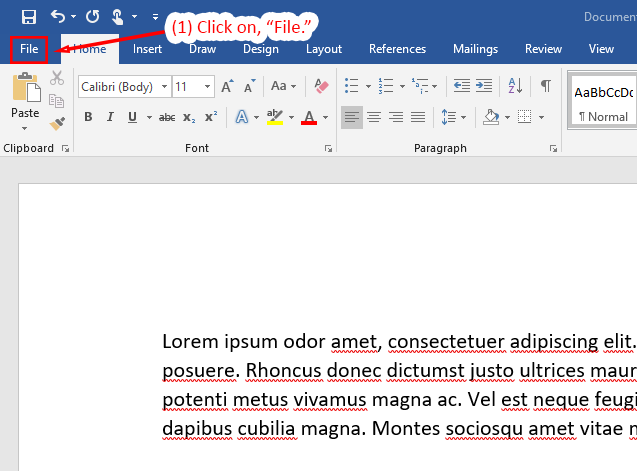
  1. To begin printing a document, click on File, generally in the upper left-hand corner or most applications.
Microsoft Word interface showing the File option highlighted with instructions to click it.
Detailed Image Description

The image depicts the Microsoft Word interface in Windows 11. The File tab, located in the top-left corner of the ribbon, is highlighted with a red rectangle. A red arrow points to the tab, accompanied by text that reads, "Click on, 'File'" Below the ribbon, there is a document with placeholder text in the Calibri font, displaying red underlines for misspelled words. The background of the interface is a light gray, and the primary focus is on the instruction to click the File tab.

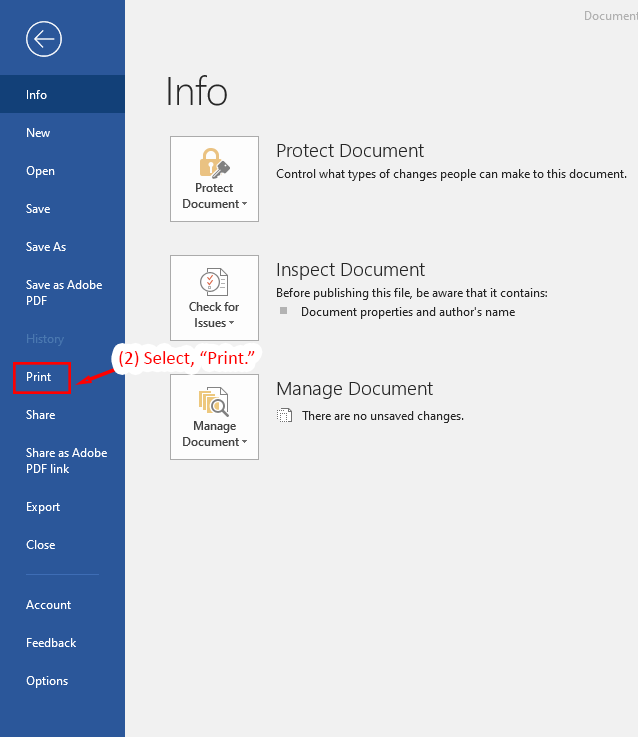
  1. Select Print, to open the print dialogue.
Microsoft Word interface showing the Print option highlighted with instructions to select it.
Detailed Image Description

The image shows the Microsoft Word interface in Windows 11. The left panel displays a menu with various options, including Info, New, Open, Save, and others. The "Print" option is highlighted with a red rectangle, and a red arrow points to it. Above the arrow, a text overlay reads, "Select, 'Print.'" On the right side, the "Info" section is displayed, providing options such as "Protect Document," "Inspect Document," and "Manage Document." The interface uses a clean layout with a white background and blue left panel.

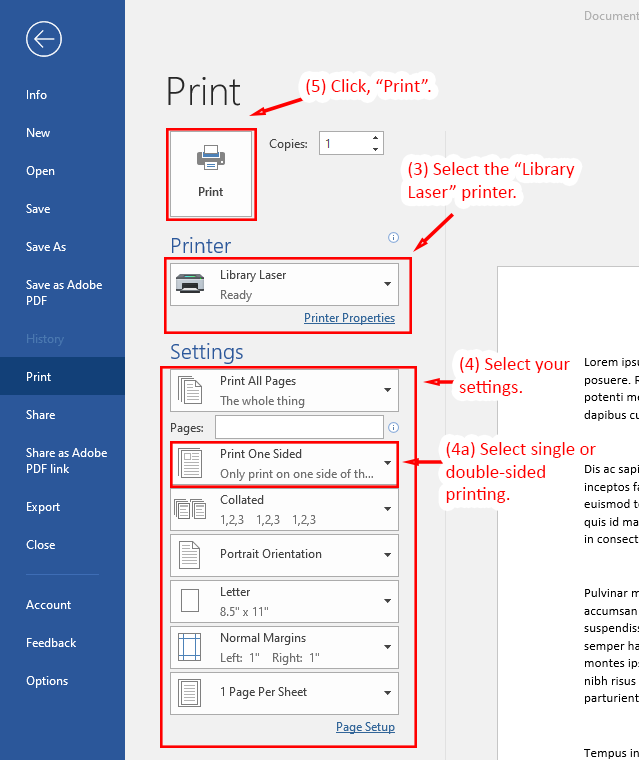
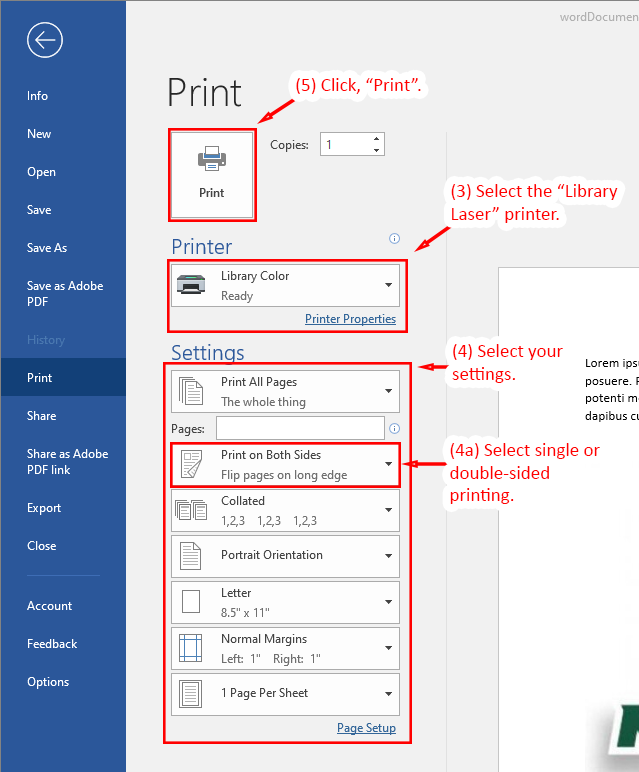
  1. Select the Library Laser, printer.
  2. Select your desired settings for printing.
    1. Select Print One Sided or Print on Both Sides.
    2. If printing on both sides, use Flip pages on long edge, for portrait prints or Flip pages on short edge, for landscape prints (e.g. tri-fold brochures).
  3. Click, Print, to send your print job to the printer release stations next to each printer.
Microsoft Word print interface showing printer selection and settings with highlighted instructions.
Detailed Image Description

The image shows the Microsoft Word print interface in Windows 11. The left panel displays the navigation menu, with "Print" selected. The main panel is divided into sections: "Printer," "Settings," and a print preview area on the right. The "Printer" section highlights the selected printer, labeled "Library Laser," with a red rectangle. The "Settings" section highlights several options, including "Print One Sided" for single-sided or double-sided printing, collated printing, orientation, and paper size. The "Print" button at the top is highlighted with a red rectangle and an instruction that reads, "Click, 'Print.'" Text instructions and arrows indicate steps to select the printer, adjust settings, and proceed with printing.

Printing a Black & White Document from Word
  1. To begin printing a document, click on File, generally in the upper left-hand corner or most applications.
Microsoft Word interface showing the File option highlighted with instructions to click it.
Detailed Image Description

The image depicts the Microsoft Word interface in Windows 11. The File tab, located in the top-left corner of the ribbon, is highlighted with a red rectangle. A red arrow points to the tab, accompanied by text that reads, "Click on, 'File'" Below the ribbon, there is a document with placeholder text in the Calibri font, displaying red underlines for misspelled words. The background of the interface is a light gray, and the primary focus is on the instruction to click the File tab.

  1. Select Print, to open the print dialogue.
Microsoft Word interface showing the Print option highlighted with instructions to select it.
Detailed Image Description

The image shows the Microsoft Word interface in Windows 11. The left panel displays a menu with various options, including Info, New, Open, Save, and others. The "Print" option is highlighted with a red rectangle, and a red arrow points to it. Above the arrow, a text overlay reads, "Select, 'Print.'" On the right side, the "Info" section is displayed, providing options such as "Protect Document," "Inspect Document," and "Manage Document." The interface uses a clean layout with a white background and blue left panel.

  1. Select the Library Color, printer.
  2. Select your desired settings for printing.
    1. Select Print One Sided or Print on Both Sides.
    2. If printing on both sides, use Flip pages on long edge, for portrait prints or Flip pages on short edge, for landscape prints (e.g. tri-fold brochures).
  3. Click, Print, to send your print job to the printer release stations next to each printer.
Microsoft Word print interface showing color printer selection and settings with instructions to print.
Detailed Image Description

The image shows the Microsoft Word print interface in Windows 11, configured for a color printer. The left panel displays a navigation menu with "Print" selected. The main panel features sections for "Printer" and "Settings." The "Printer" section highlights the "Library Color" printer, surrounded by a red rectangle, with an arrow pointing to it and the instruction, "Select the 'Library Laser' printer." In the "Settings" section, multiple options are shown, including "Print on Both Sides," highlighted with a red rectangle and labeled, "Select single or double-sided printing." The overall settings panel is highlighted with a red rectangle, with the instruction, "Select your settings." The "Print" button at the top is highlighted with a red rectangle and labeled, "Click, 'Print.'" The layout is user-friendly, with the preview area to the right and a consistent blue and white color scheme.

  1. Select Print 
  2. Select Microsoft XPS Document Writer from the list of printers, then click 'Print'.
  3. The printer dialog will ask you to save the file as an OpenXPS Document (*.oxps).
  4. Right-click on the saved file and select Open with XPS Viewer.
  5. Review the file to make sure it saved correctly.
  6. Select File then Print and send to the appropriate library printer and release station.

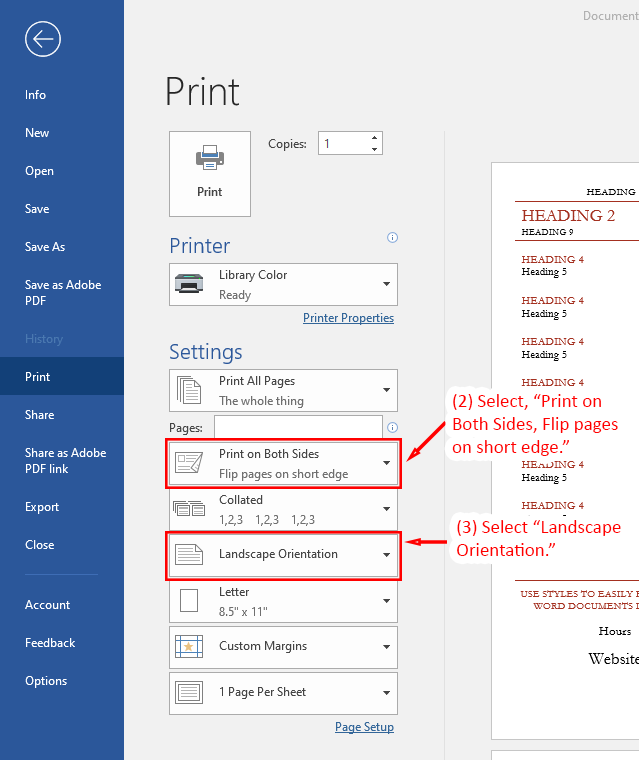
  1. Open the print dialog as shown in the previous steps. Depending on your color needs, select 'Library Laser' or 'Library Color Laser'.
  2. Select, "Print on Both Sides, Flip pages on short Edge."
  3. Set the Portrait Orientation to 'Landscape'.
  4. Click, "Print," to send your file to the print release station and then follow the steps above to release your print job to a printer.
Microsoft Word print interface showing duplex and landscape orientation settings for printing a brochure.
Detailed Image Description

The image shows the Microsoft Word print interface in Windows 11, configured for printing a brochure. The left panel displays the navigation menu with "Print" selected. The main panel features the "Printer" section, where the "Library Color" printer is selected, and the "Settings" section. In the "Settings" section, the option "Print on Both Sides, Flip pages on short edge" is highlighted with a red rectangle and labeled with the instruction, "Select, 'Print on Both Sides, Flip pages on short edge.'" Below this, the "Landscape Orientation" option is highlighted with a red rectangle and labeled, "Select 'Landscape Orientation.'" To the right, a preview of the document displays the formatted headings and layout. The interface uses a clean layout with blue and white colors, with the "Print" button positioned at the top of the main panel.

Printing from MacOS

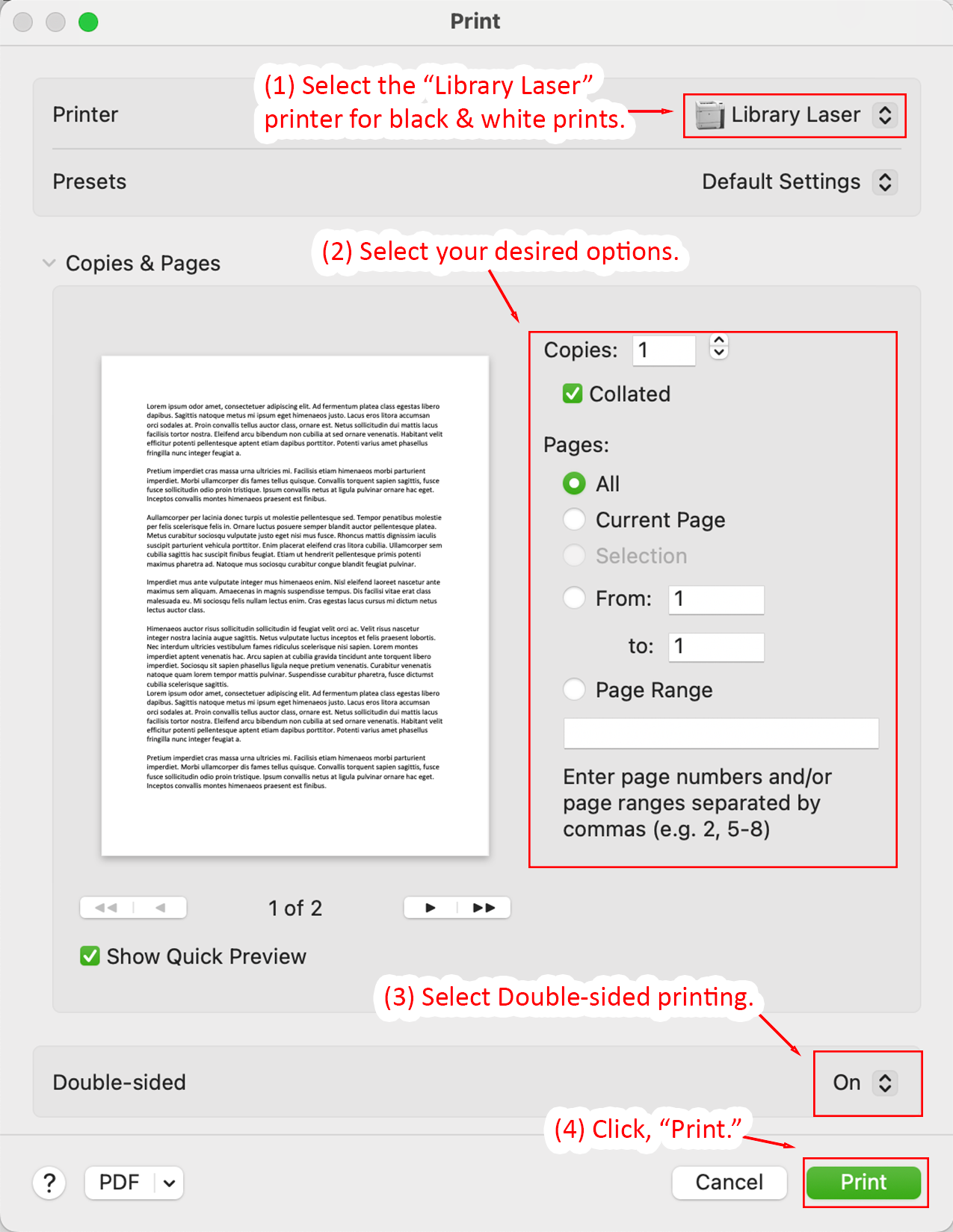
  1. Open the print dialog and select the "Library Laser" printer for black & white prints.
  2. Select your desired print options.
  3. Select Double-sided printing.
  4. Click, "Print," to send your print job to a release station.
Print dialog with Library Laser selected for black-and-white printing.
Detailed Image Description

The image shows the Print dialog in macOS 15, configured for printing with the "Library Laser" printer.

At the top, the Printer dropdown menu is set to "Library Laser," annotated as Step 1 for black-and-white prints. Below this, the "Copies & Pages" section includes several options annotated as Step 2:

  • The Copies field is set to "1" with "Collated" checked.
  • The Pages section has "All" selected, with additional options for specifying a page range or the current page.

Further down, the "Double-sided" dropdown menu is set to "On," annotated as Step 3 for enabling double-sided printing. At the bottom-right corner, the "Print" button is outlined in green and annotated as Step 4, instructing the user to start printing. The "Cancel" button is located to the left of "Print."

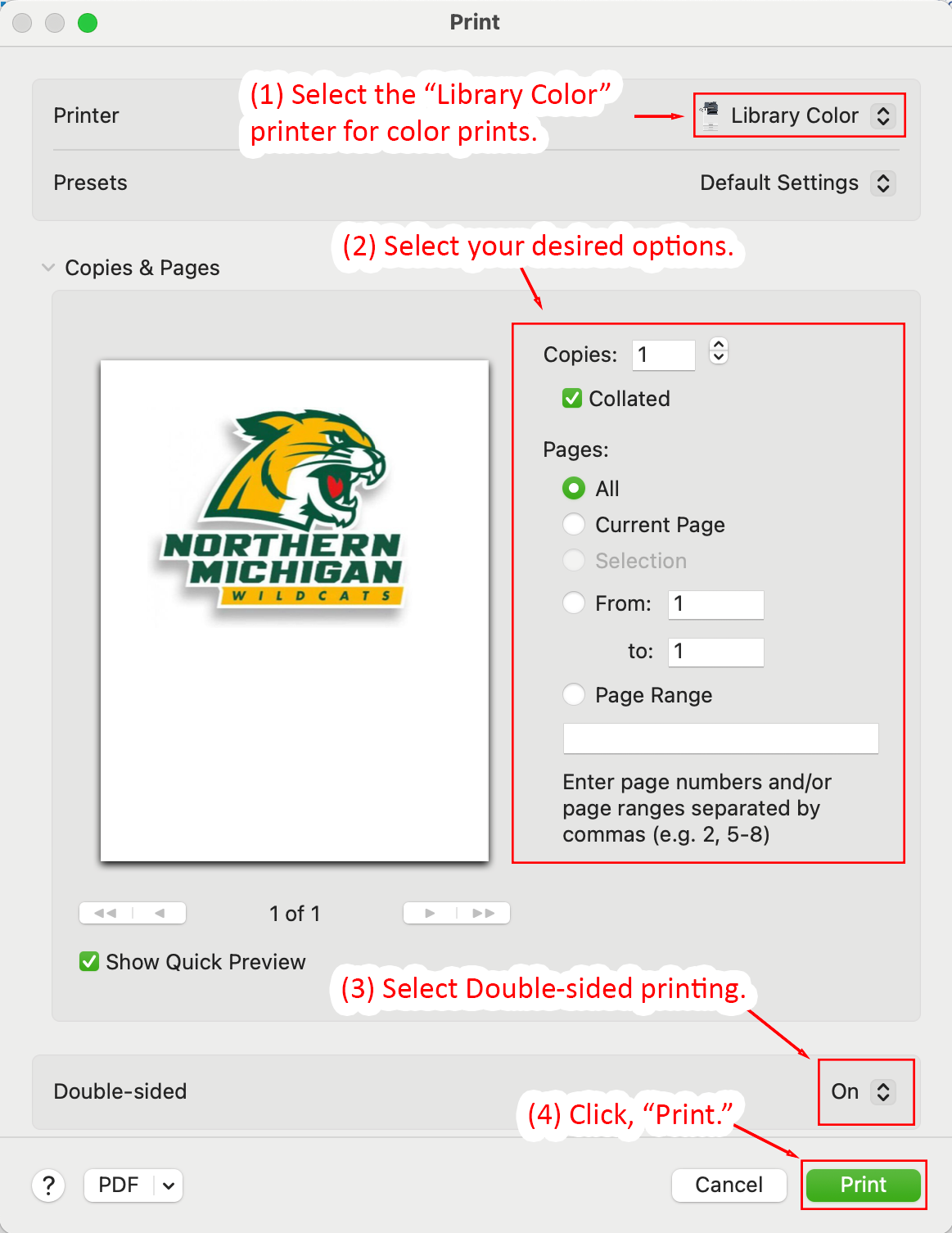
  1. Open the print dialog and select the "Library Color" printer for color prints.
  2. Select your desired print options.
  3. Select Double-sided printing.
  4. Click, "Print," to send your print job to a release station.
Print dialog with Library Color selected for color printing.
Detailed Image Description

The image shows the Print dialog in macOS 15, configured for printing with the "Library Color" printer.

At the top, the Printer dropdown menu is set to "Library Color," annotated as Step 1 for color prints. Below this, the "Copies & Pages" section includes several options annotated as Step 2:

  • The Copies field is set to "1" with "Collated" checked.
  • The Pages section has "All" selected, with additional options for specifying a page range or the current page.

Further down, the "Double-sided" dropdown menu is set to "On," annotated as Step 3 for enabling double-sided printing. At the bottom-right corner, the "Print" button is outlined in green and annotated as Step 4, instructing the user to start printing. The "Cancel" button is located to the left of "Print."

Releasing a Print Job

Using the Release Stations

After you print from any application, your print job is sent to one of the print release stations that control each printer. Our different printers have different capabilities.

Picking a Printer

If you print to the Library Laser you can release your print job on either HP printer, but be mindful of the paper size. Printing to the Library Color printer only goes to the xerox color printer.

HP Right

  • Black & White prints
  • Letter size only (8.5 x 11 inches)

HP Left

  • Black & White prints
  • Letter Size (8.5 x 11 inches)
  • Legal Size (8.5 x 14 inches)

Xerox Color Printer

  • Color prints
  • Letter Size (8.5 x 11 inches)
  • Legal Size (8.5 x 14 inches)
  • Tabloid Size (11 x 17 inches) - incurs extra costs
Releasing a Print Job
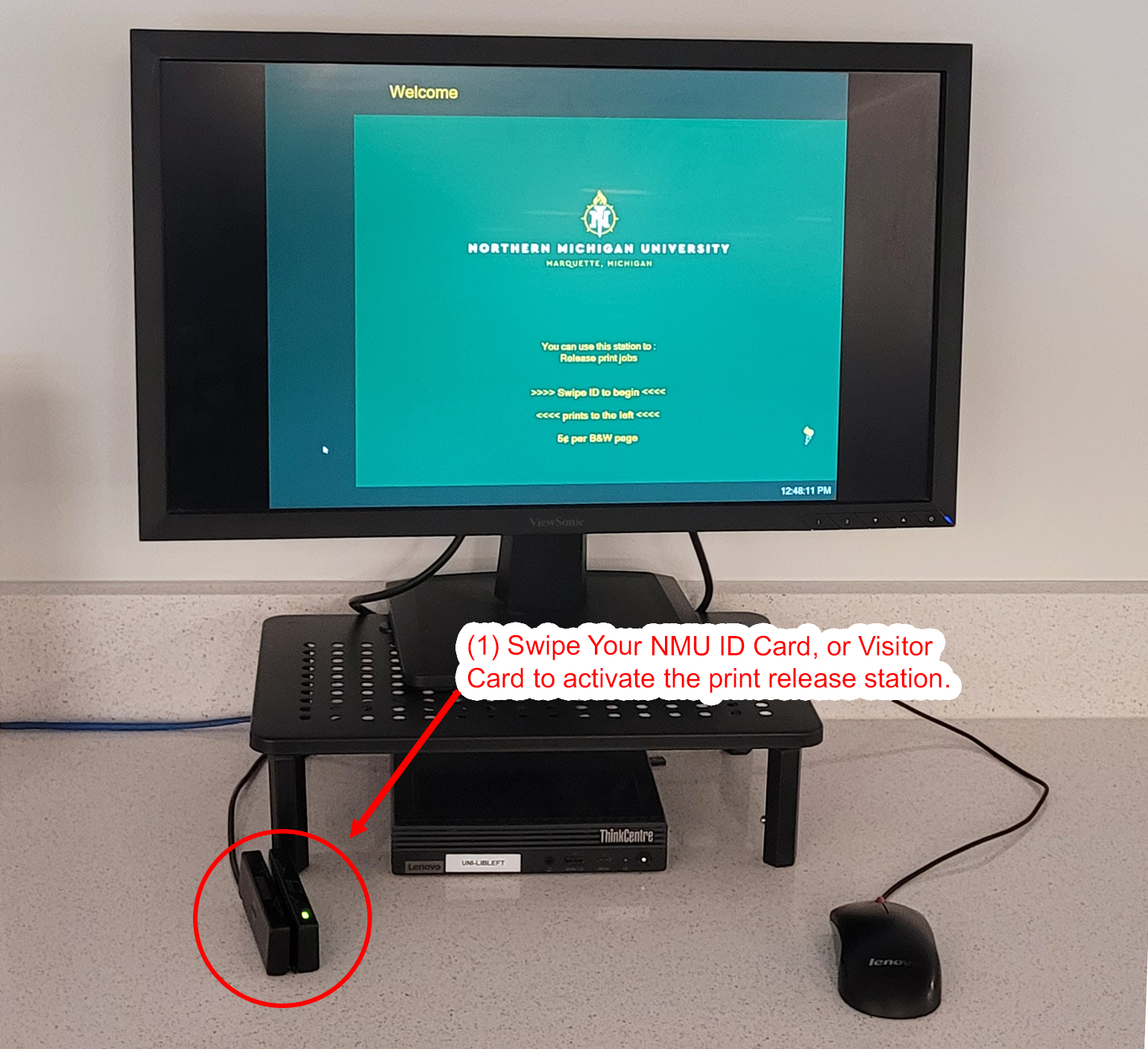
  1. Swipe your NMU ID or Wildcat Visitor Card to unlock the print release station.
Library printing release station showing a monitor, and swipe card instructions.
Detailed Image Description

The image shows a public print release station inside the Lydia Olson Library setting. A flat-panel computer monitor is mounted on a small riser shelf positioned on a light-colored countertop. The screen displays a green welcome page for Northern Michigan University in Marquette, Michigan.

Centered on the screen is the university name and logo. Below the logo, instructional text explains that users can release print jobs at this station. The screen instructs users to swipe their identification card to begin and indicates that prints are released to a printer located to the left. The cost per black-and-white page is also displayed. A digital clock appears in the lower right corner of the monitor.

Beneath the monitor, a small desktop computer labeled “ThinkCentre” is placed under the riser shelf. To the lower left of the monitor, a card reader device is mounted on the countertop. The card reader has a narrow vertical slot and a small illuminated indicator light. A red circular highlight and arrow overlay draw attention to this card reader, indicating that users must swipe their NMU ID card or visitor card to activate the print release station.

A wired computer mouse rests on the countertop to the right of the monitor. Cables are visible behind the equipment, connecting the monitor, computer, and card reader.

Overall, the image demonstrates the physical layout of the print release station and identifies the location of the card reader required to release print jobs.

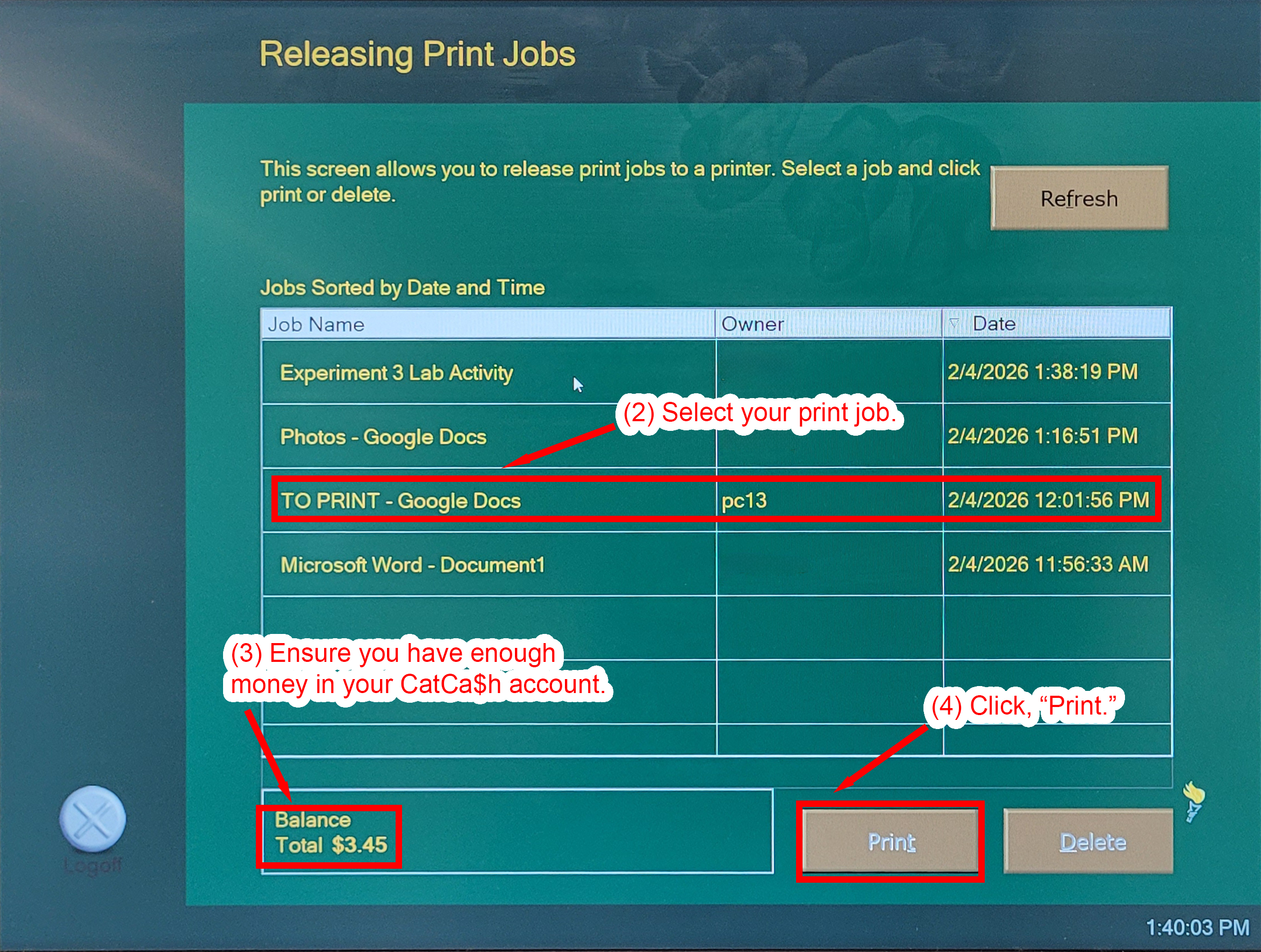
  1. Select your print job.
    1. You can look for print job by the filename, or
    2. Identify the print job by the owner: if printing from your laptop the owner will be your username, if printing from a library public computer the owner name is the computer ID labeled on the monitor. 
  2. Ensure you have enough money in your CatCa$h account to print your file.
  3. Click Print to release your file to the printer. Make sure to check all your pages, contact one of the library staff if a printer runs out of paper.
Print station interface showing print job selection and balance details with instructions to print.
Detailed Image Description

The image shows the “Releasing Print Jobs” screen of the Northern Michigan University print release system. The background is teal with gold and white text. At the top of the screen, a heading reads “Releasing Print Jobs.” A brief instruction explains that users can select a job and choose to print or delete it.

A table labeled “Jobs Sorted by Date and Time” lists multiple print jobs in rows. The table includes columns for:

  • Job Name
  • Owner
  • Date

Visible job titles include:

  • Experiment 3 Lab Activity
  • Photos – Google Docs
  • TO PRINT – Google Docs (highlighted with a red box)
  • Microsoft Word – Document1

A red arrow and callout labeled “(2) Select your print job.” points to the highlighted row, indicating that the user must first choose the correct document from the list.

In the lower left corner of the screen, a boxed section labeled “Balance” shows “Total $3.45.” A red callout labeled “(3) Ensure you have enough money in your CatCa$h account.” points to this balance display, emphasizing the need for sufficient funds before printing.

In the lower right corner, two large buttons are visible: “Print” and “Delete.” A red callout labeled “(4) Click, ‘Print.’” points to the Print button, indicating the final step in releasing the selected job.

A “Logoff” button appears in the lower left corner of the interface, and a “Refresh” button appears in the upper right. The image demonstrates the step-by-step process of selecting a print job, confirming account balance, and clicking Print to release the document.

Installing Library Printers

Installing a Printer on Windows 11

Installing on Windows 11

The following set of instructions will guide you in installing the Library Black & White printer on a Windows 11 computer. This process may vary slightly on different versions of Windows, however the printer configuration options will remain the same (e.g. hostname and port configuration). If you run into problems installing the printer, please contact the NMU Help Desk for alternative instructions.

  1. Click the Start icon, or press the Windows Key, and search for "Printers & Scanners."
  2. Select "Printers & Scanners," from the results section.
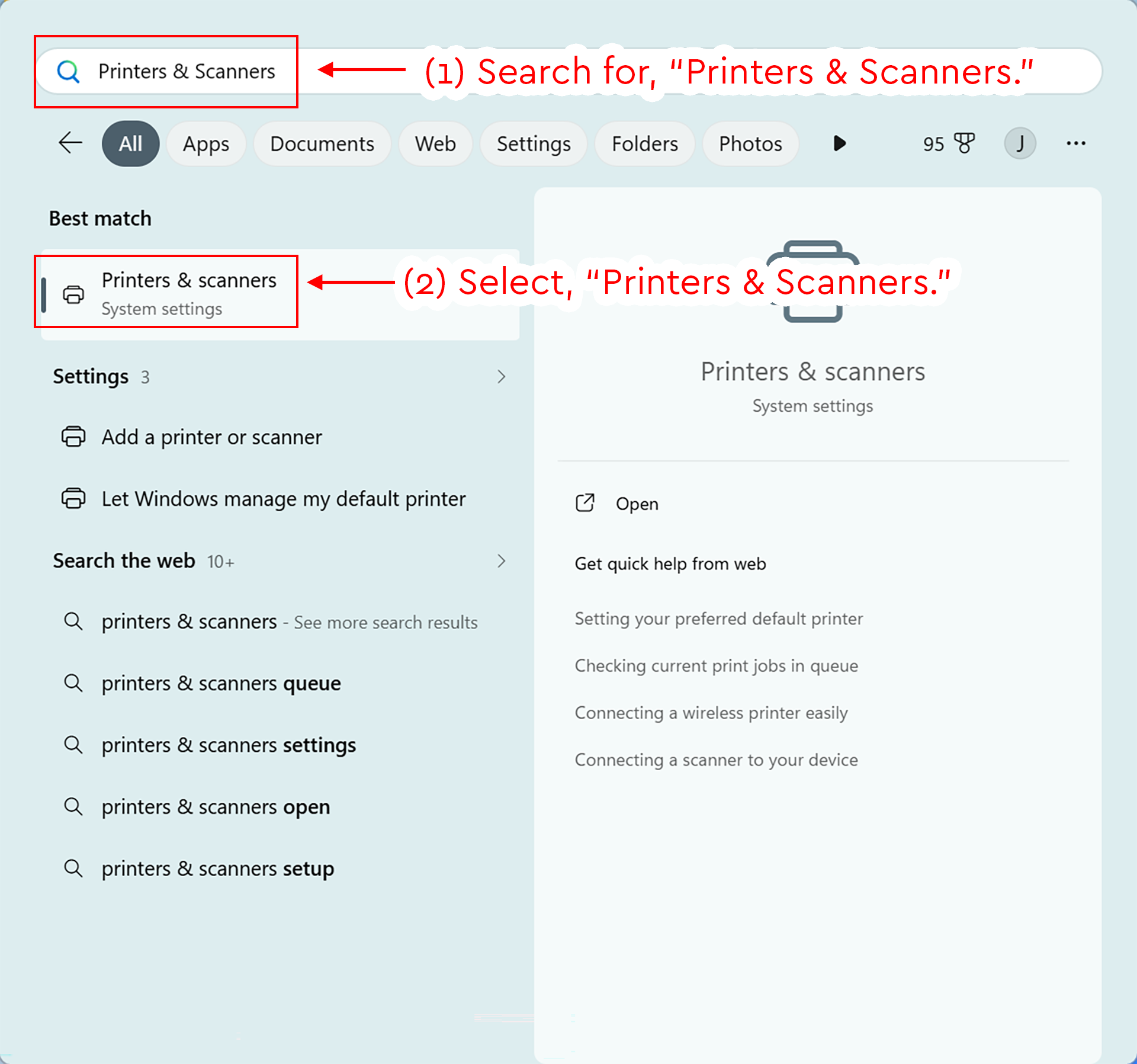
Windows 11 Search showing Printers & scanners highlighted after searching Printers & Scanners.
Detailed Image Description

The figure shows the Windows 11 Search interface with instructional annotations for opening printer settings. At the top left, the search field contains the text “Printers & Scanners.” A red box surrounds the search field, and a red arrow points to it with the instruction “(1) Search for ‘Printers & Scanners.’”

Below the search field, the “Best match” result is highlighted with a red box. The result is labeled “Printers & scanners” and identified as “System settings.” A second red arrow points to this result with the instruction “(2) Select ‘Printers & Scanners.’”

The right side of the search window shows a preview panel for “Printers & scanners,” including a printer icon, the label “System settings,” and an “Open” option. Additional search categories and related settings are visible in the left column, including “Add a printer or scanner” and “Let Windows manage my default printer.”

  1. Once the Settings panel loads, click on "Add Device."
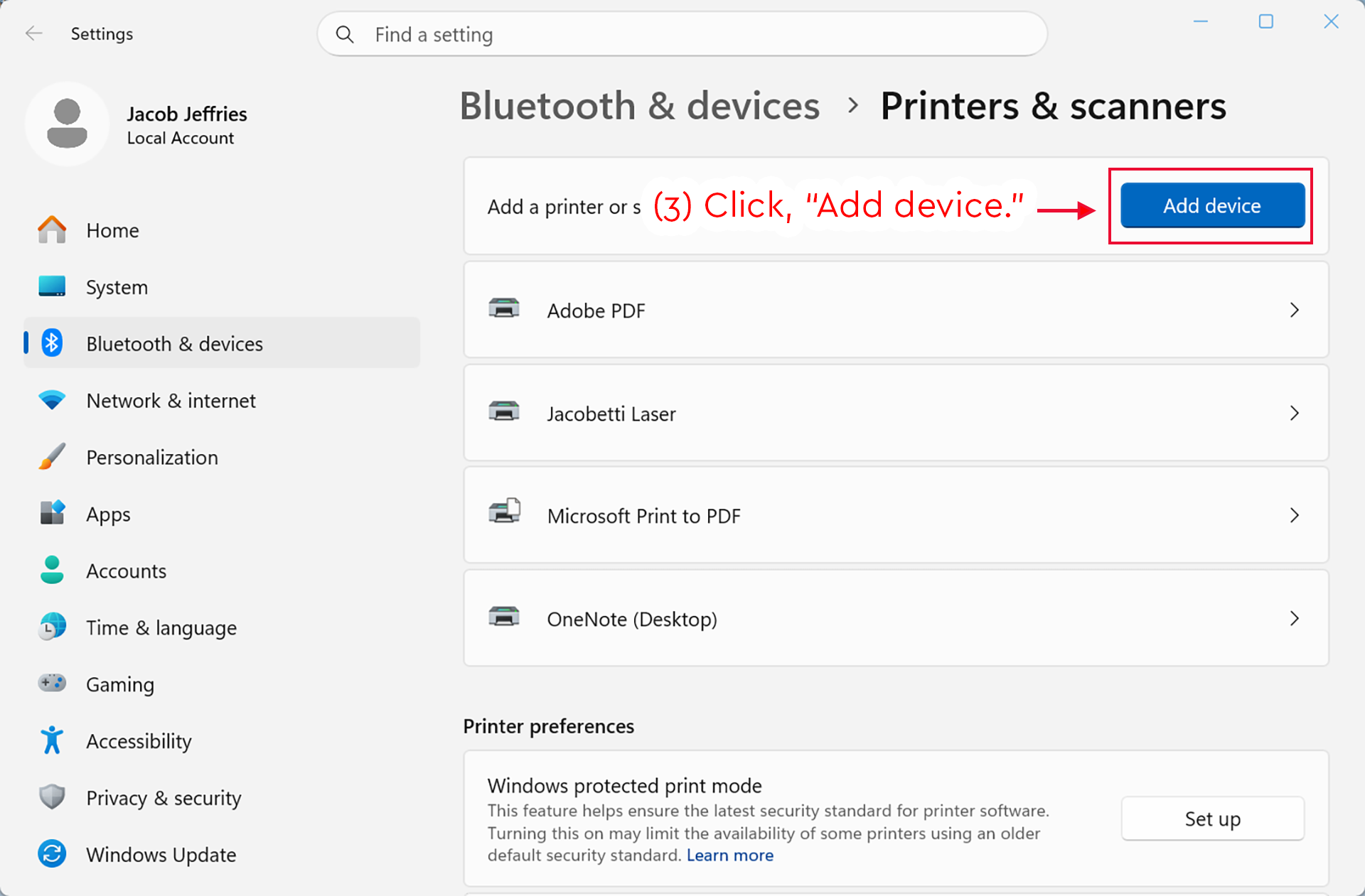
Windows 11 Printers & scanners settings with the Add device button highlighted.
Detailed Image Description

The figure shows the Windows 11 Settings app open to Bluetooth & devices > Printers & scanners. The main heading reads “Printers & scanners.” Near the top of the page, the “Add a printer or scanner” section appears with a blue “Add device” button on the right.

A red box surrounds the “Add device” button. A red arrow points to the button with the instruction “(3) Click ‘Add device.’” Below this section, several installed printers are listed, including “Adobe PDF,” “Jacobetti Laser,” “Microsoft Print to PDF,” and “OneNote (Desktop).”

The left sidebar shows the Windows Settings navigation menu, with “Bluetooth & devices” selected. Other menu options, including Home, System, Network & internet, Personalization, Apps, Accounts, Time & language, Gaming, Accessibility, Privacy & security, and Windows Update, are also visible.

  1. After Windows scans for devices, click on, "Add manually."
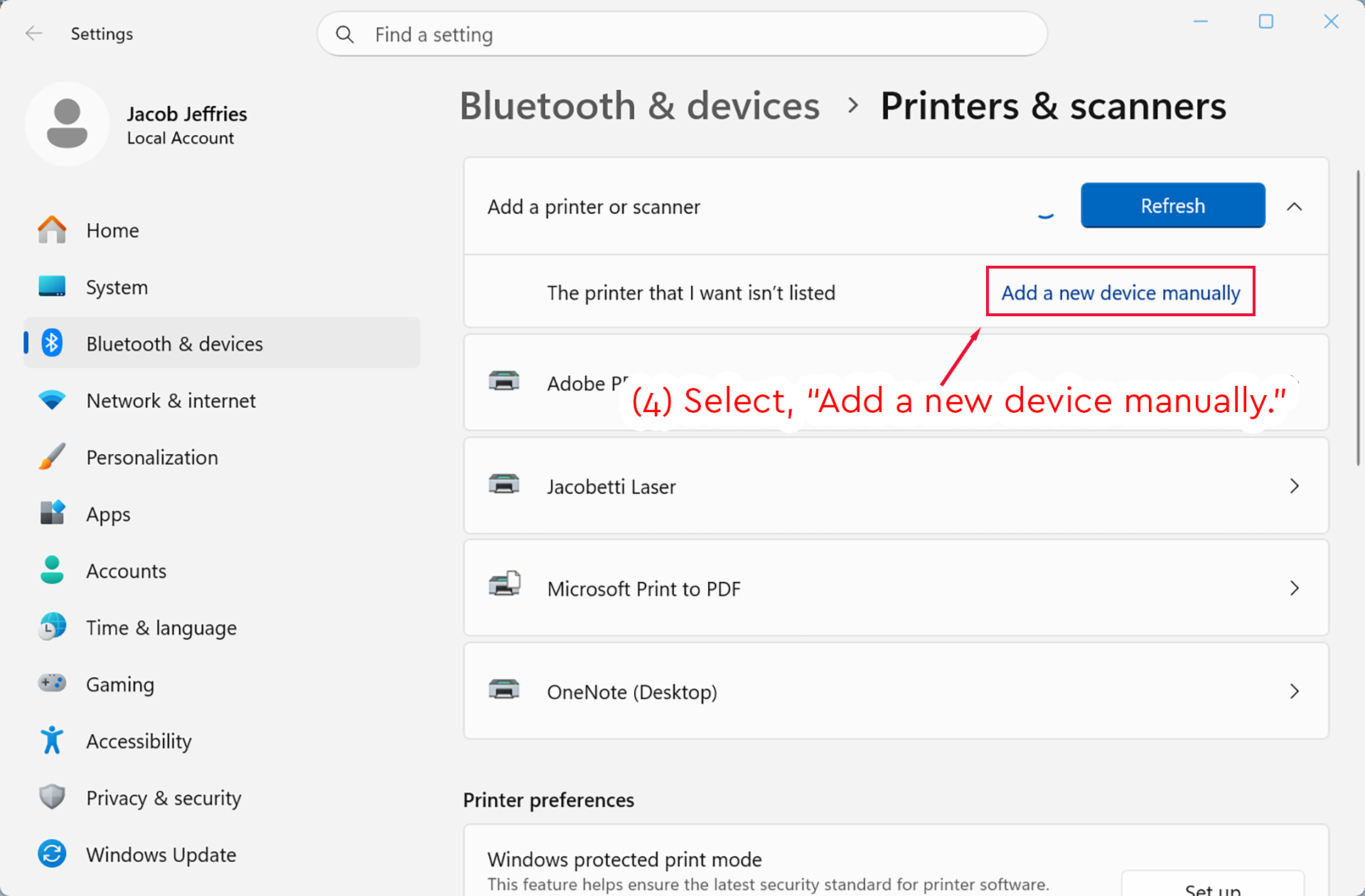
Windows 11 Printers & scanners settings with Add a new device manually highlighted.
Detailed Image Description

The figure shows the Windows 11 Settings app open to Bluetooth & devices > Printers & scanners. The main heading reads “Printers & scanners.”

The “Add a printer or scanner” section is expanded near the top of the page. A blue “Refresh” button appears on the right side of this section. Below it, a row reads “The printer that I want isn’t listed,” with a link on the right labeled “Add a new device manually.”

A red box surrounds the “Add a new device manually” link. A red arrow points to the link with the instruction “(4) Select, ‘Add a new device manually.’”

Below the expanded printer section, several installed printers are listed, including “Adobe PDF,” “Jacobetti Laser,” “Microsoft Print to PDF,” and “OneNote (Desktop).” The left sidebar shows the Windows Settings navigation menu, with “Bluetooth & devices” selected.

  1. On the Add Printer interface, select, "Add a local printer or network printer with manual settings."
  2. Select, "Next."
Windows Add Printer window with manual printer setup selected and the Next button highlighted.
Detailed Image Description

The figure shows the Windows Add Printer window on the “Find a printer by other options” screen.

Several printer setup options are listed as radio buttons. The selected option is “Add a local printer or network printer with manual settings.” A red box surrounds this selected option, and a red arrow points to it with the instruction “(5) Select, ‘Add a local printer or network printer with manual settings.’”

At the bottom right of the window, the “Next” button is highlighted with a red box. A red arrow points to the button with the instruction “(6) Select, ‘Next.’” A “Cancel” button appears to the right of the “Next” button.

  1. Select, "Create a new port," then select, "Standard TCP/IP Port."
  2. Select, "Next."
Windows Add Printer screen with Create a new port and Standard TCP/IP Port selected.
Detailed Image Description

The figure shows the Windows Add Printer window on the “Choose a printer port” screen.

The page explains that a printer port is a type of connection that allows the computer to exchange information with a printer. Two port options are shown: “Use an existing port” and “Create a new port.”

The “Create a new port” radio button is selected. A red box surrounds this section, including the “Type of port” drop-down menu. The drop-down menu is set to “Standard TCP/IP Port.” A red arrow points to the selected section with the instruction “(7) Select, ‘Create a new port,’ then select ‘Standard TCP/IP Port.’”

At the bottom right of the window, the “Next” button is highlighted with a red box. A red arrow points to the button with the instruction “(8) Select, ‘Next.’” A “Cancel” button appears to the right of the “Next” button.

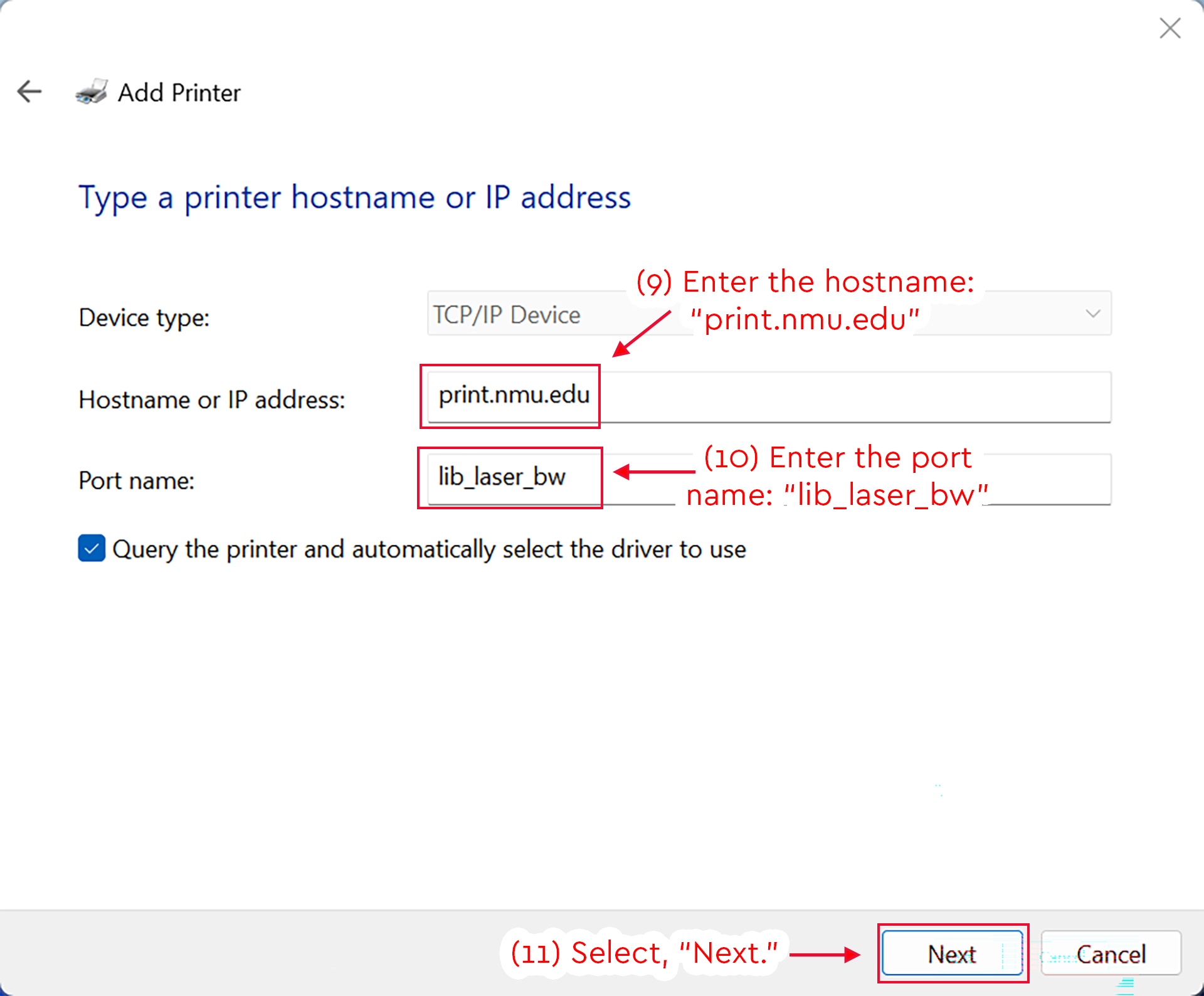
  1. Enter the hostname: "print.nmu.edu"
  2. Enter the port name: "lib_laser_bw"
  3. Select, "Next."
Add Printer screen with print.nmu.edu and lib_laser_bw entered, and Next highlighted.
Detailed Image Description

The figure shows the Windows Add Printer window on the “Type a printer hostname or IP address” screen.

The “Device type” field is set to “TCP/IP Device.” The “Hostname or IP address” field contains “print.nmu.edu,” and a red box highlights this entry. A red arrow points to the field with the instruction “(9) Enter the hostname: ‘print.nmu.edu’.”

The “Port name” field contains “lib_laser_bw,” and a red box highlights this entry. A red arrow points to the field with the instruction “(10) Enter the port name: ‘lib_laser_bw’.”

Below the port name field, the checkbox for “Query the printer and automatically select the driver to use” is selected.

At the bottom right of the window, the “Next” button is highlighted with a red box. A red arrow points to the button with the instruction “(11) Select, ‘Next.’” A “Cancel” button appears to the right of the “Next” button.

  1. Wait for Windows to detect the TCP/IP port.
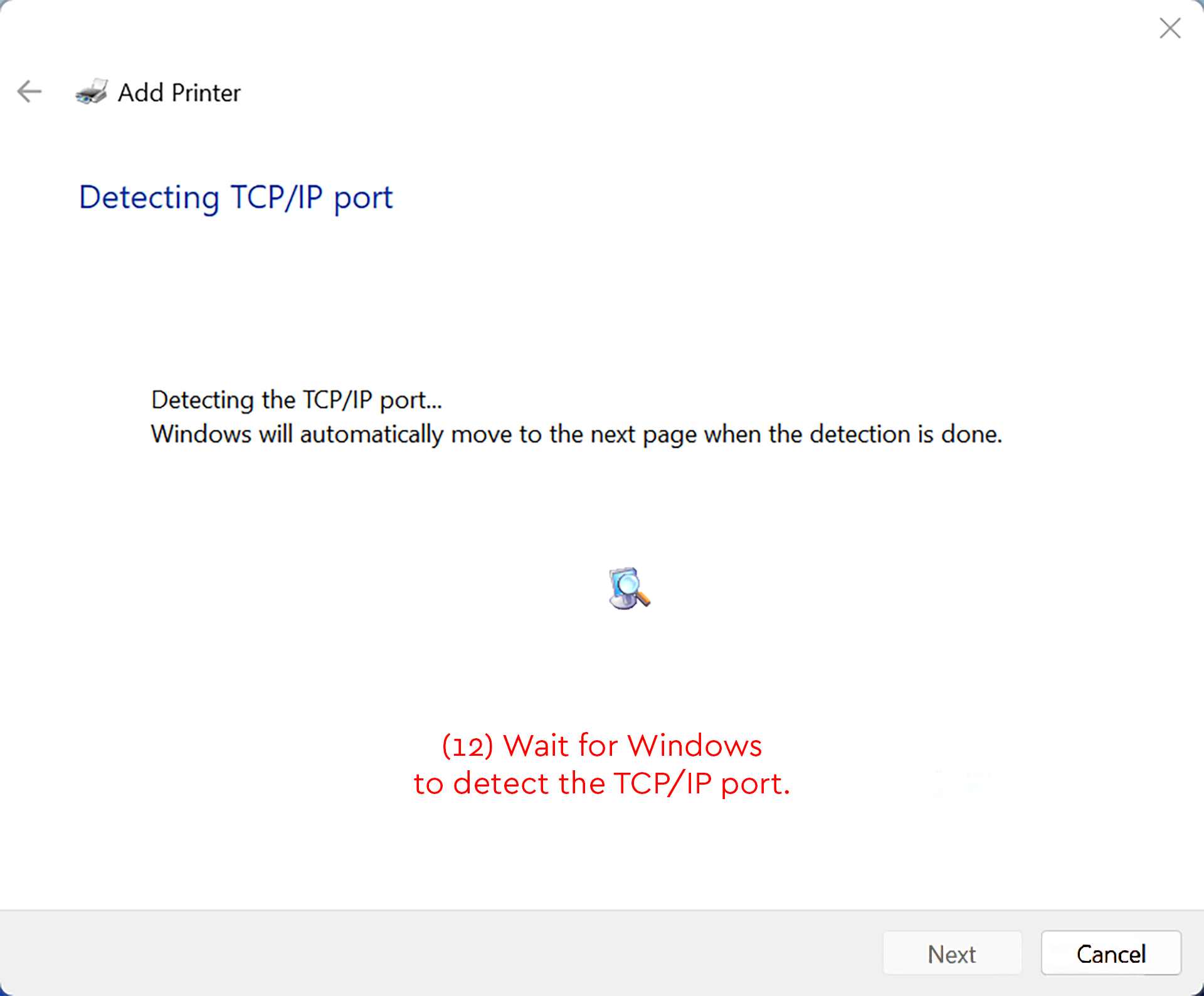
Windows Add Printer screen detecting the TCP/IP port and instructing the user to wait.
Detailed Image Description

The figure shows the Windows Add Printer window on the “Detecting TCP/IP port” screen.

The main message reads “Detecting the TCP/IP port...” Below it, supporting text states that Windows will automatically move to the next page when detection is done.

A small printer search icon appears near the center of the window. Red instructional text near the bottom reads “(12) Wait for Windows to detect the TCP/IP port.”

At the bottom right of the window, the “Next” button is visible but disabled. The “Cancel” button is available to the right of it.

  1. Select, "Custom," and then press, "Settings...".
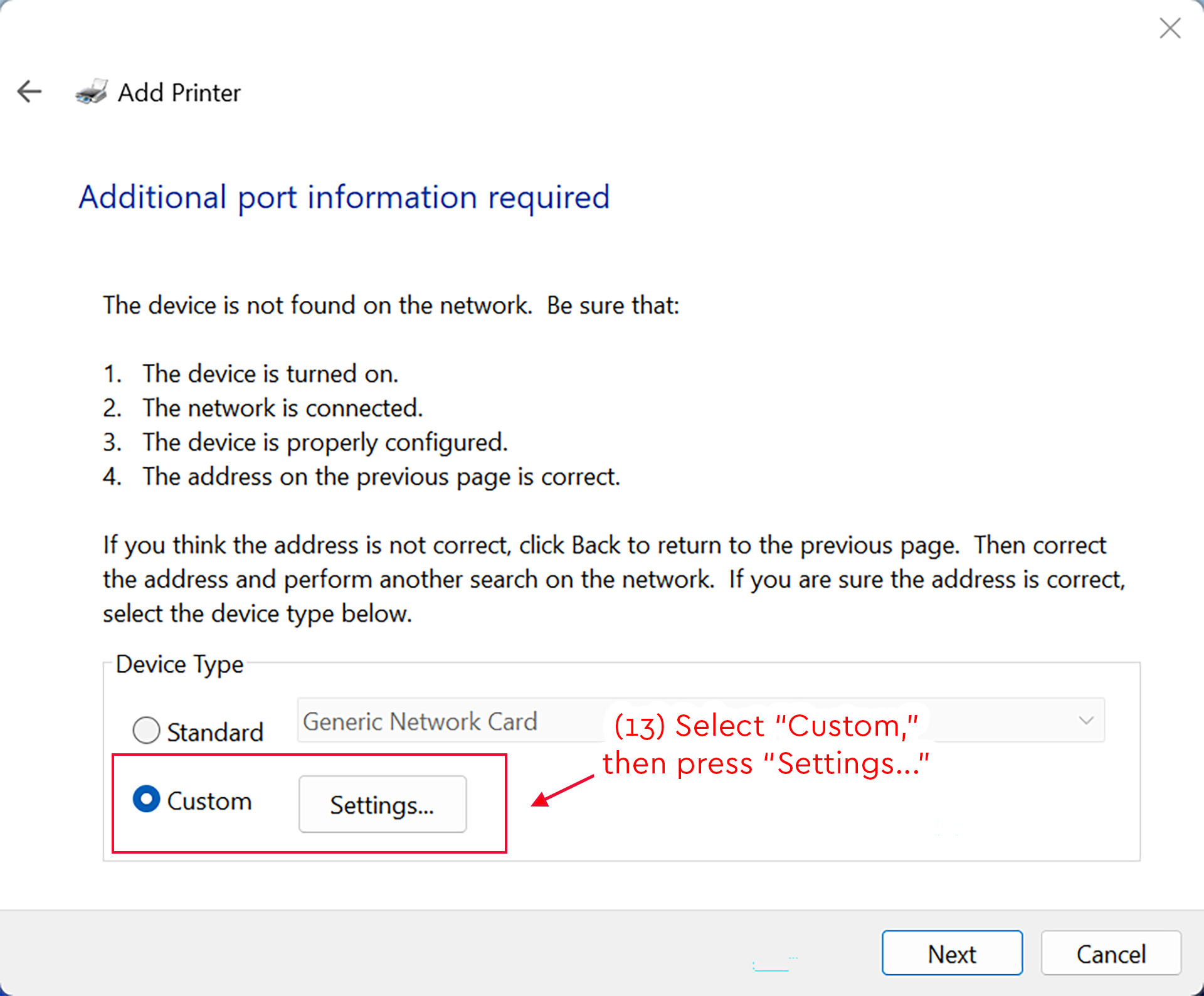
Add Printer screen with Custom selected and the Settings button highlighted.
Detailed Image Description

The figure shows the Windows Add Printer window on the “Additional port information required” screen.

The page states that the device was not found on the network. It lists possible causes, including that the device may not be turned on, the network may not be connected, the device may not be properly configured, or the address entered on the previous page may not be correct.

In the “Device Type” section, two radio button options are shown: “Standard” and “Custom.” The “Custom” option is selected. A red box surrounds the selected “Custom” option and the “Settings...” button. A red arrow points to this area with the instruction “(13) Select ‘Custom,’ then press ‘Settings...’”

At the bottom right of the window, the “Next” and “Cancel” buttons are visible.

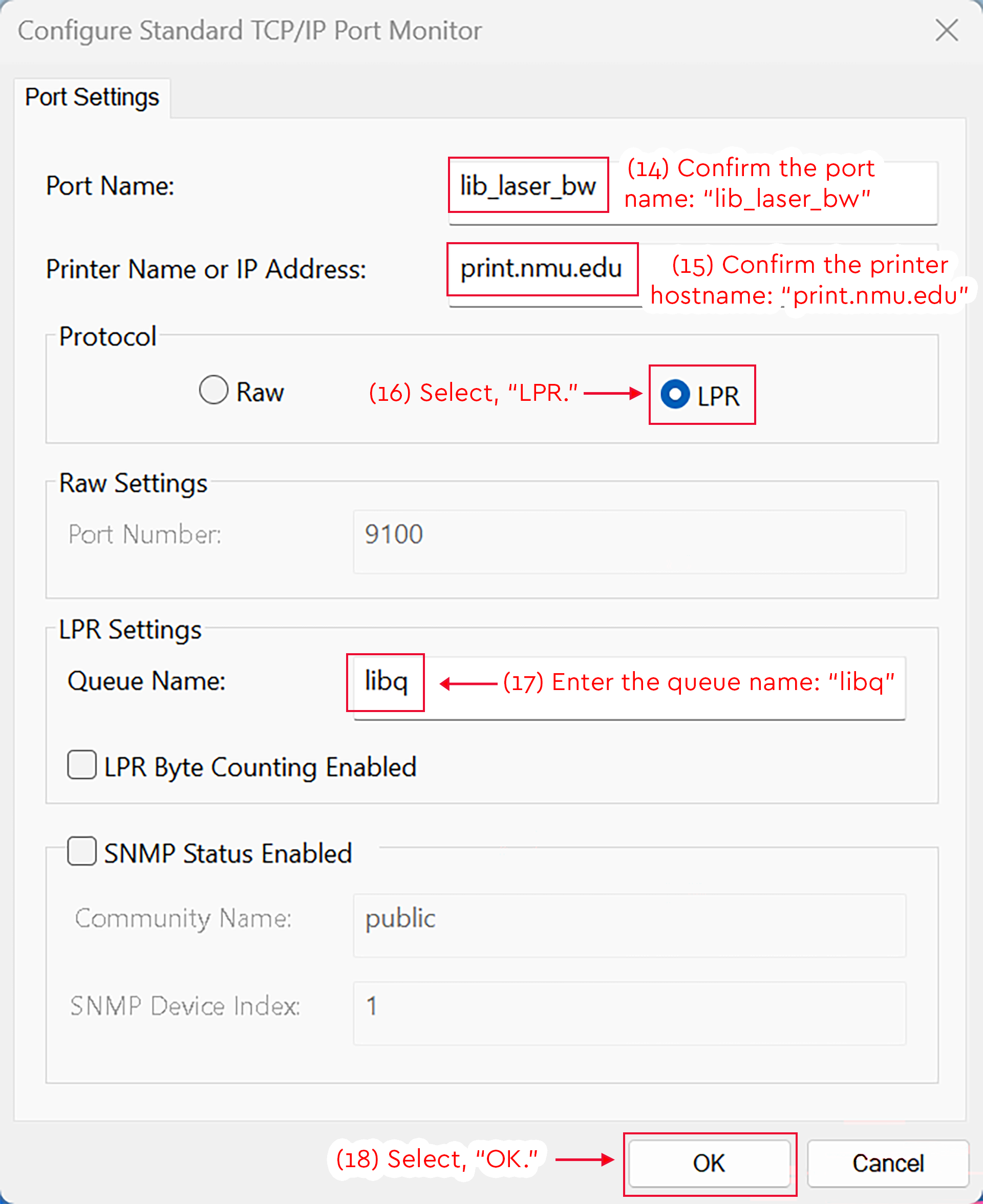
  1. Enter the port name, "lib_laser_bw"
  2. Enter the hostname, "print.nmu.edu"
  3. Select the "LPR," protocol
  4. Enter the Queue Name, "libq"
  5. Select, "OK."
TCP/IP Port Monitor settings showing LPR selected and OK highlighted.
Detailed Image Description

The figure shows the Configure Standard TCP/IP Port Monitor window on the “Port Settings” tab.

The “Port Name” field contains “lib_laser_bw,” and a red box highlights the entry. A red annotation reads “(14) Confirm the port name: ‘lib_laser_bw.’”

The “Printer Name or IP Address” field contains “print.nmu.edu,” and a red box highlights the entry. A red annotation reads “(15) Confirm the printer hostname: ‘print.nmu.edu.’”

In the “Protocol” section, the “LPR” radio button is selected. A red box surrounds the selected “LPR” option, and a red arrow points to it with the instruction “(16) Select, ‘LPR.’”

In the “LPR Settings” section, the “Queue Name” field contains “libq,” and a red box highlights the entry. A red arrow points to the field with the instruction “(17) Enter the queue name: ‘libq.’”

The “LPR Byte Counting Enabled” checkbox is unchecked. The “SNMP Status Enabled” checkbox is also unchecked, and the related SNMP fields are disabled.

At the bottom right of the window, the “OK” button is highlighted with a red box. A red arrow points to the button with the instruction “(18) Select, ‘OK.’” A “Cancel” button appears to the right of the “OK” button.

  1. Select, "Next."
Add Printer screen with Custom selected and the Next button highlighted.
Detailed Image Description

The figure shows the Windows Add Printer window on the “Additional port information required” screen.

The page states that the device was not found on the network and lists possible causes, including that the device may not be turned on, the network may not be connected, the device may not be properly configured, or the address entered on the previous page may not be correct.

In the “Device Type” section, the “Custom” radio button is selected. The “Settings...” button is visible next to it.

At the bottom right of the window, the “Next” button is highlighted with a red box. A red arrow points to the button with the instruction “(19) Select, ‘Next.’” A “Cancel” button appears to the right of the “Next” button.

  1. Allow Windows to detect the printer's driver.
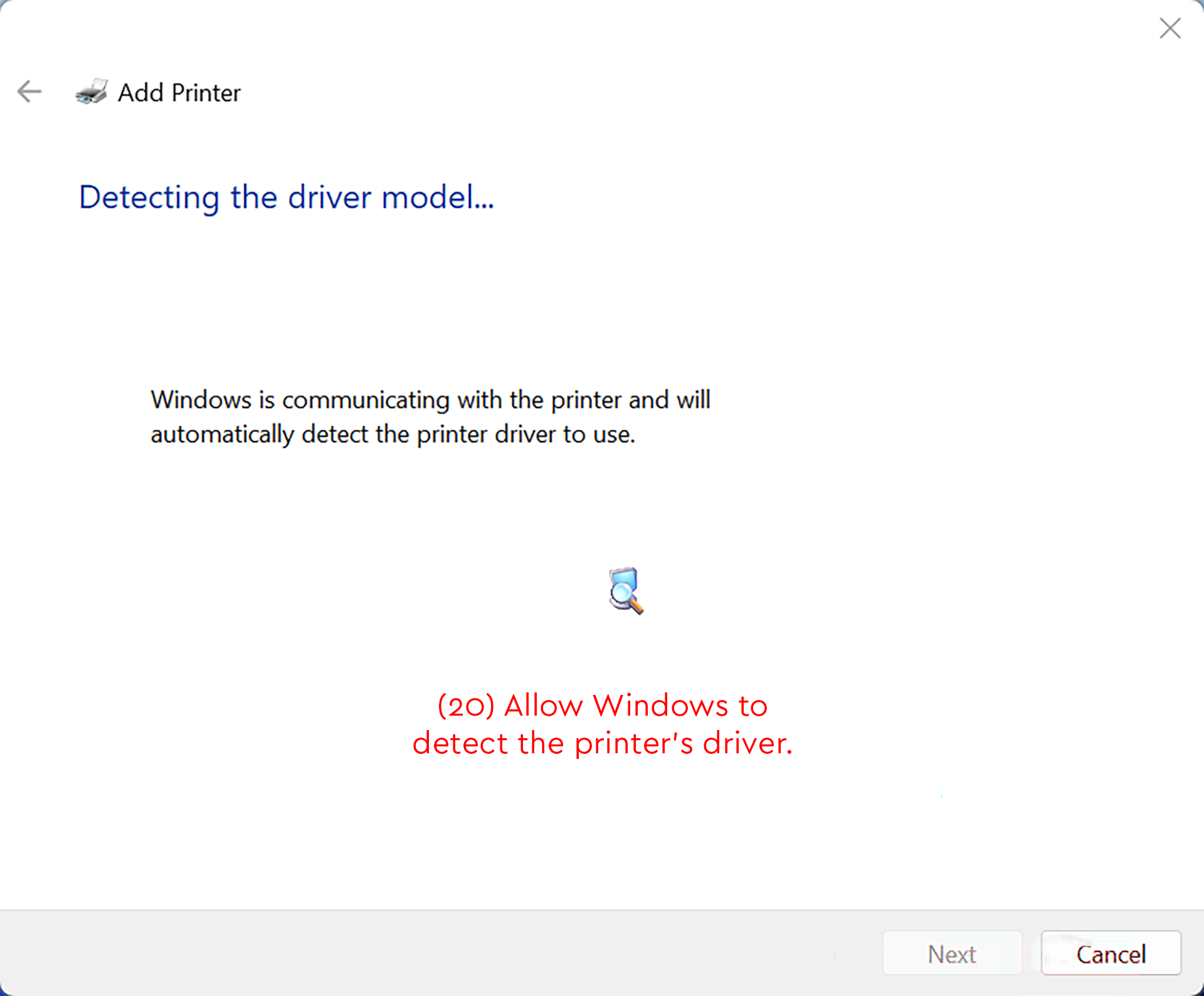
Add Printer screen detecting the printer driver model with instruction to wait.
Detailed Image Description

The figure shows the Windows Add Printer window on the “Detecting the driver model...” screen.

The page states that Windows is communicating with the printer and will automatically detect the printer driver to use. A small printer search icon appears near the center of the window.

Red instructional text near the bottom reads “(20) Allow Windows to detect the printer’s driver.”

At the bottom right of the window, the “Next” button is visible but disabled. The “Cancel” button is available to the right of it.

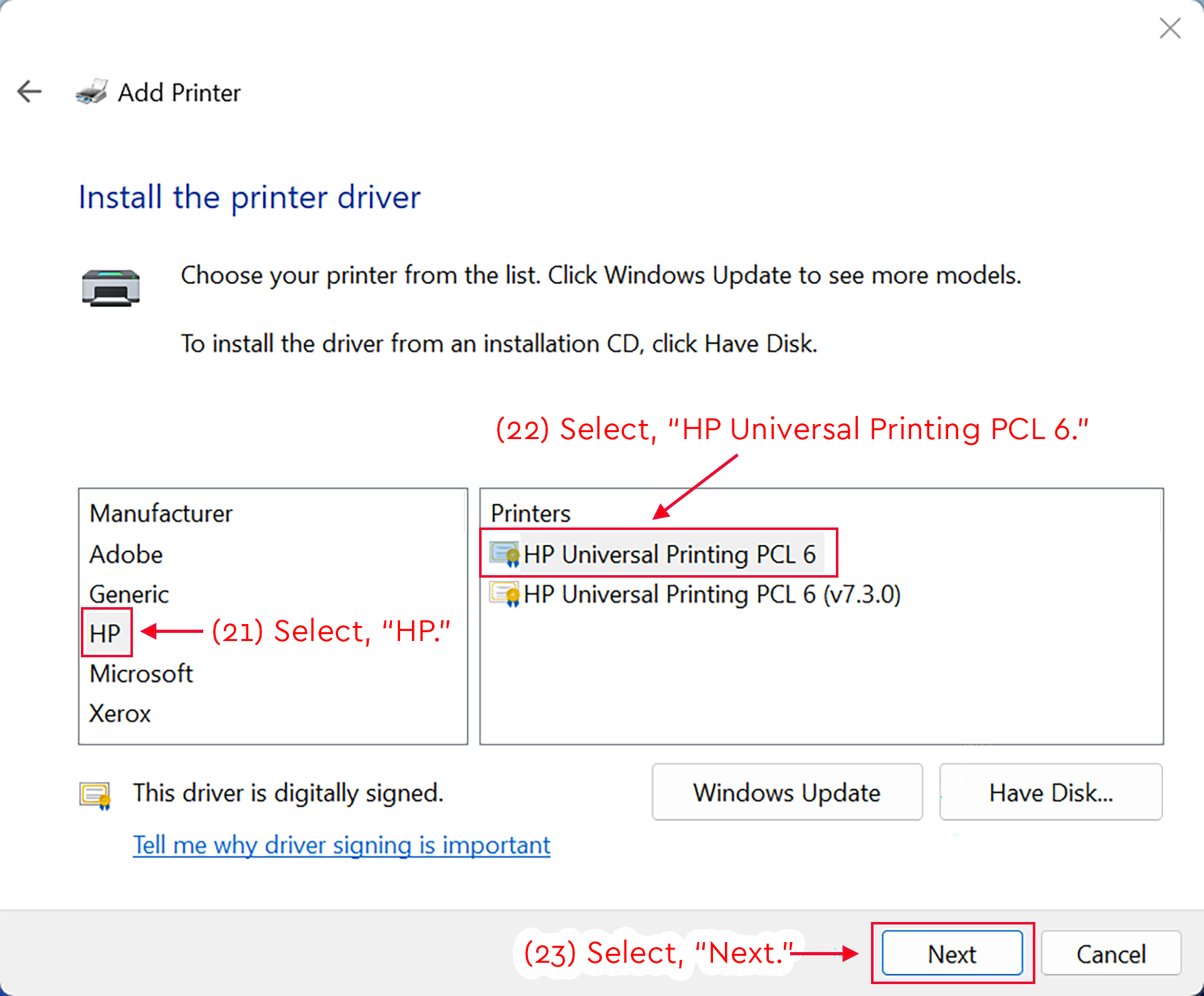
  1. Select, "HP," as the manufacturer.
  2. Select, "HP Universal Printing PCL6," as the printer.
  3. Select, "Next."
Windows Add Printer window with HP Universal Printing PCL 6 selected.
Detailed Image Description

The figure shows the Windows Add Printer window on the “Install the printer driver” screen.

The page instructs the user to choose a printer from the list. It also notes that Windows Update can show more models and that “Have Disk...” can be used to install a driver from an installation CD.

Two selection lists are shown. In the “Manufacturer” list, “HP” is selected and highlighted with a red box. A red arrow points to it with the instruction “(21) Select, ‘HP.’”

In the “Printers” list, “HP Universal Printing PCL 6” is selected and highlighted with a red box. A red arrow points to it with the instruction “(22) Select, ‘HP Universal Printing PCL 6.’”

Below the lists, the message “This driver is digitally signed” appears with a link labeled “Tell me why driver signing is important.” The “Windows Update” and “Have Disk...” buttons are visible.

At the bottom right of the window, the “Next” button is highlighted with a red box. A red arrow points to the button with the instruction “(23) Select, ‘Next.’” A “Cancel” button appears to the right of the “Next” button.

  1. Select, "Use the driver that is currently installed."
  2. Select, "Next."
Add Printer screen with Use the current driver selected and Next highlighted.
Detailed Image Description

The figure shows the Windows Add Printer window on the “Which version of the driver do you want to use?” screen.

The page states that Windows detected a driver is already installed for this printer. Two radio button options are shown: “Use the driver that is currently installed (recommended)” and “Replace the current driver.”

The “Use the driver that is currently installed (recommended)” option is selected and highlighted with a red box. A red arrow points to it with the instruction “(24) Select, ‘Use the driver that is currently installed.’”

At the bottom right of the window, the “Next” button is highlighted with a red box. A red arrow points to the button with the instruction “(25) Select, ‘Next.’” A “Cancel” button appears to the right of the “Next” button.

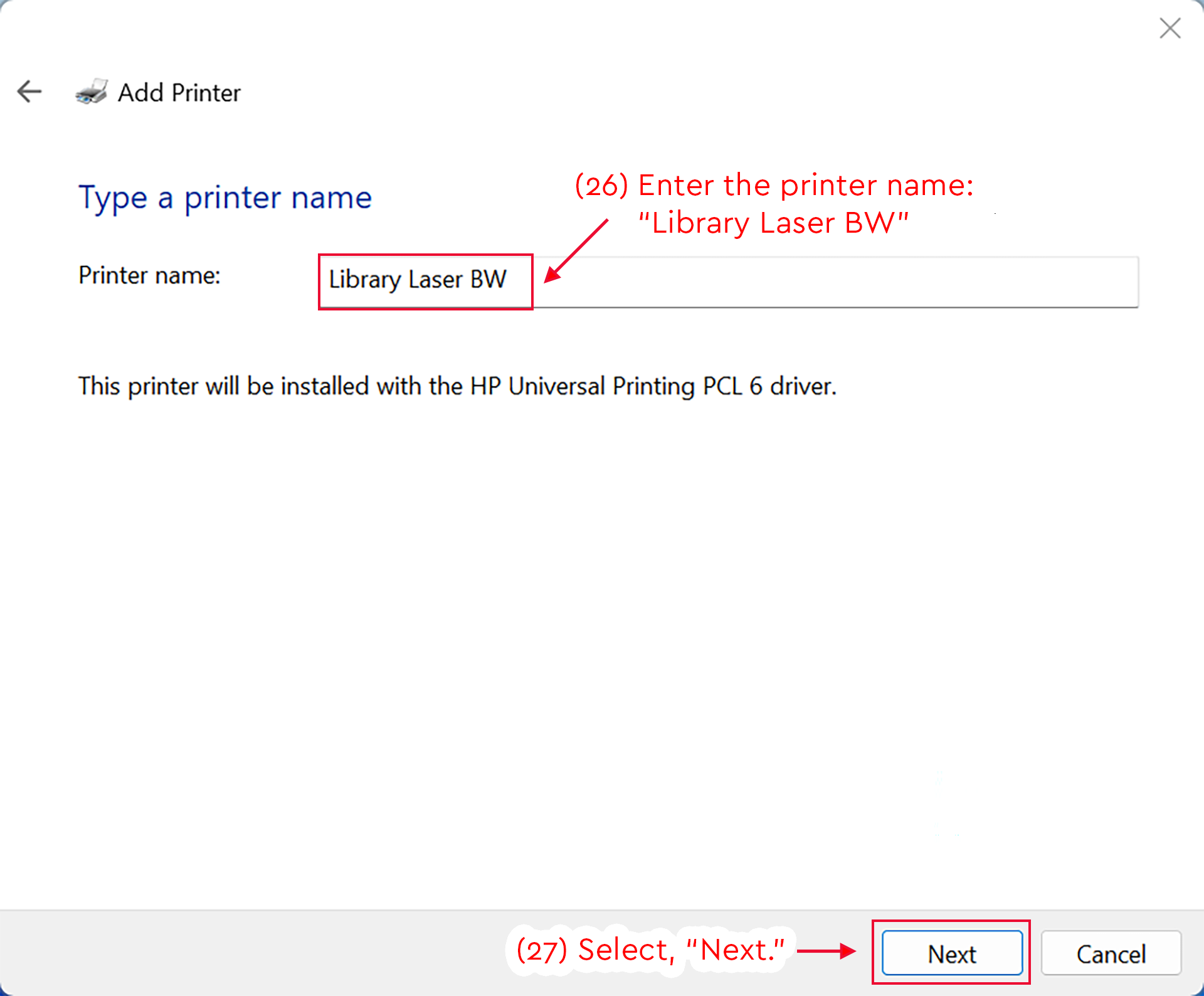
  1. Enter the printer name: "Library Laser BW"
  2. Select, "Next"
Add Printer screen with Library Laser BW entered and Next highlighted.
Detailed Image Description

The figure shows the Windows Add Printer window on the “Type a printer name” screen.

The “Printer name” field contains “Library Laser BW,” and a red box highlights the entry. A red arrow points to the field with the instruction “(26) Enter the printer name: ‘Library Laser BW.’”

Below the field, the page states that the printer will be installed with the HP Universal Printing PCL 6 driver.

At the bottom right of the window, the “Next” button is highlighted with a red box. A red arrow points to the button with the instruction “(27) Select, ‘Next.’” A “Cancel” button appears to the right of the “Next” button.

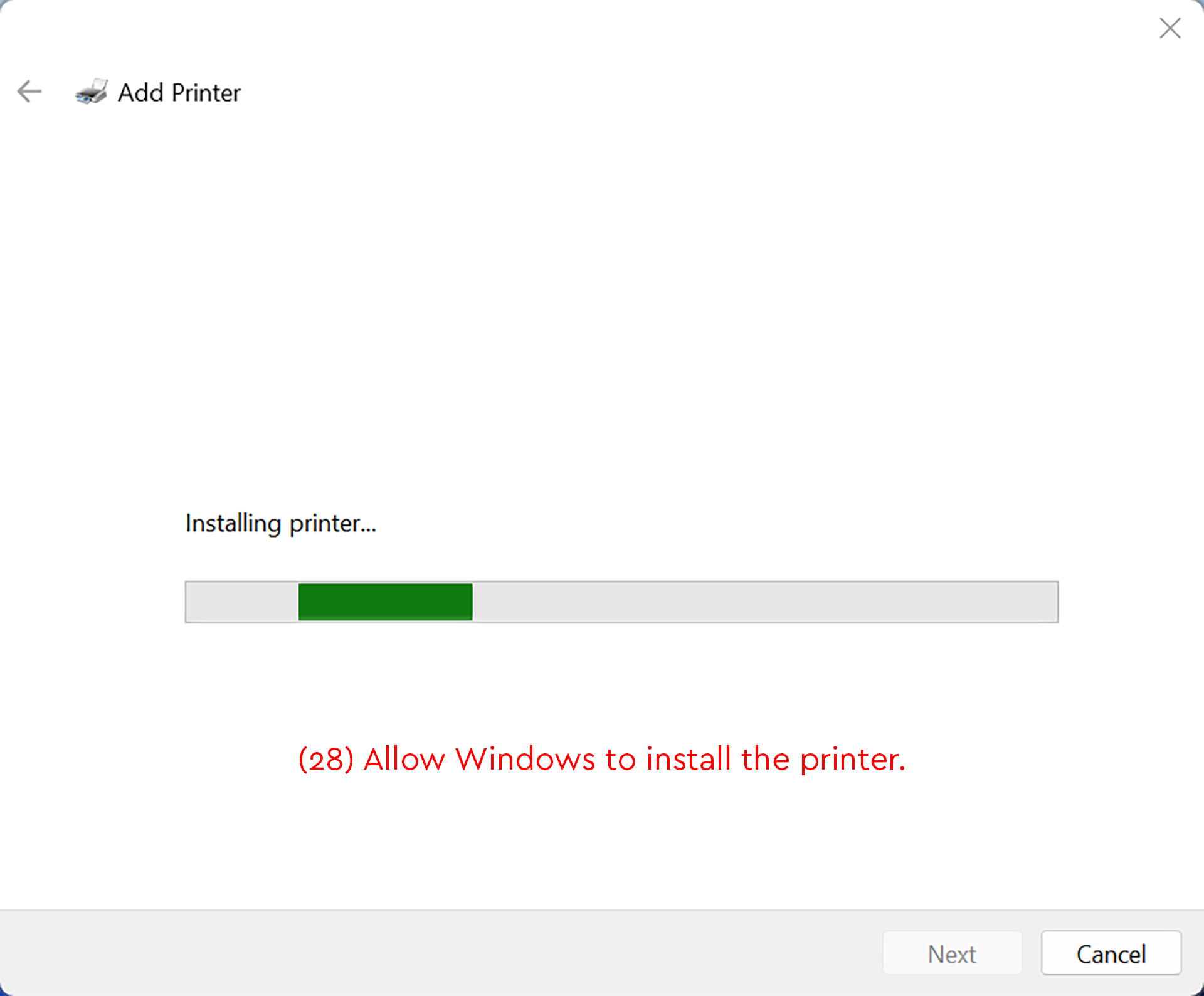
  1. Allow Windows to install the printer.
Add Printer window showing installation progress for Library Laser BW.
Detailed Image Description

The figure shows the Windows Add Printer window during the printer installation step.

Near the center of the window, the message “Installing printer...” appears above a horizontal progress bar. The progress bar is partially filled, indicating that Windows is still installing the printer.

Red instructional text below the progress bar reads “(28) Allow Windows to install the printer.”

At the bottom right of the window, the “Next” button is visible but disabled. The “Cancel” button is available to the right of it.

  1. Select, "Do not share this printer."
  2. Select, "Next."
Add Printer screen with Do not share this printer selected and Next highlighted.
Detailed Image Description

The figure shows the Windows Add Printer window on the “Printer Sharing” screen.

The page explains that if the user wants to share the printer, they must provide a share name. It also states that the share name will be visible to other network users.

Two radio button options are shown: “Do not share this printer” and “Share this printer so that others on your network can find and use it.” The “Do not share this printer” option is selected and highlighted with a red box. A red arrow points to it with the instruction “(29) Select, ‘Do not share this printer.’”

The share name, location, and comment fields are visible below the sharing option, but they are disabled because printer sharing is not selected.

At the bottom right of the window, the “Next” button is highlighted with a red box. A red arrow points to the button with the instruction “(30) Select, ‘Next.’” A “Cancel” button appears to the right of the “Next” button.


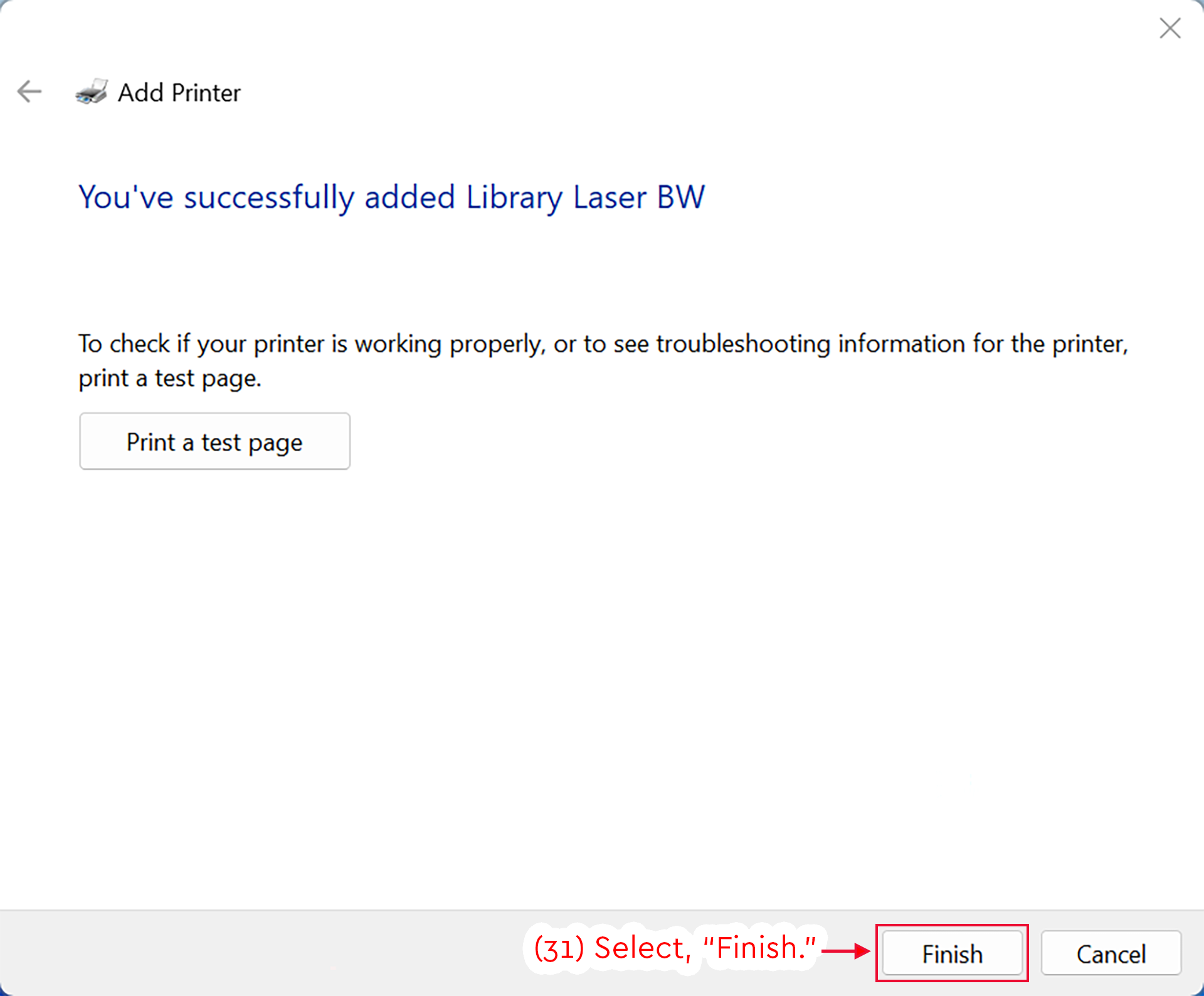
  1. Select, "Finish."
Add Printer confirmation screen showing Library Laser BW added and Finish highlighted.
Detailed Image Description

The figure shows the Windows Add Printer window after the printer has been installed.

The main message reads “You’ve successfully added Library Laser BW.” Below it, the page explains that the user can print a test page to check whether the printer is working properly or to view troubleshooting information. A “Print a test page” button is visible below this message.

At the bottom right of the window, the “Finish” button is highlighted with a red box. A red arrow points to the button with the instruction “(31) Select, ‘Finish.’” A “Cancel” button appears to the right of the “Finish” button.

Installing on Windows 11

The following set of instructions will guide you in installing the Library Color printer on a Windows 11 computer. This process may vary slightly on different versions of Windows, however the printer configuration options will remain the same (e.g. hostname and port configuration). If you run into problems installing the printer, please contact the NMU Help Desk for alternative instructions.

  1. Click the Start icon, or press the Windows Key, and search for "Printers & Scanners."
  2. Select "Printers & Scanners," from the results section.
Windows 11 Search showing Printers & scanners highlighted after searching Printers & Scanners.
Detailed Image Description

The figure shows the Windows 11 Search interface with instructional annotations for opening printer settings. At the top left, the search field contains the text “Printers & Scanners.” A red box surrounds the search field, and a red arrow points to it with the instruction “(1) Search for ‘Printers & Scanners.’”

Below the search field, the “Best match” result is highlighted with a red box. The result is labeled “Printers & scanners” and identified as “System settings.” A second red arrow points to this result with the instruction “(2) Select ‘Printers & Scanners.’”

The right side of the search window shows a preview panel for “Printers & scanners,” including a printer icon, the label “System settings,” and an “Open” option. Additional search categories and related settings are visible in the left column, including “Add a printer or scanner” and “Let Windows manage my default printer.”

  1. Once the Settings panel loads, click on "Add Device."
Windows 11 Printers & scanners settings with the Add device button highlighted.
Detailed Image Description

The figure shows the Windows 11 Settings app open to Bluetooth & devices > Printers & scanners. The main heading reads “Printers & scanners.” Near the top of the page, the “Add a printer or scanner” section appears with a blue “Add device” button on the right.

A red box surrounds the “Add device” button. A red arrow points to the button with the instruction “(3) Click ‘Add device.’” Below this section, several installed printers are listed, including “Adobe PDF,” “Jacobetti Laser,” “Microsoft Print to PDF,” and “OneNote (Desktop).”

The left sidebar shows the Windows Settings navigation menu, with “Bluetooth & devices” selected. Other menu options, including Home, System, Network & internet, Personalization, Apps, Accounts, Time & language, Gaming, Accessibility, Privacy & security, and Windows Update, are also visible.

  1. After Windows scans for devices, click on, "Add manually."
Windows 11 Printers & scanners settings with Add a new device manually highlighted.
Detailed Image Description

The figure shows the Windows 11 Settings app open to Bluetooth & devices > Printers & scanners. The main heading reads “Printers & scanners.”

The “Add a printer or scanner” section is expanded near the top of the page. A blue “Refresh” button appears on the right side of this section. Below it, a row reads “The printer that I want isn’t listed,” with a link on the right labeled “Add a new device manually.”

A red box surrounds the “Add a new device manually” link. A red arrow points to the link with the instruction “(4) Select, ‘Add a new device manually.’”

Below the expanded printer section, several installed printers are listed, including “Adobe PDF,” “Jacobetti Laser,” “Microsoft Print to PDF,” and “OneNote (Desktop).” The left sidebar shows the Windows Settings navigation menu, with “Bluetooth & devices” selected.

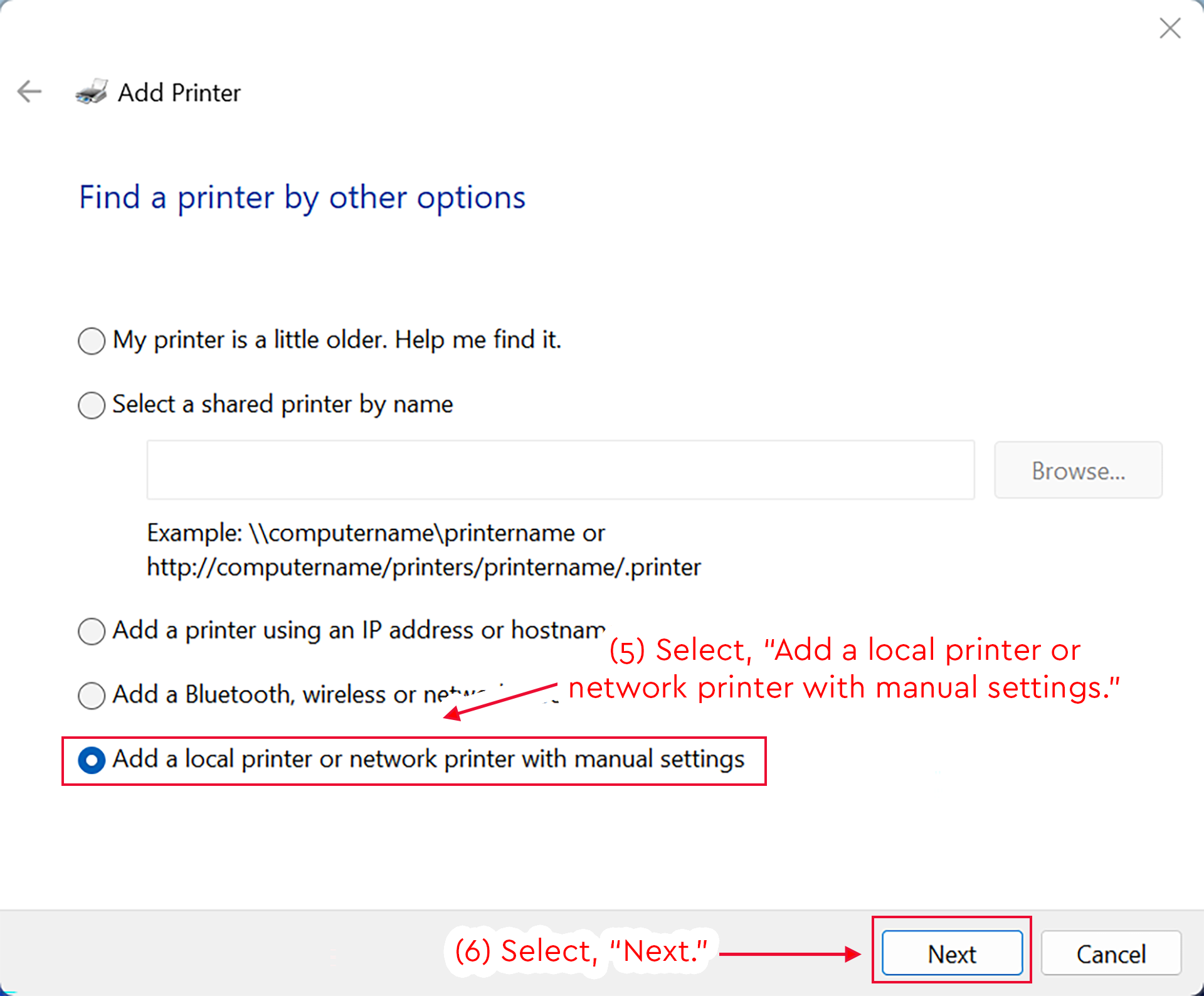
  1. On the Add Printer interface, select, "Add a local printer or network printer with manual settings."
  2. Select, "Next."
Windows Add Printer window with manual printer setup selected and the Next button highlighted.
Detailed Image Description

The figure shows the Windows Add Printer window on the “Find a printer by other options” screen.

Several printer setup options are listed as radio buttons. The selected option is “Add a local printer or network printer with manual settings.” A red box surrounds this selected option, and a red arrow points to it with the instruction “(5) Select, ‘Add a local printer or network printer with manual settings.’”

At the bottom right of the window, the “Next” button is highlighted with a red box. A red arrow points to the button with the instruction “(6) Select, ‘Next.’” A “Cancel” button appears to the right of the “Next” button.

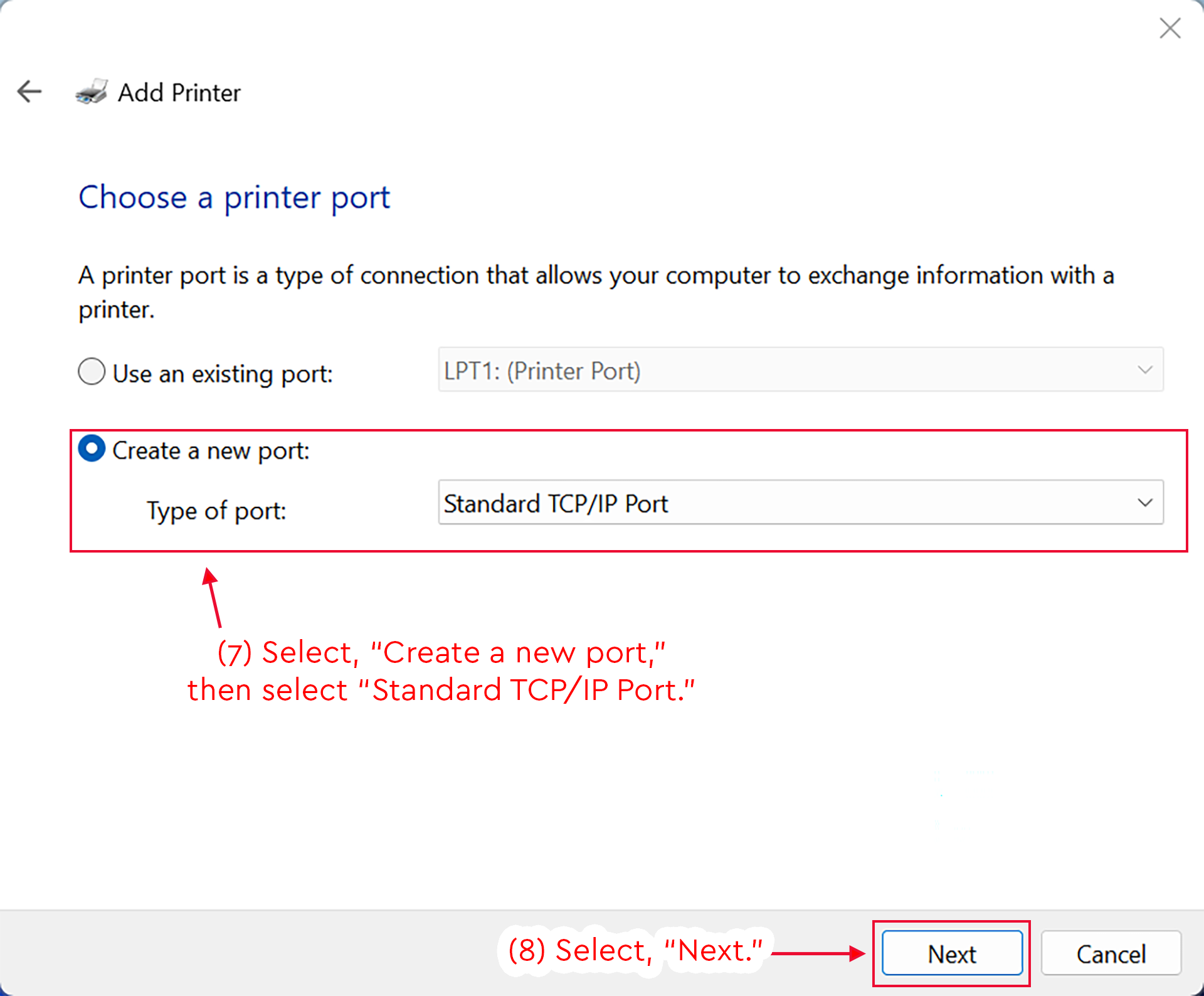
  1. Select, "Create a new port," then select, "Standard TCP/IP Port."
  2. Select, "Next."
Windows Add Printer screen with Create a new port and Standard TCP/IP Port selected.
Detailed Image Description

The figure shows the Windows Add Printer window on the “Choose a printer port” screen.

The page explains that a printer port is a type of connection that allows the computer to exchange information with a printer. Two port options are shown: “Use an existing port” and “Create a new port.”

The “Create a new port” radio button is selected. A red box surrounds this section, including the “Type of port” drop-down menu. The drop-down menu is set to “Standard TCP/IP Port.” A red arrow points to the selected section with the instruction “(7) Select, ‘Create a new port,’ then select ‘Standard TCP/IP Port.’”

At the bottom right of the window, the “Next” button is highlighted with a red box. A red arrow points to the button with the instruction “(8) Select, ‘Next.’” A “Cancel” button appears to the right of the “Next” button.

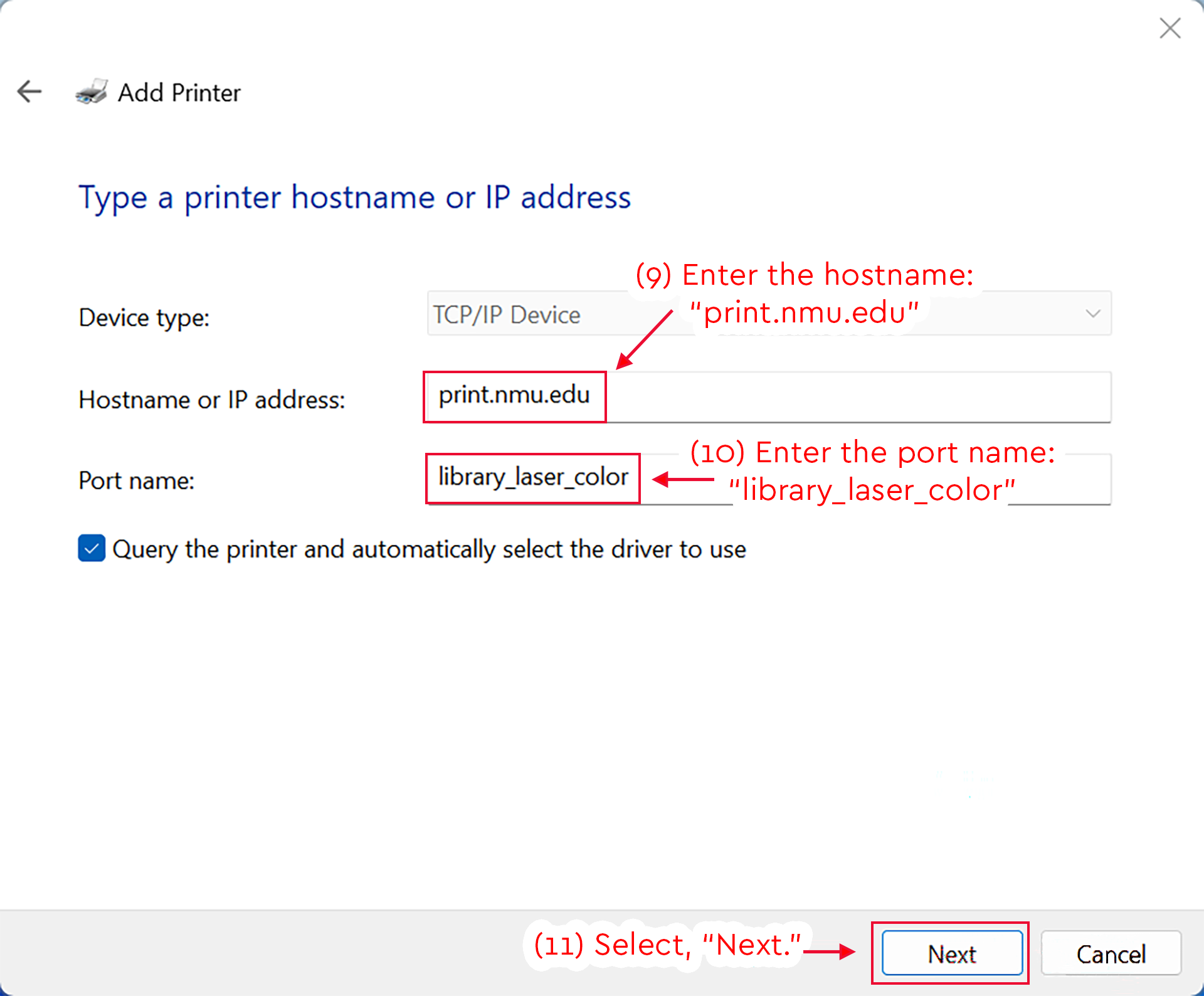
  1. Enter the hostname: "print.nmu.edu"
  2. Enter the port name: "library_laser_color"
  3. Select, "Next."
Add Printer screen with print.nmu.edu and library_laser_color entered.
Detailed Image Description

The figure shows the Windows Add Printer window on the “Type a printer hostname or IP address” screen.

The “Device type” field is set to “TCP/IP Device.” The “Hostname or IP address” field contains “print.nmu.edu,” and a red box highlights this entry. A red arrow points to the field with the instruction “(9) Enter the hostname: ‘print.nmu.edu.’”

The “Port name” field contains “library_laser_color,” and a red box highlights this entry. A red arrow points to the field with the instruction “(10) Enter the port name: ‘library_laser_color.’”

Below the port name field, the checkbox for “Query the printer and automatically select the driver to use” is selected.

At the bottom right of the window, the “Next” button is highlighted with a red box. A red arrow points to the button with the instruction “(11) Select, ‘Next.’” A “Cancel” button appears to the right of the “Next” button.

  1. Wait for Windows to detect the TCP/IP port.
Windows Add Printer screen detecting the TCP/IP port and instructing the user to wait.
Detailed Image Description

The figure shows the Windows Add Printer window on the “Detecting TCP/IP port” screen.

The main message reads “Detecting the TCP/IP port...” Below it, supporting text states that Windows will automatically move to the next page when detection is done.

A small printer search icon appears near the center of the window. Red instructional text near the bottom reads “(12) Wait for Windows to detect the TCP/IP port.”

At the bottom right of the window, the “Next” button is visible but disabled. The “Cancel” button is available to the right of it.

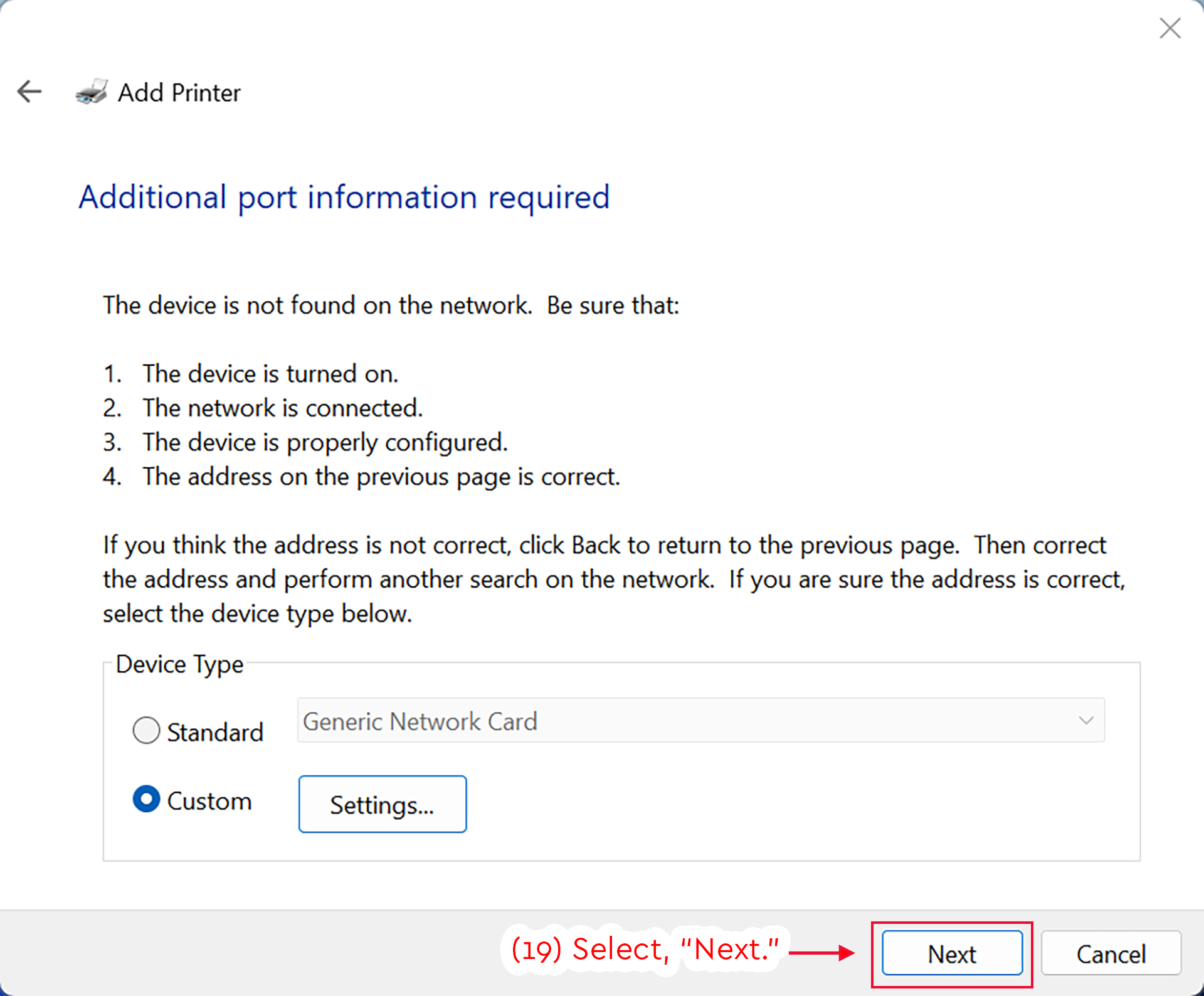
  1. Select, "Custom," and then press, "Settings...".
Add Printer screen with Custom selected and the Settings button highlighted.
Detailed Image Description

The figure shows the Windows Add Printer window on the “Additional port information required” screen.

The page states that the device was not found on the network. It lists possible causes, including that the device may not be turned on, the network may not be connected, the device may not be properly configured, or the address entered on the previous page may not be correct.

In the “Device Type” section, two radio button options are shown: “Standard” and “Custom.” The “Custom” option is selected. A red box surrounds the selected “Custom” option and the “Settings...” button. A red arrow points to this area with the instruction “(13) Select ‘Custom,’ then press ‘Settings...’”

At the bottom right of the window, the “Next” and “Cancel” buttons are visible.

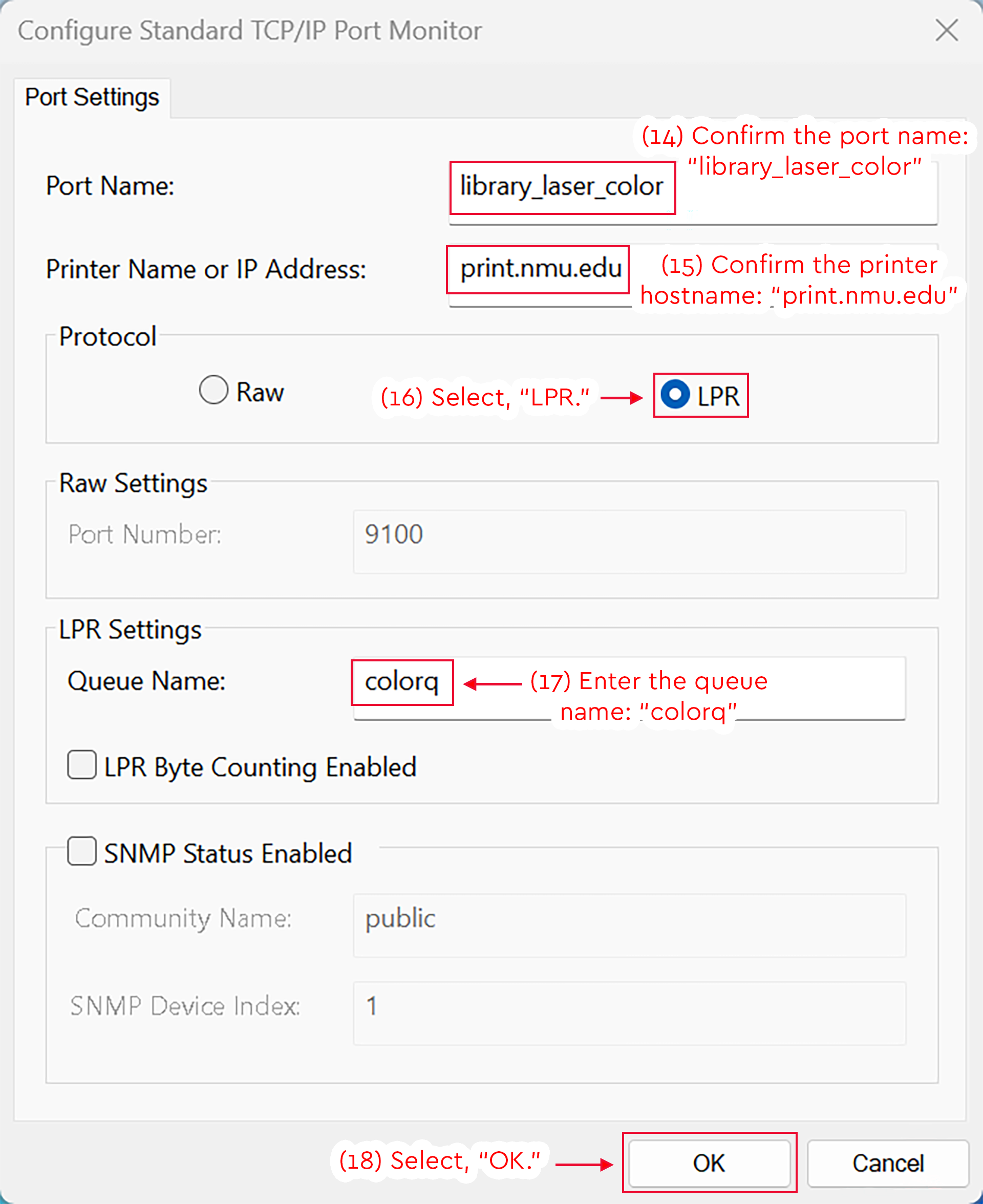
  1. Enter the port name, "library_laser_color"
  2. Enter the hostname, "print.nmu.edu"
  3. Select the "LPR," protocol
  4. Enter the Queue Name, "colorq"
  5. Select, "OK."
TCP/IP Port Monitor settings with color printer port, LPR, colorq, and OK highlighted.
Detailed Image Description

The figure shows the Configure Standard TCP/IP Port Monitor window on the “Port Settings” tab.

The “Port Name” field contains “library_laser_color,” and a red box highlights the entry. A red annotation reads “(14) Confirm the port name: ‘library_laser_color.’”

The “Printer Name or IP Address” field contains “print.nmu.edu,” and a red box highlights the entry. A red annotation reads “(15) Confirm the printer hostname: ‘print.nmu.edu.’”

In the “Protocol” section, the “LPR” radio button is selected. A red box surrounds the selected “LPR” option, and a red arrow points to it with the instruction “(16) Select, ‘LPR.’”

In the “LPR Settings” section, the “Queue Name” field contains “colorq,” and a red box highlights the entry. A red arrow points to the field with the instruction “(17) Enter the queue name: ‘colorq.’”

The “LPR Byte Counting Enabled” checkbox is unchecked. The “SNMP Status Enabled” checkbox is also unchecked, and the related SNMP fields are disabled.

At the bottom right of the window, the “OK” button is highlighted with a red box. A red arrow points to the button with the instruction “(18) Select, ‘OK.’” A “Cancel” button appears to the right of the “OK” button.

  1. Select, "Next."
Add Printer screen with Custom selected and the Next button highlighted.
Detailed Image Description

The figure shows the Windows Add Printer window on the “Additional port information required” screen.

The page states that the device was not found on the network and lists possible causes, including that the device may not be turned on, the network may not be connected, the device may not be properly configured, or the address entered on the previous page may not be correct.

In the “Device Type” section, the “Custom” radio button is selected. The “Settings...” button is visible next to it.

At the bottom right of the window, the “Next” button is highlighted with a red box. A red arrow points to the button with the instruction “(19) Select, ‘Next.’” A “Cancel” button appears to the right of the “Next” button.

  1. Allow Windows to detect the printer's driver.
Add Printer screen detecting the printer driver model with instruction to wait.
Detailed Image Description

The figure shows the Windows Add Printer window on the “Detecting the driver model...” screen.

The page states that Windows is communicating with the printer and will automatically detect the printer driver to use. A small printer search icon appears near the center of the window.

Red instructional text near the bottom reads “(20) Allow Windows to detect the printer’s driver.”

At the bottom right of the window, the “Next” button is visible but disabled. The “Cancel” button is available to the right of it.

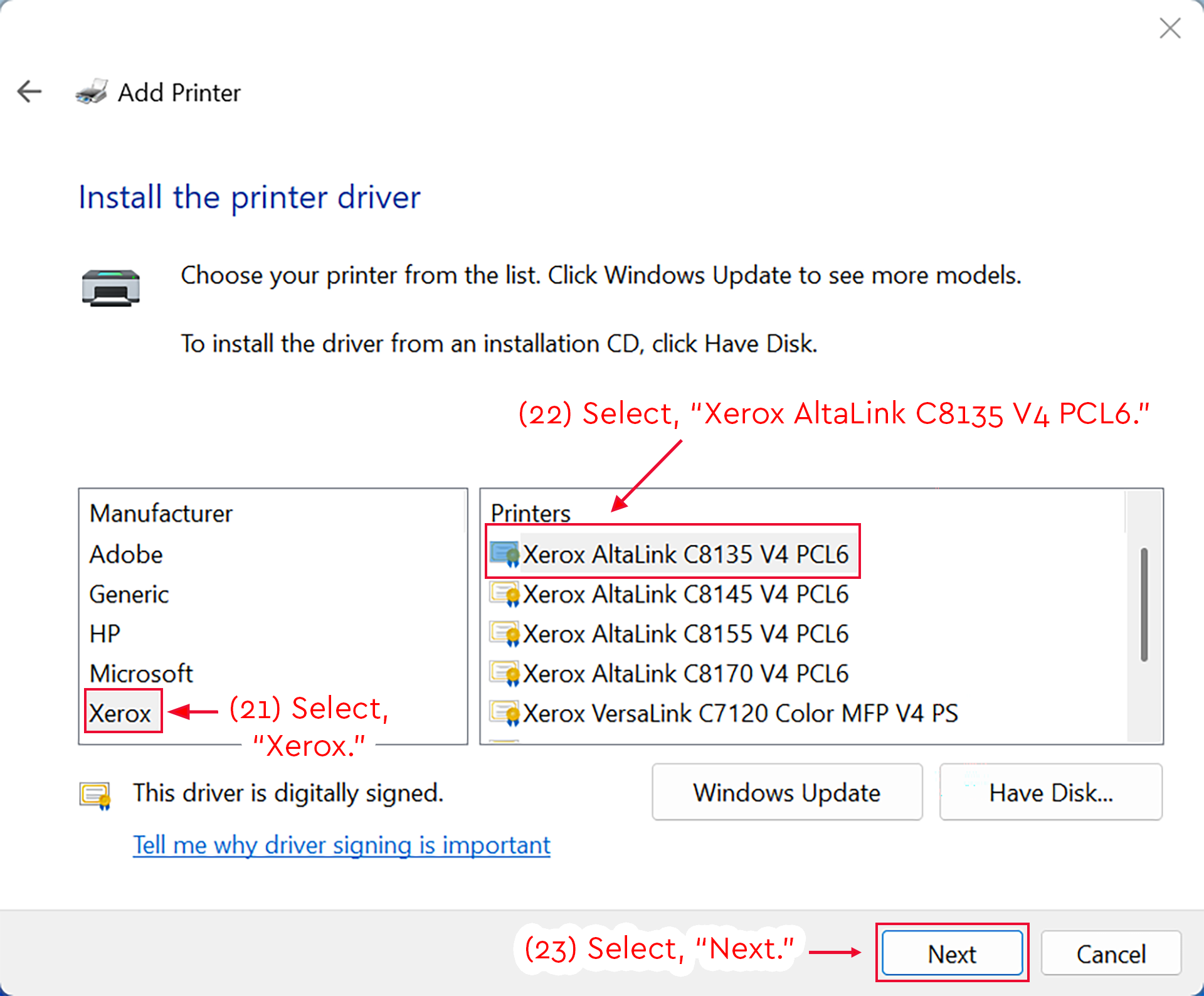
  1. Select, "Xerox," as the manufacturer.
  2. Select, "Xerox AltaLink C8135 V4 PCL6," as the printer.
  3. Select, "Next."
Windows Add Printer window with Xerox AltaLink C8135 V4 PCL6 selected.
Detailed Image Description

The figure shows the Windows Add Printer window on the “Install the printer driver” screen.

The page instructs the user to choose a printer from the list. It also notes that Windows Update can show more models and that “Have Disk...” can be used to install a driver from an installation CD.

Two selection lists are shown. In the “Manufacturer” list, “Xerox” is selected and highlighted with a red box. A red arrow points to it with the instruction “(21) Select, ‘Xerox.’”

In the “Printers” list, “Xerox AltaLink C8135 V4 PCL6” is selected and highlighted with a red box. A red arrow points to it with the instruction “(22) Select, ‘Xerox AltaLink C8135 V4 PCL6.’”

Below the lists, the message “This driver is digitally signed” appears with a link labeled “Tell me why driver signing is important.” The “Windows Update” and “Have Disk...” buttons are visible.

At the bottom right of the window, the “Next” button is highlighted with a red box. A red arrow points to the button with the instruction “(23) Select, ‘Next.’” A “Cancel” button appears to the right of the “Next” button.

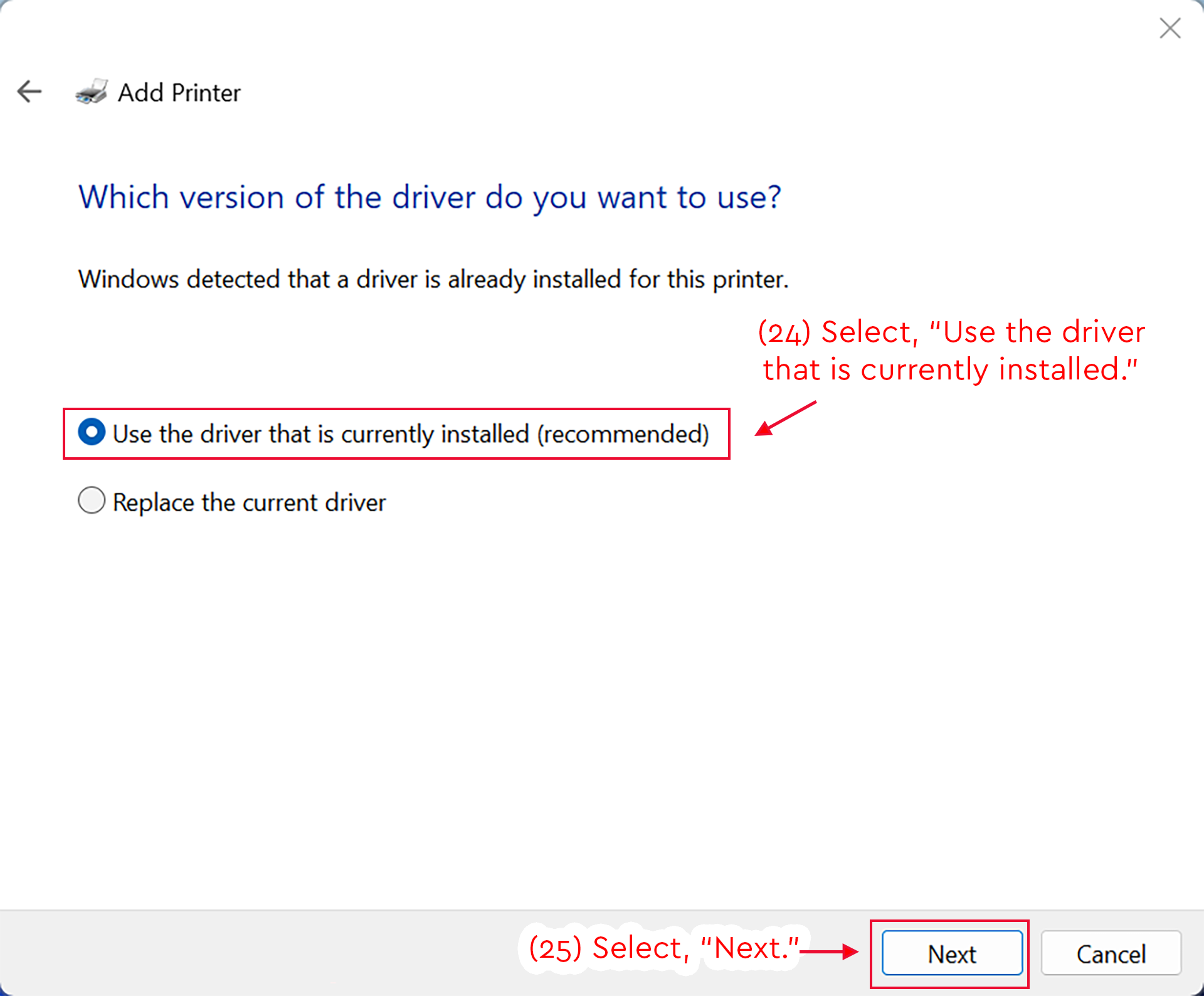
  1. Select, "Use the driver that is currently installed."
  2. Select, "Next."
Add Printer screen with Use the current driver selected and Next highlighted.
Detailed Image Description

The figure shows the Windows Add Printer window on the “Which version of the driver do you want to use?” screen.

The page states that Windows detected a driver is already installed for this printer. Two radio button options are shown: “Use the driver that is currently installed (recommended)” and “Replace the current driver.”

The “Use the driver that is currently installed (recommended)” option is selected and highlighted with a red box. A red arrow points to it with the instruction “(24) Select, ‘Use the driver that is currently installed.’”

At the bottom right of the window, the “Next” button is highlighted with a red box. A red arrow points to the button with the instruction “(25) Select, ‘Next.’” A “Cancel” button appears to the right of the “Next” button.

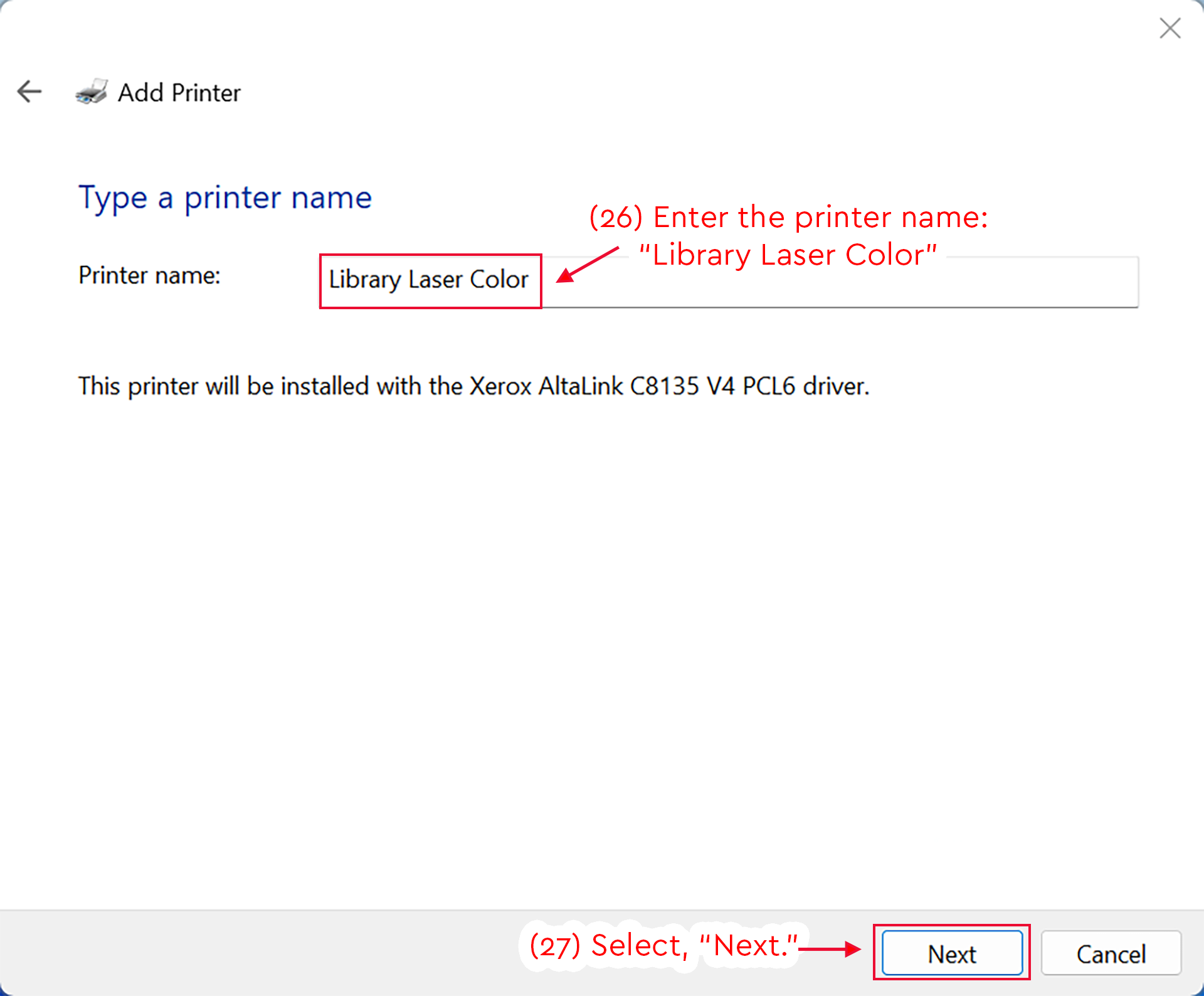
  1. Enter the printer name: "Library Laser Color"
  2. Select, "Next"
Add Printer screen with Library Laser Color entered and Next highlighted.
Detailed Image Description

The figure shows the Windows Add Printer window on the “Type a printer name” screen.

The “Printer name” field contains “Library Laser Color,” and a red box highlights the entry. A red arrow points to the field with the instruction “(26) Enter the printer name: ‘Library Laser Color.’”

Below the field, the page states that the printer will be installed with the Xerox AltaLink C8135 V4 PCL6 driver.

At the bottom right of the window, the “Next” button is highlighted with a red box. A red arrow points to the button with the instruction “(27) Select, ‘Next.’” A “Cancel” button appears to the right of the “Next” button.

  1. Allow Windows to install the printer.
Add Printer window showing installation progress for Library Laser BW.
Detailed Image Description

The figure shows the Windows Add Printer window during the printer installation step.

Near the center of the window, the message “Installing printer...” appears above a horizontal progress bar. The progress bar is partially filled, indicating that Windows is still installing the printer.

Red instructional text below the progress bar reads “(28) Allow Windows to install the printer.”

At the bottom right of the window, the “Next” button is visible but disabled. The “Cancel” button is available to the right of it.

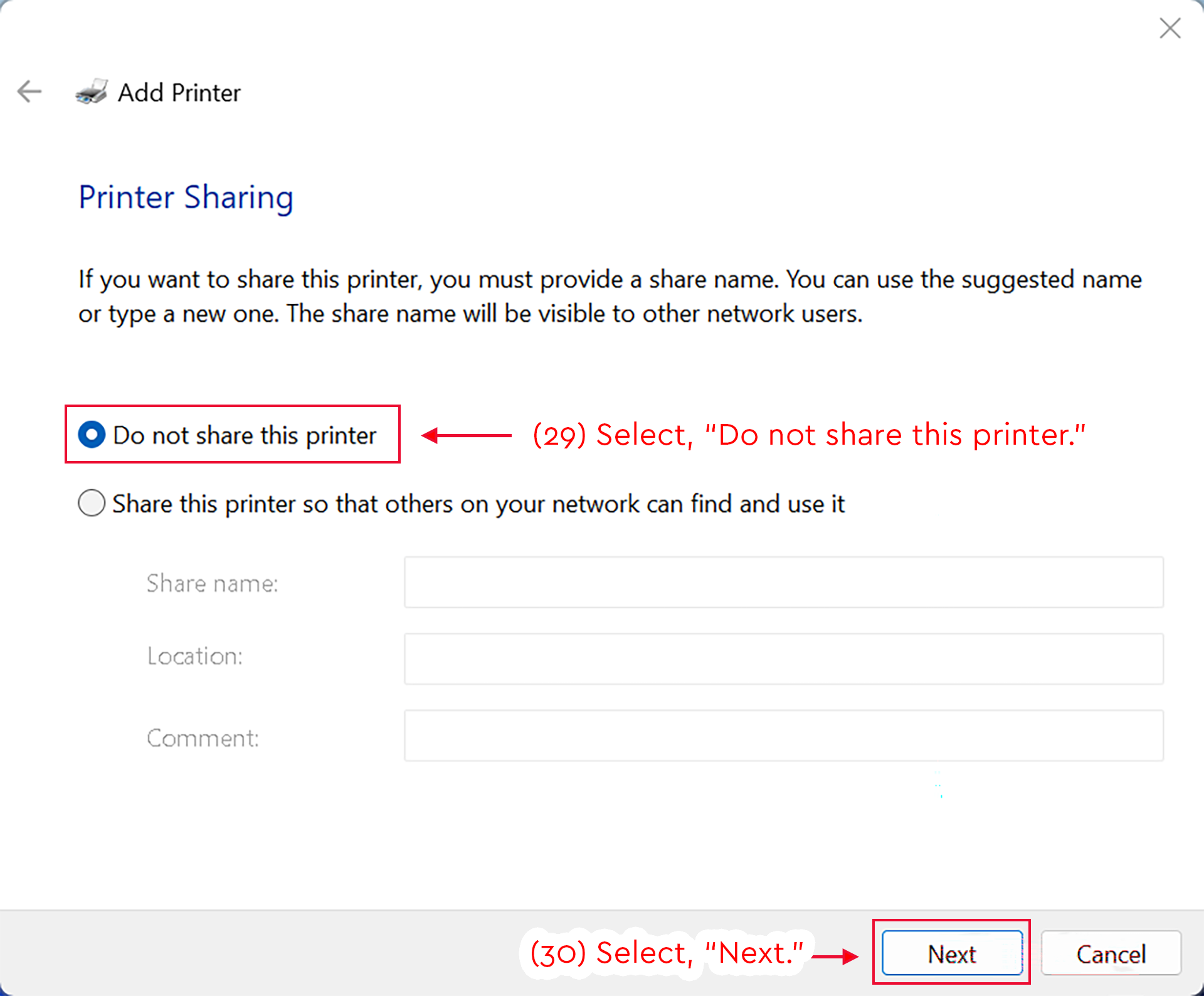
  1. Select, "Do not share this printer."
  2. Select, "Next."
Add Printer screen with Do not share this printer selected and Next highlighted.
Detailed Image Description

The figure shows the Windows Add Printer window on the “Printer Sharing” screen.

The page explains that if the user wants to share the printer, they must provide a share name. It also states that the share name will be visible to other network users.

Two radio button options are shown: “Do not share this printer” and “Share this printer so that others on your network can find and use it.” The “Do not share this printer” option is selected and highlighted with a red box. A red arrow points to it with the instruction “(29) Select, ‘Do not share this printer.’”

The share name, location, and comment fields are visible below the sharing option, but they are disabled because printer sharing is not selected.

At the bottom right of the window, the “Next” button is highlighted with a red box. A red arrow points to the button with the instruction “(30) Select, ‘Next.’” A “Cancel” button appears to the right of the “Next” button.


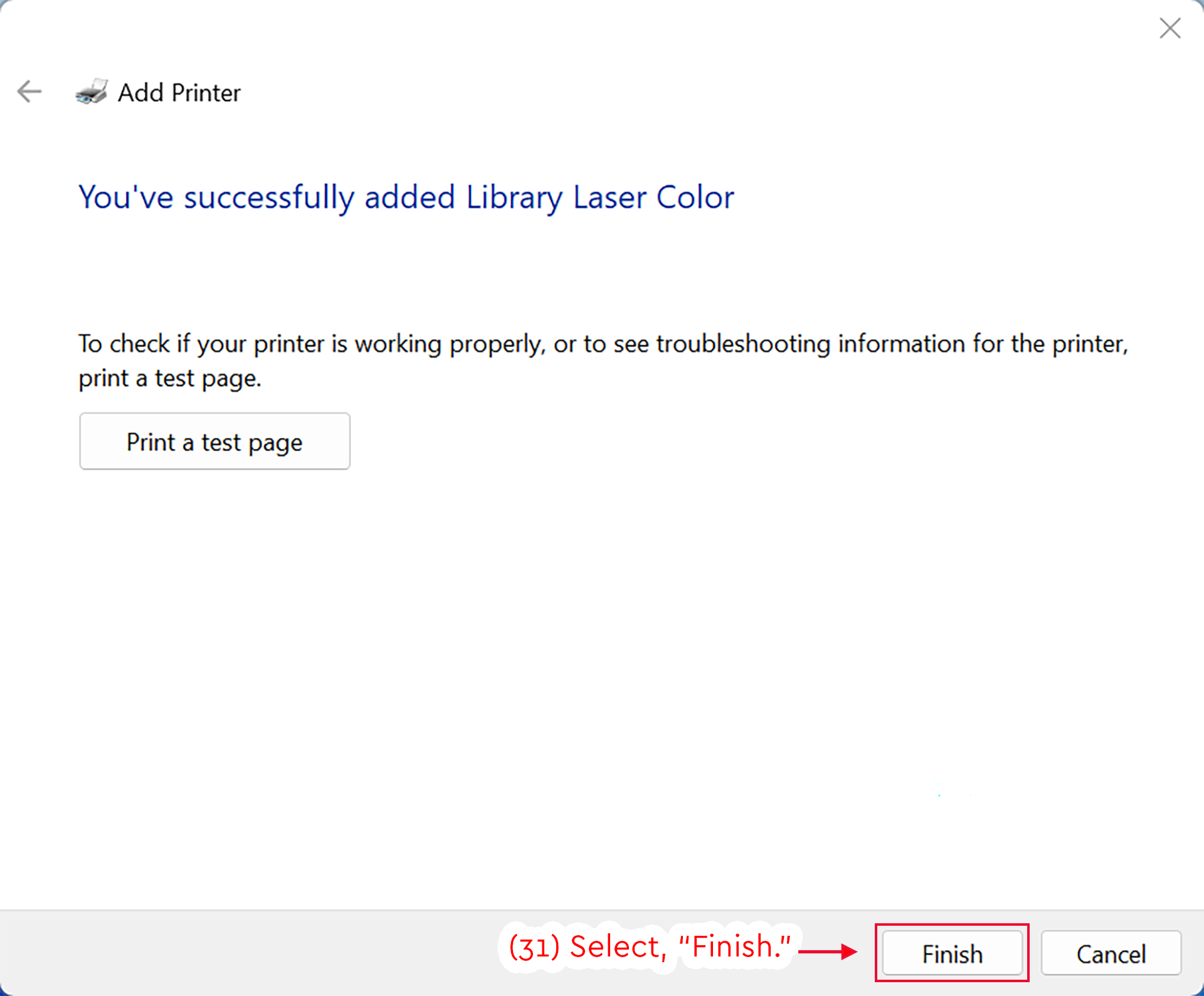
  1. Select, "Finish."
Add Printer confirmation screen showing Library Laser Color added and Finish highlighted.
Detailed Image Description

The figure shows the Windows Add Printer window after the printer has been installed.

The main message reads “You’ve successfully added Library Laser Color.” Below it, the page explains that the user can print a test page to check whether the printer is working properly or to view troubleshooting information. A “Print a test page” button is visible below this message.

At the bottom right of the window, the “Finish” button is highlighted with a red box. A red arrow points to the button with the instruction “(31) Select, ‘Finish.’” A “Cancel” button appears to the right of the “Finish” button.
Installing a Printer on macOS 26

Installing on macOS 26 Tahoe

The following set of instructions will guide you in installing the Library Black & White printer on a macOS 26 Tahoe computer. This process may vary slightly on different versions of macOS, however the printer configuration options will remain the same (e.g. hostname and port configuration in steps). If you run into problems installing the printer, please contact the NMU Help Desk for alternative instructions.

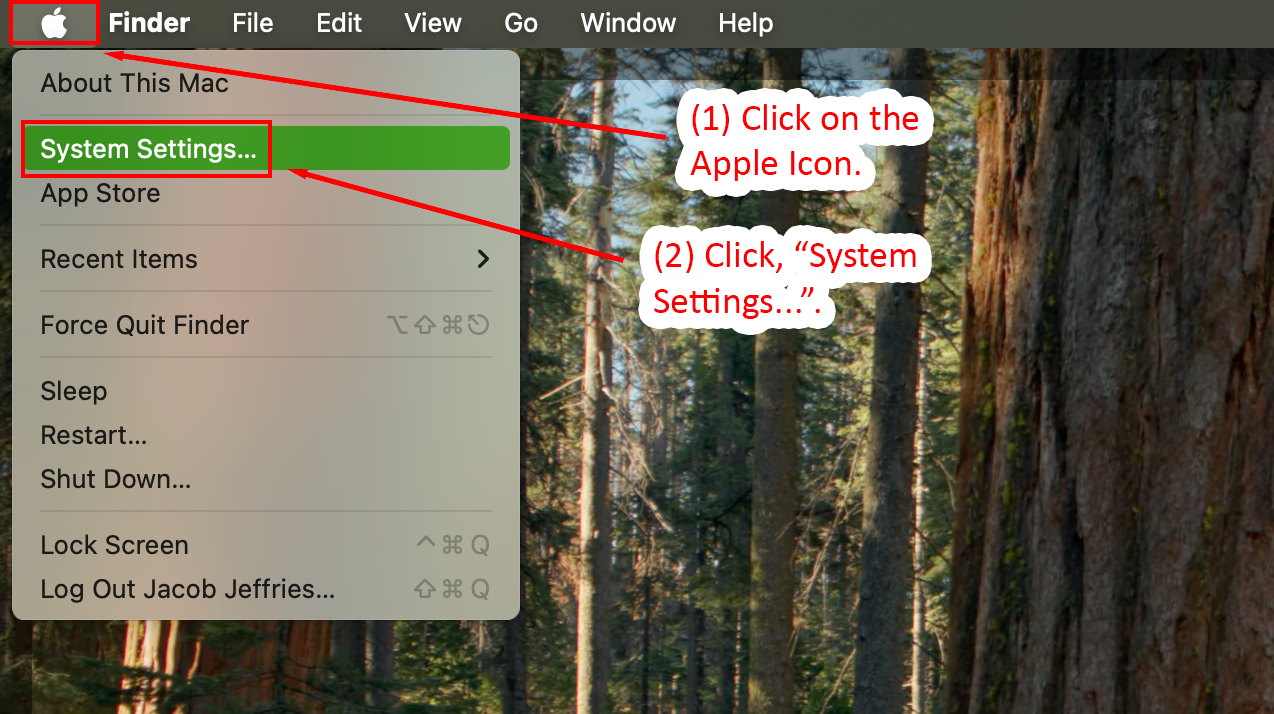
  1. Click on the Apple Icon, in the top-left of the screen.
  2. Click, "System Settings...".
Apple menu showing System Settings
Detailed Image Description

The image displays the macOS 15 Apple menu in the top-left corner of the screen, with a forest background visible behind the dropdown. Two steps are annotated in red text with arrows. Step 1 directs users to click the Apple icon, and Step 2 highlights the "System Settings..." option, shown with a green background in the dropdown menu.

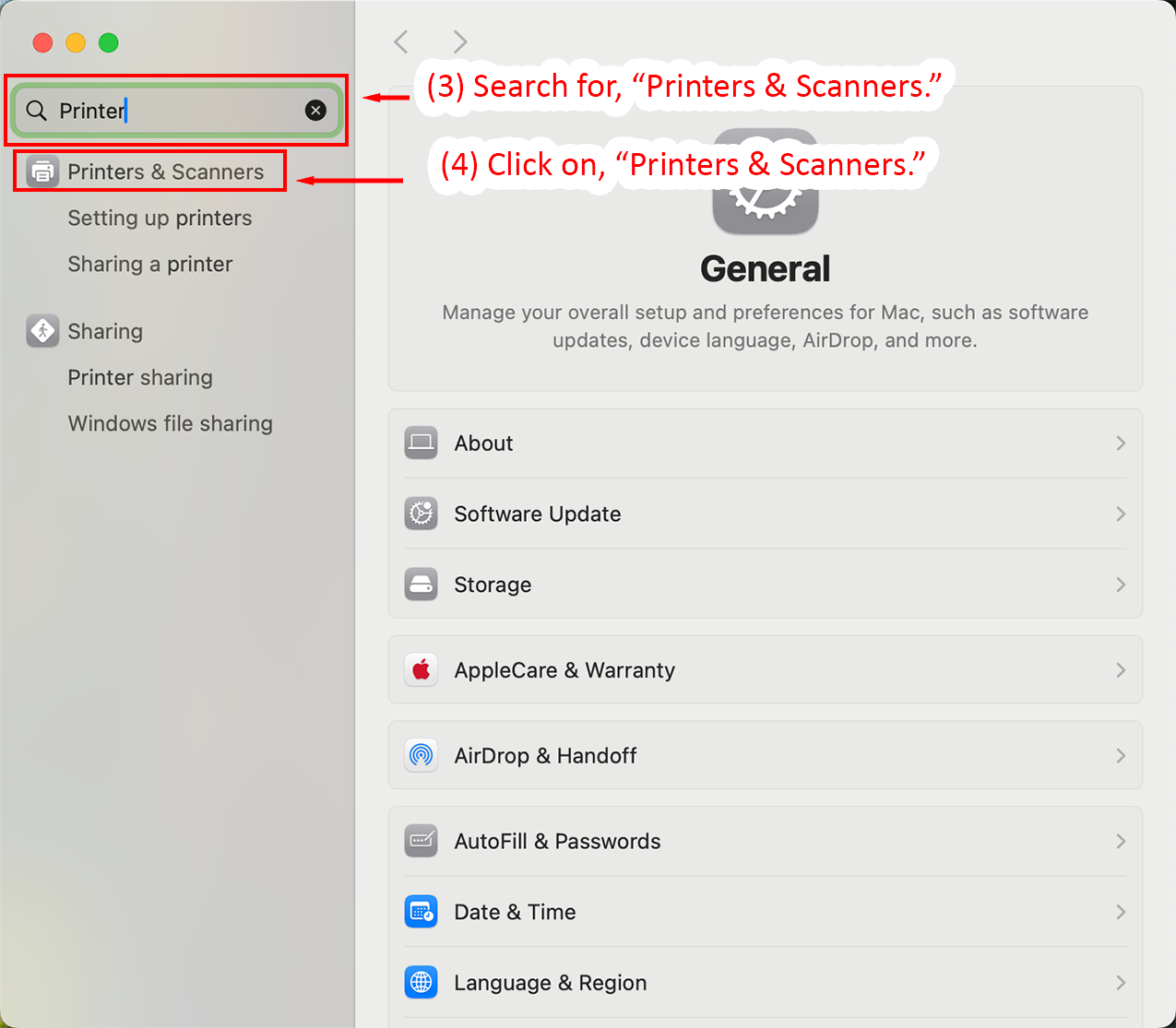
  1. In the search box, search for, "Printers & Scanners."
  2. When the results load, click on, "Printers & Scanners."
Search for and select Printers and Scanners
Detailed Image Description

The image shows the System Settings window in macOS 15. A search bar in the top-left corner contains the term "Printer," highlighted with a red outline. Below the search bar, the "Printers & Scanners" option is also outlined in red and annotated as Step 4. On the right side, the General settings page is displayed, with various options such as About, Software Update, and Storage visible in a list. Steps 3 and 4 are marked in red text and arrows to guide the user to search for and click on "Printers & Scanners."

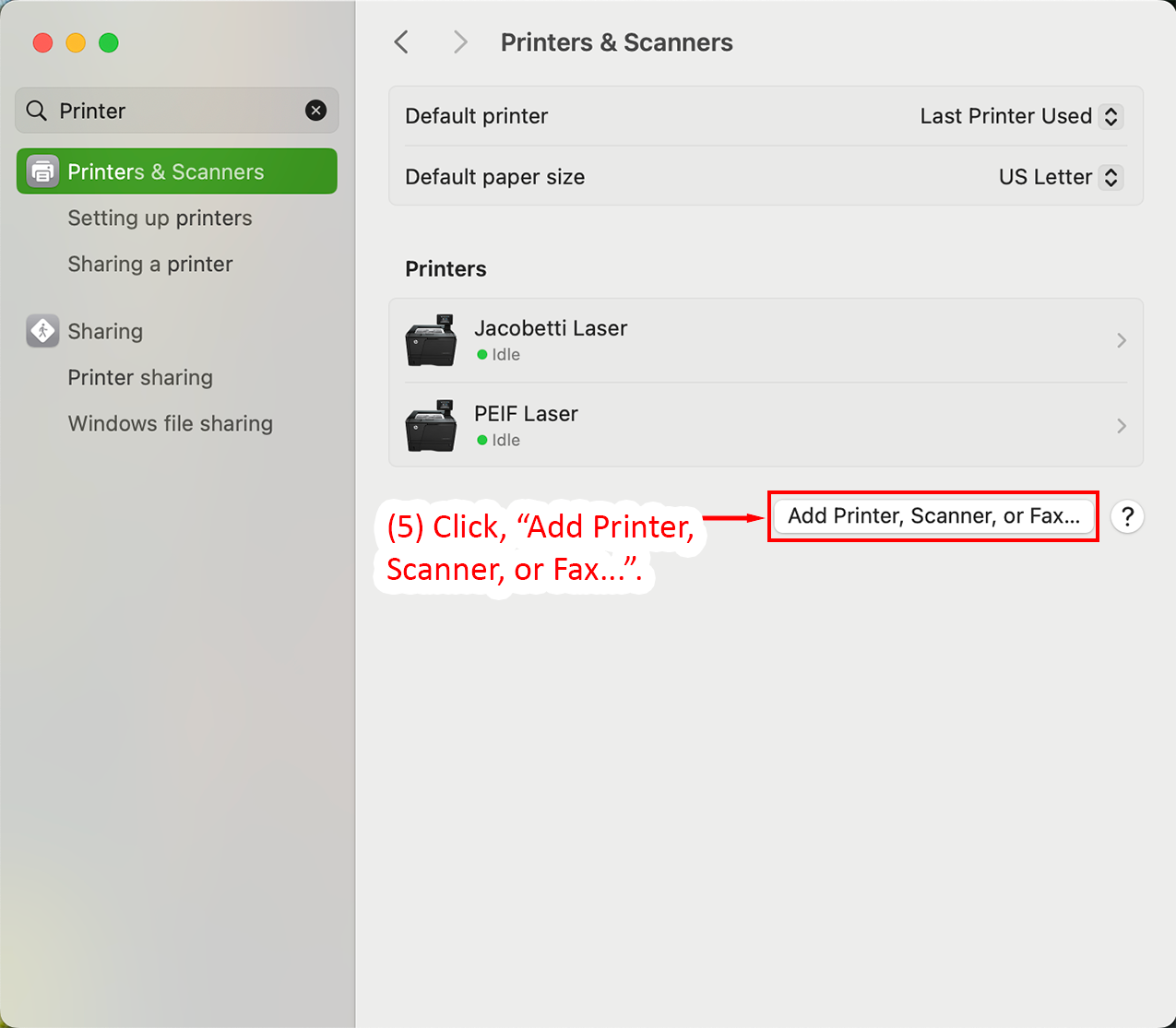
  1. Click, "Add Printer, Scanner, or Fax...".
Printers and Scanners page with Add Printer option highlighted.
Detailed Image Description

The image shows the Printers & Scanners settings page in macOS 15. On the left side, the "Printers & Scanners" option is highlighted in green within the System Settings menu. The right side of the window lists two printers: Jacobetti Laser and PEIF Laser, both marked as idle. Above the printer list, default printer and paper size settings are displayed. At the bottom-right, the "Add Printer, Scanner, or Fax..." button is outlined in red and annotated as Step 5 with a red arrow and text.

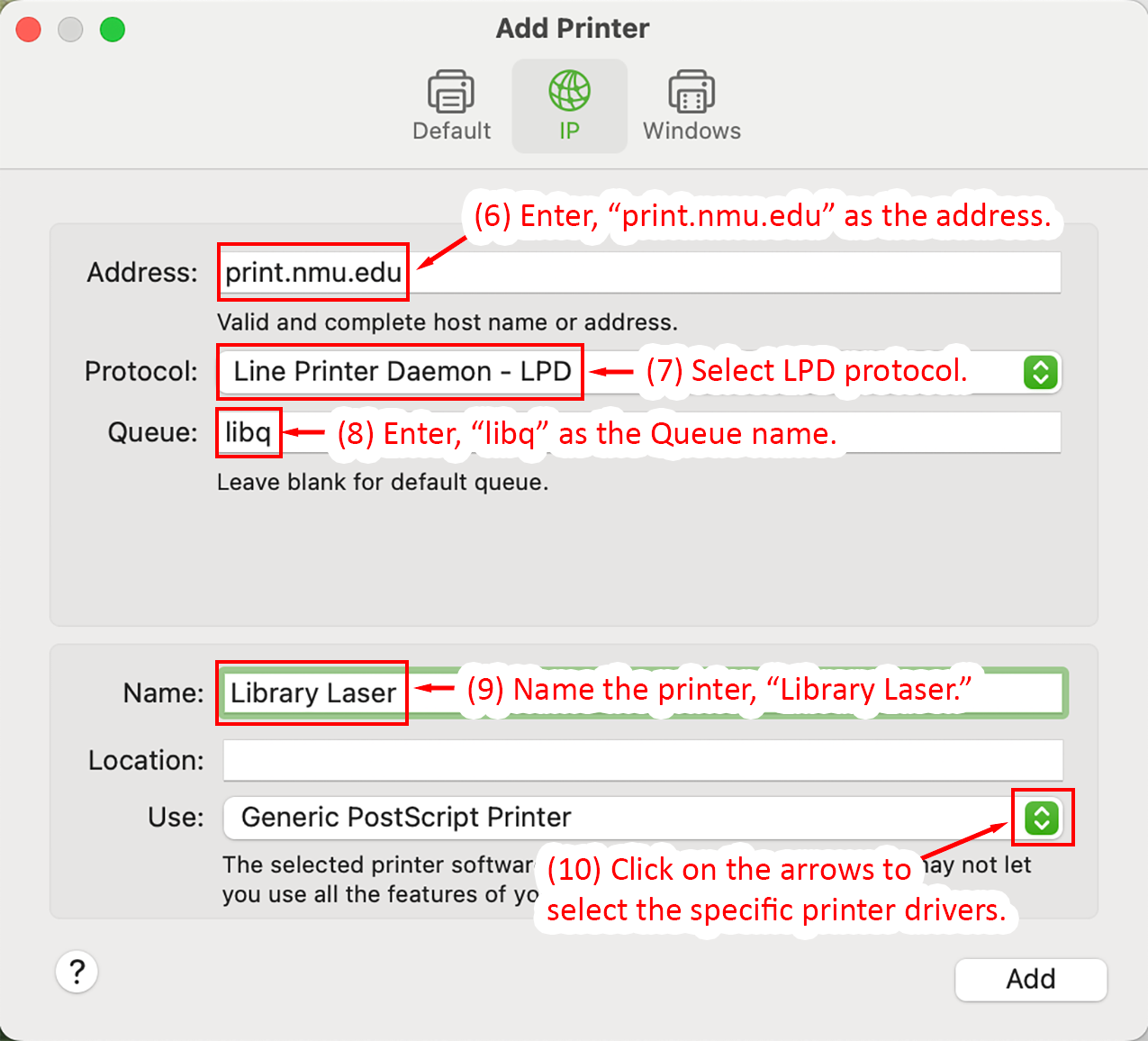
  1. Enter, "print.nmu.edu" as the address.
  2. Select LPD protocol.
  3. Enter, "libq" as the Queue name.
  4. Name the printer, "Library Laser."
  5. Click on the arrows to select the specific printer drivers.
Detailed Image Description

The image displays the Add Printer window in macOS 15, focused on the "IP" tab. Several fields are filled in and annotated with red text and arrows for specific instructions. Step 6 highlights the "Address" field with "print.nmu.edu" entered. Step 7 instructs selecting "Line Printer Daemon - LPD" as the protocol. Step 8 shows "libq" entered as the Queue name. Step 9 names the printer "Library Laser." Step 10 highlights the dropdown menu for selecting specific printer drivers under the "Use" section, currently displaying "Generic PostScript Printer." The "Add" button is visible in the bottom-right corner.

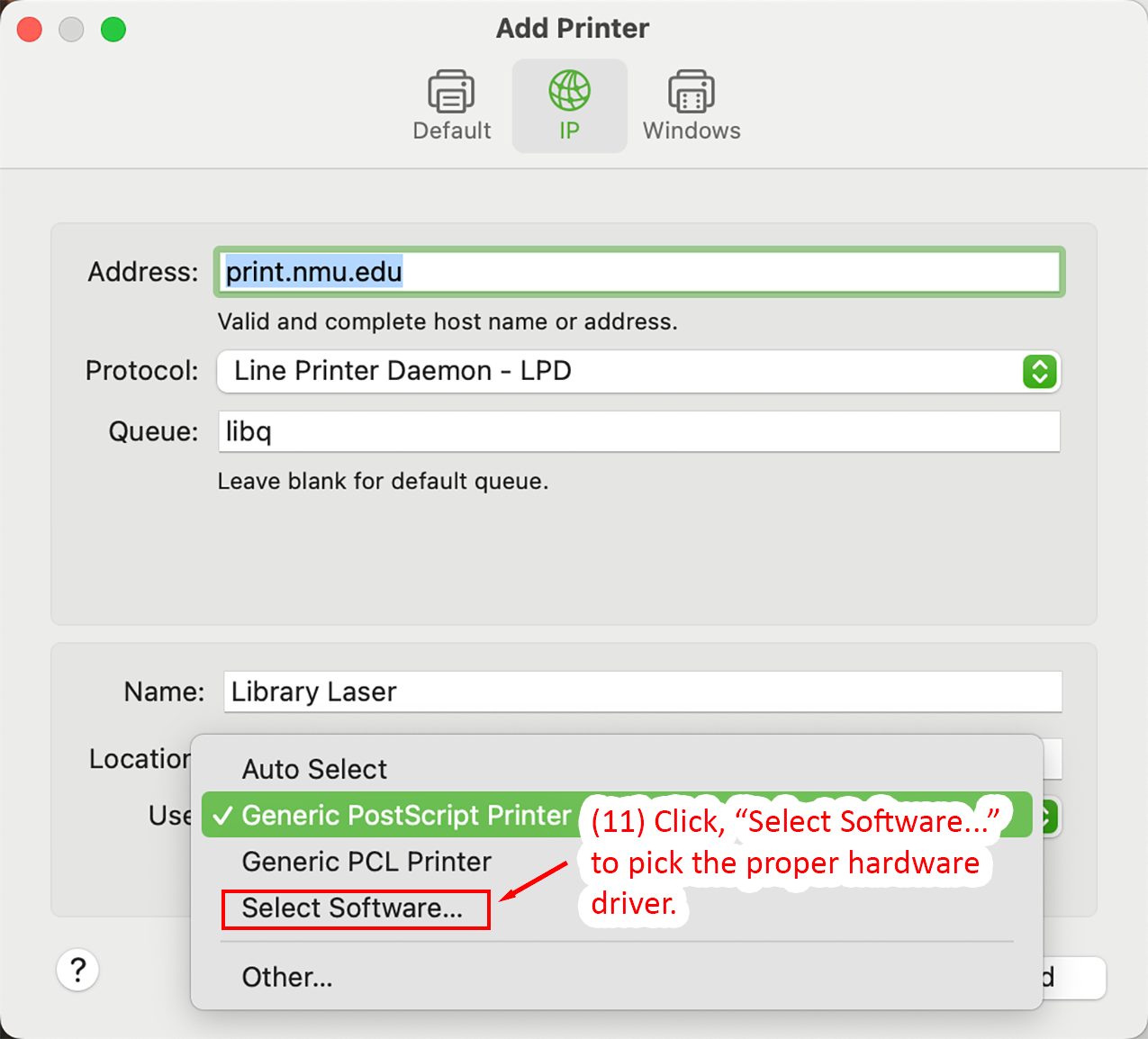
  1. Click, "Select Software..." to pick the proper hardware driver.
Add Printer window highlighting Select Software option.
Detailed Image Description

The image displays the Add Printer window in macOS 15 with the "IP" tab selected. The "Address," "Protocol," and "Queue" fields are filled with "print.nmu.edu," "Line Printer Daemon - LPD," and "libq," respectively. The "Name" field contains "Library Laser." Below the "Use" dropdown menu, Step 11 is highlighted in red text and arrows, instructing the user to click "Select Software..." to pick the proper hardware driver. The dropdown menu options include "Generic PostScript Printer" (selected), "Generic PCL Printer," and "Other..." alongside the "Select Software..." option, which is outlined in red.

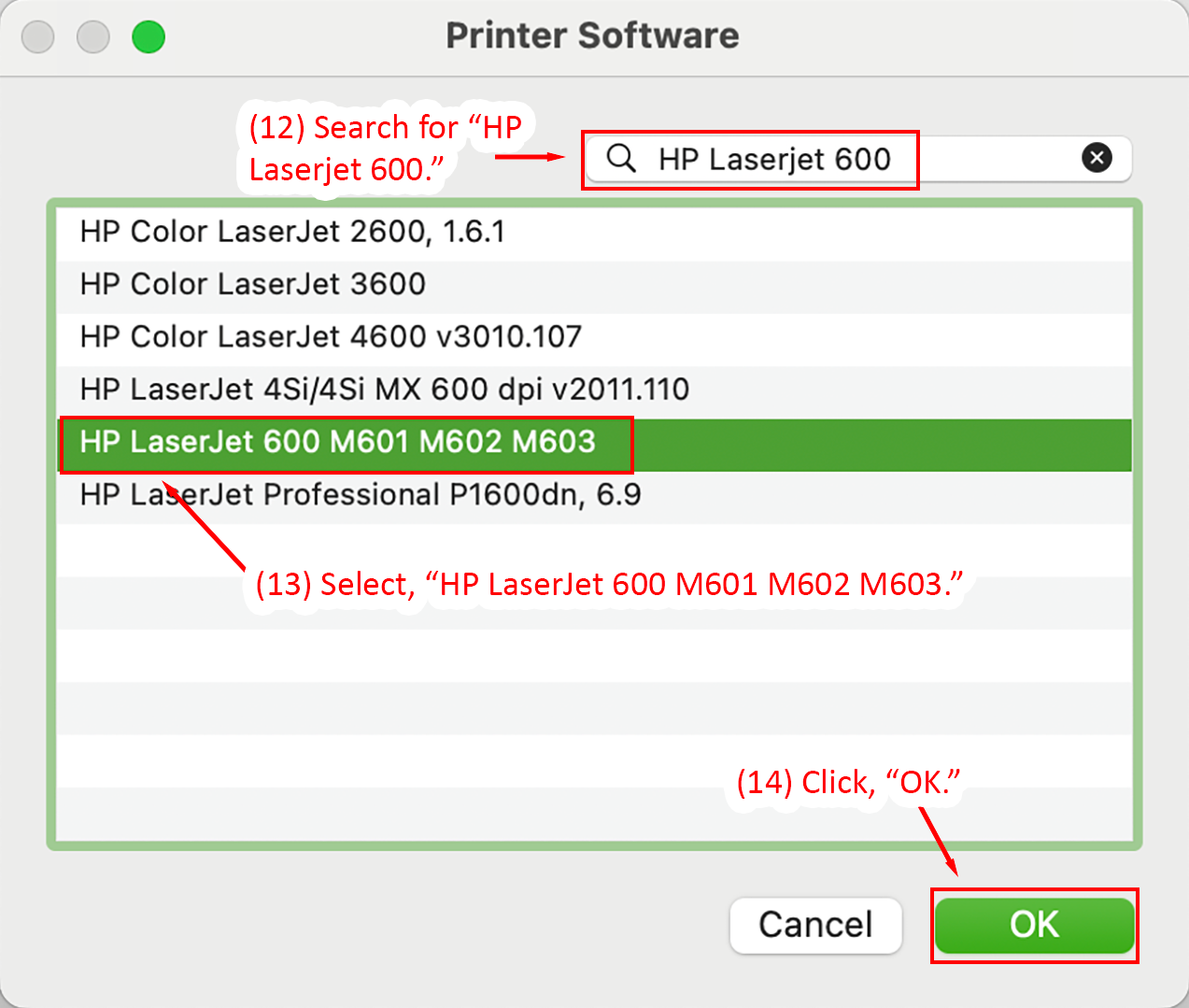
  1. Search for "HP Laserjet 600."
  2. Select, "HP LaserJet 600 M601 M602 M603."
  3. Click, "OK."
Detailed Image Description

The image displays the Printer Software window in macOS 15. At the top, a search field is filled with "HP Laserjet 600" and annotated as Step 12 with red text and an arrow. The list below includes various printer models, with "HP LaserJet 600 M601 M602 M603" highlighted in green and outlined in red. This step is annotated as Step 13, instructing the user to select this printer model. At the bottom-right corner, the "OK" button is outlined in red and annotated as Step 14 with instructions to click it. The "Cancel" button is located to the left of "OK."

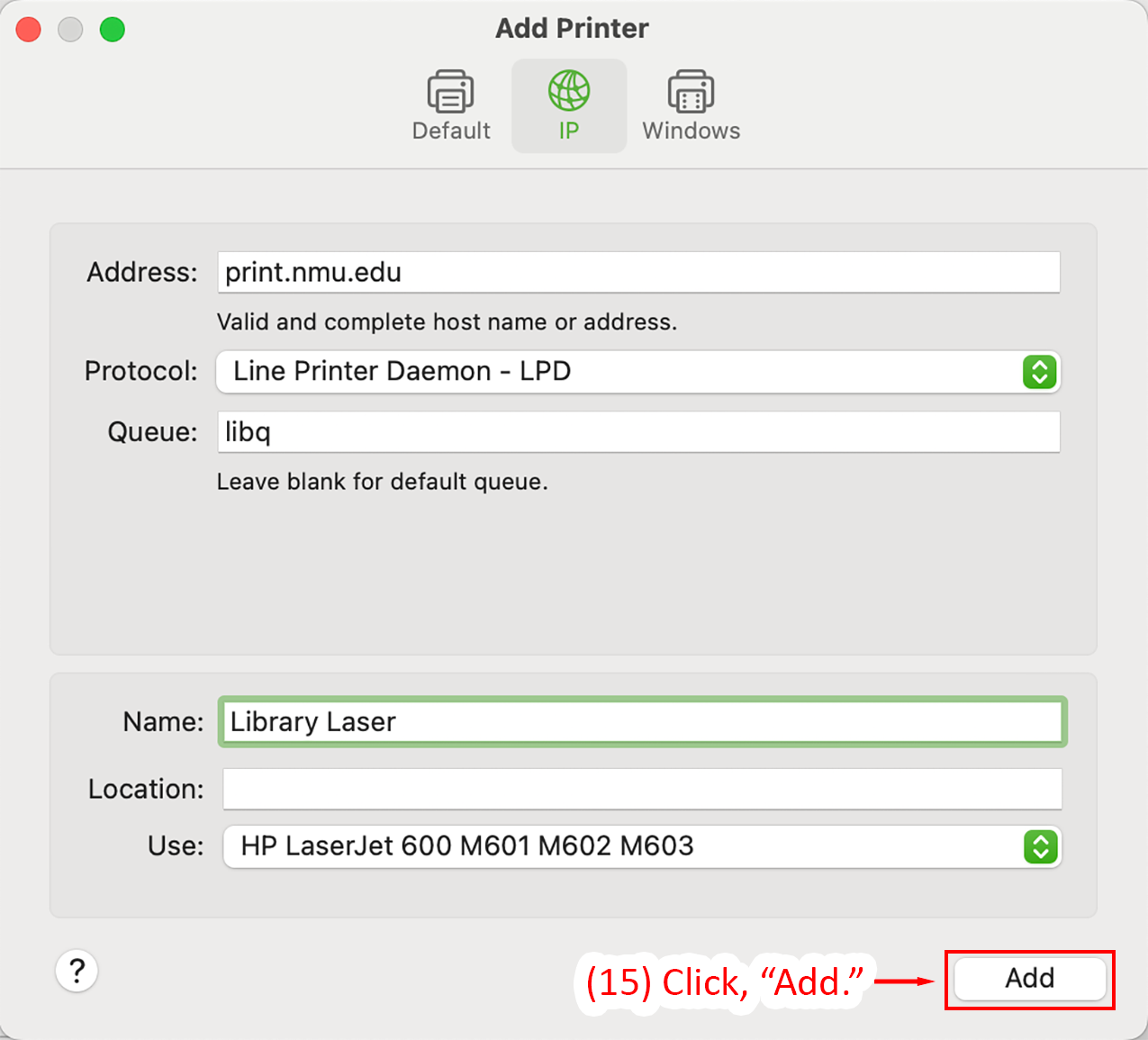
  1. Click, "Add."
Detailed Image Description

The image shows the Add Printer window in macOS 15 with the "IP" tab selected. The fields are filled with the following details: "print.nmu.edu" in the Address field, "Line Printer Daemon - LPD" in the Protocol dropdown, and "libq" in the Queue field. The Name field contains "Library Laser," and the Use dropdown displays "HP LaserJet 600 M601 M602 M603." At the bottom-right corner, the "Add" button is outlined in red and annotated as Step 15 with instructions to click it to finalize adding the printer.

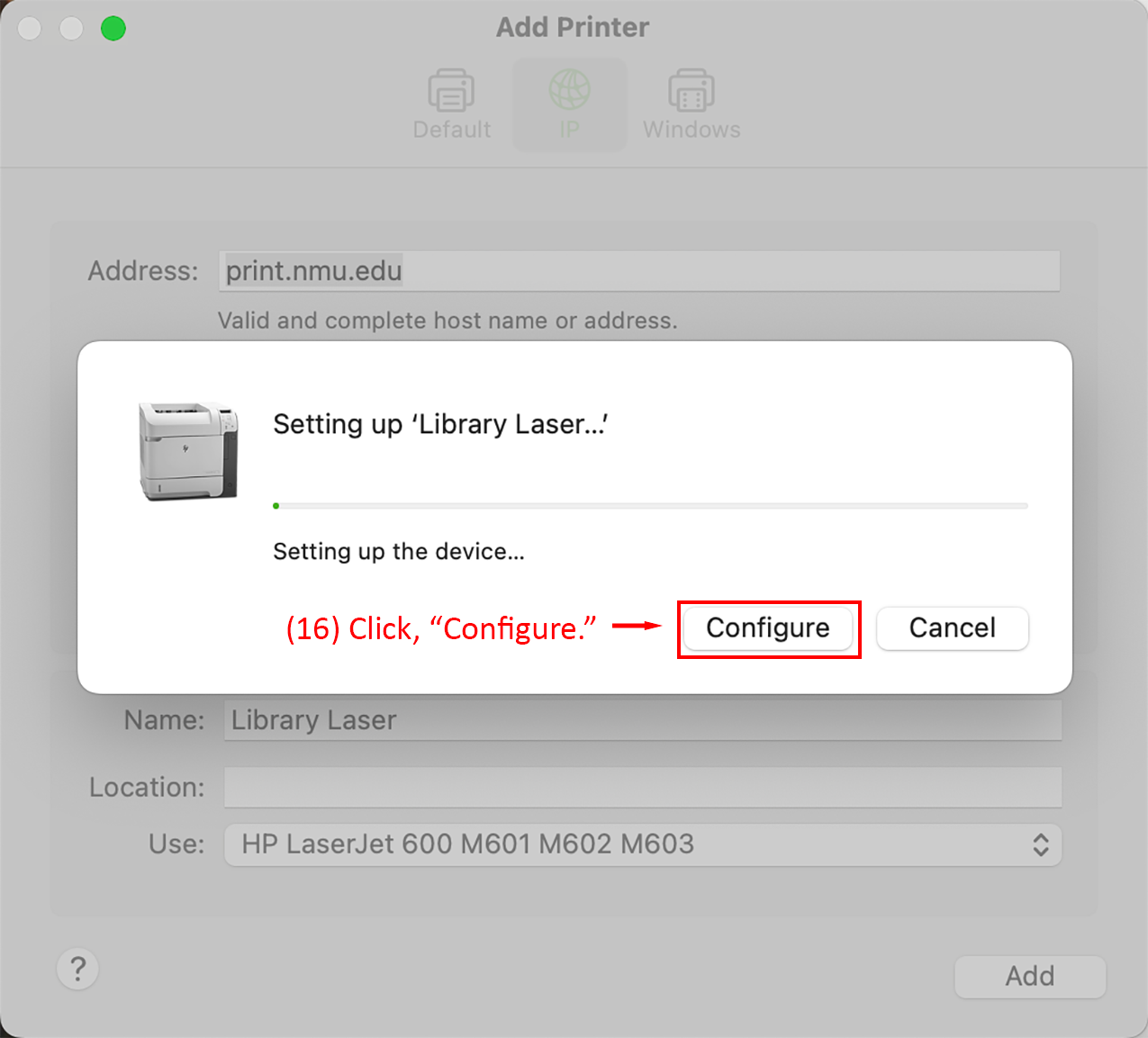
  1. Click, "Configure."
Configuration dialog with Configure button highlighted.
Detailed Image Description

The image displays a configuration dialog in macOS 15 titled "Setting up 'Library Laser...'" with a progress bar and the text "Setting up the device..." below it. On the left side of the dialog, a small printer icon is visible. At the bottom-right corner, the "Configure" button is outlined in red and annotated as Step 16 with instructions to click it. The "Cancel" button is located to the left of the "Configure" button.
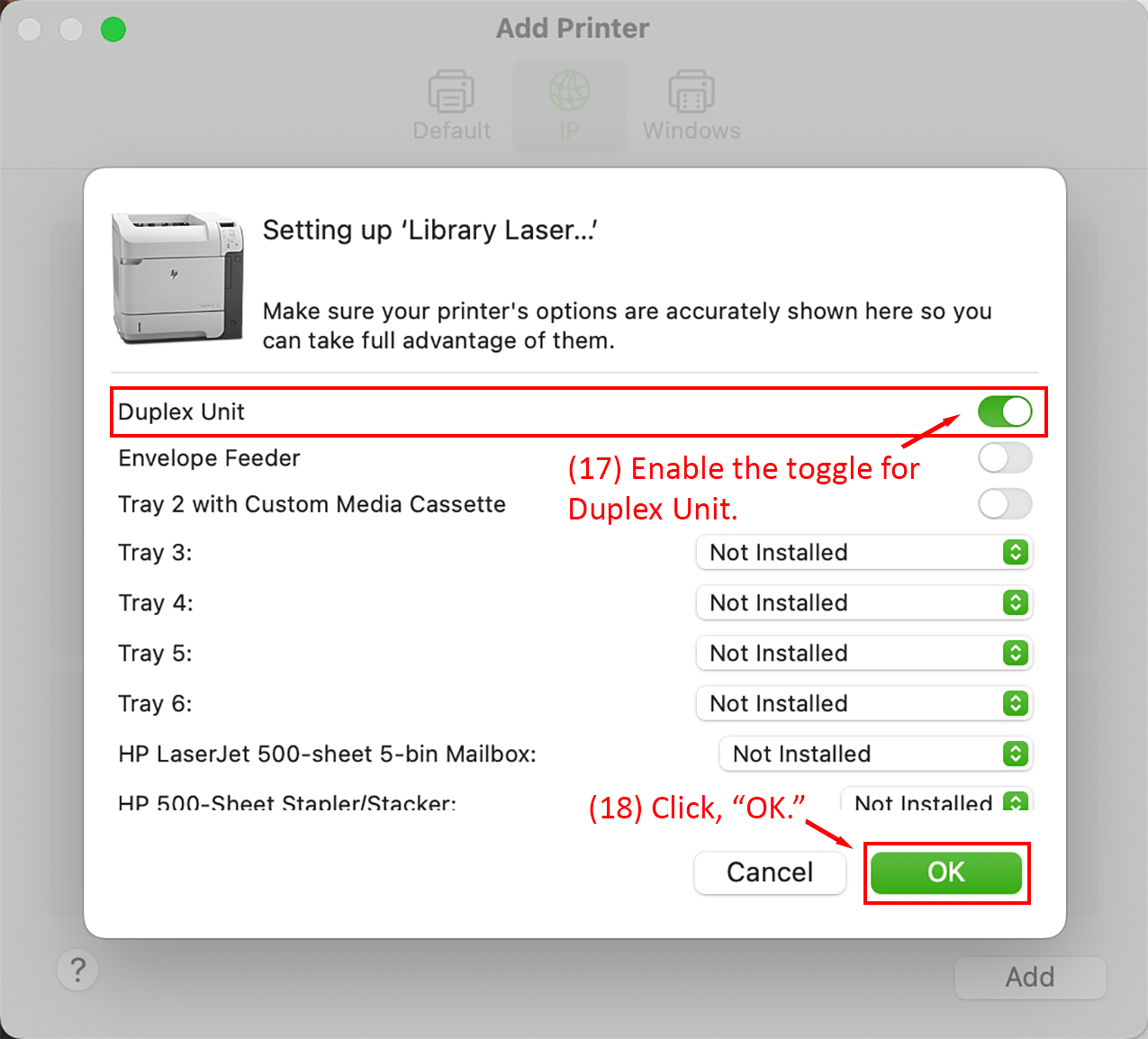
  1. Enable the toggle for Duplex Unit, this enables double-sided printing.
Printer setup dialog with Duplex Unit toggle enabled and OK button highlighted.
Detailed Image Description

The image displays a printer setup dialog in macOS 15 titled "Setting up 'Library Laser...'" with a printer icon on the left. The dialog lists printer configuration options, including "Duplex Unit," which is enabled with a green toggle switch outlined in red and annotated as Step 17. Other options, such as "Envelope Feeder" and various trays, are listed with their status set to "Not Installed." At the bottom-right corner, the "OK" button is outlined in red and annotated as Step 18, instructing the user to click it. The "Cancel" button is located to the left of "OK."

Congratulations, the Library Black & White printer is now installed and ready to use.

Installing the Library Color printer on macOS 26 Tahoe

The following set of instructions will guide you in installing the Library Color printer on a macOS 26 Tahoe computer. This process may vary slightly on different versions of macOS, however the printer configuration options will remain the same (e.g. hostname and port configuration in steps). If you run into problems installing the printer, please contact the NMU Help Desk for alternative instructions.

Installing the color printer is a 2-part process. The first part involves downloading and installing the Xerox drivers and the second part involves actually installing the printer on the computer.

Installing the Xerox Drivers

Navigate to the Xerox Support site, agree to the terms and download the macOS Print and Scan Driver Installer. Then start the Xerox Driver Installation Application.

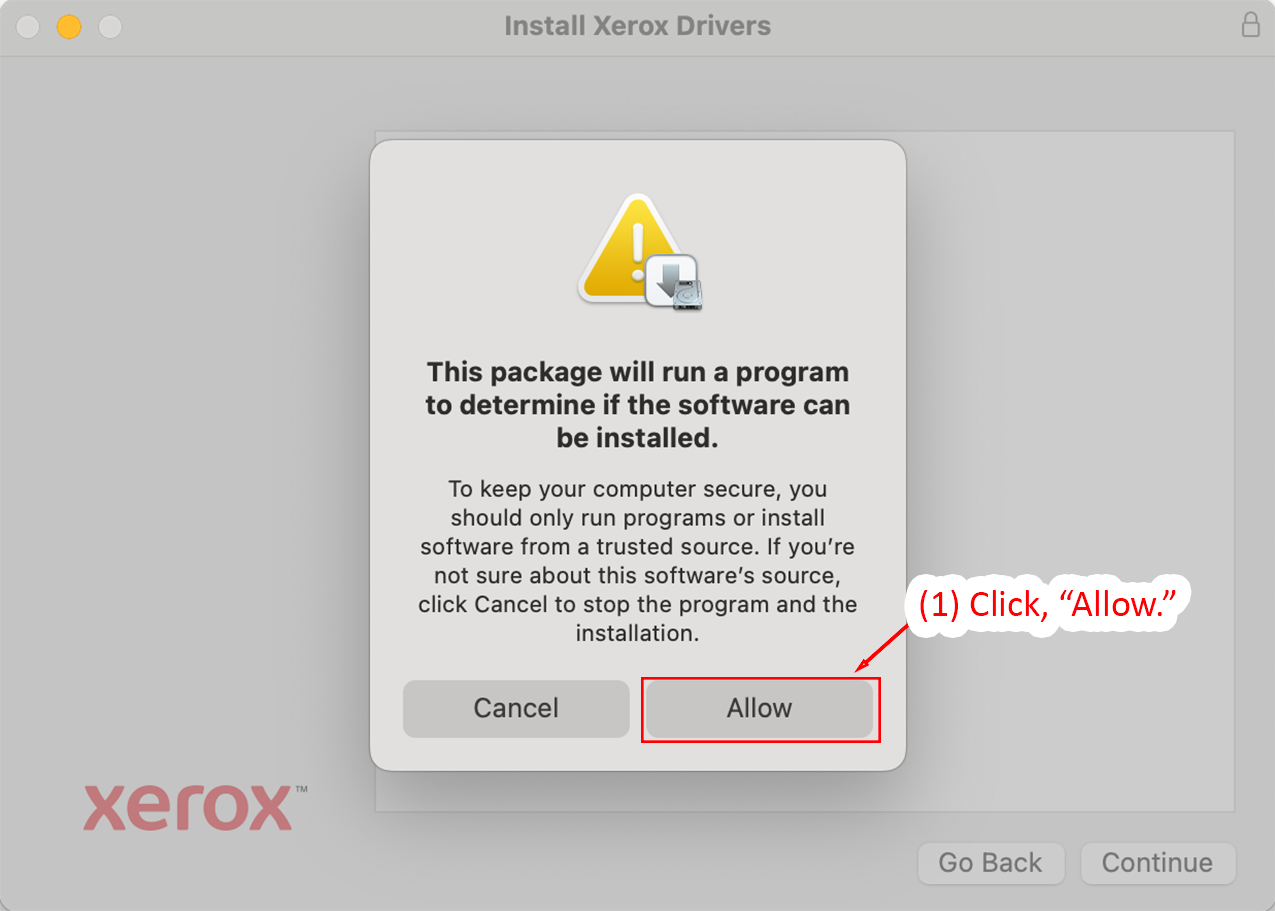
  1. Once the application launches, click, "Allow," to begin installing the drivers.
Program execution warning with Allow button highlighted.
Detailed Image Description

The image displays a warning dialog in macOS 15 during the Xerox driver installation. The message states that the package will run a program to determine if the software can be installed. A yellow warning icon with an exclamation mark is displayed at the top of the dialog. Below the message, two buttons are visible: "Cancel" on the left and "Allow" on the right. The "Allow" button is outlined in red and annotated as Step 1, instructing the user to click it.

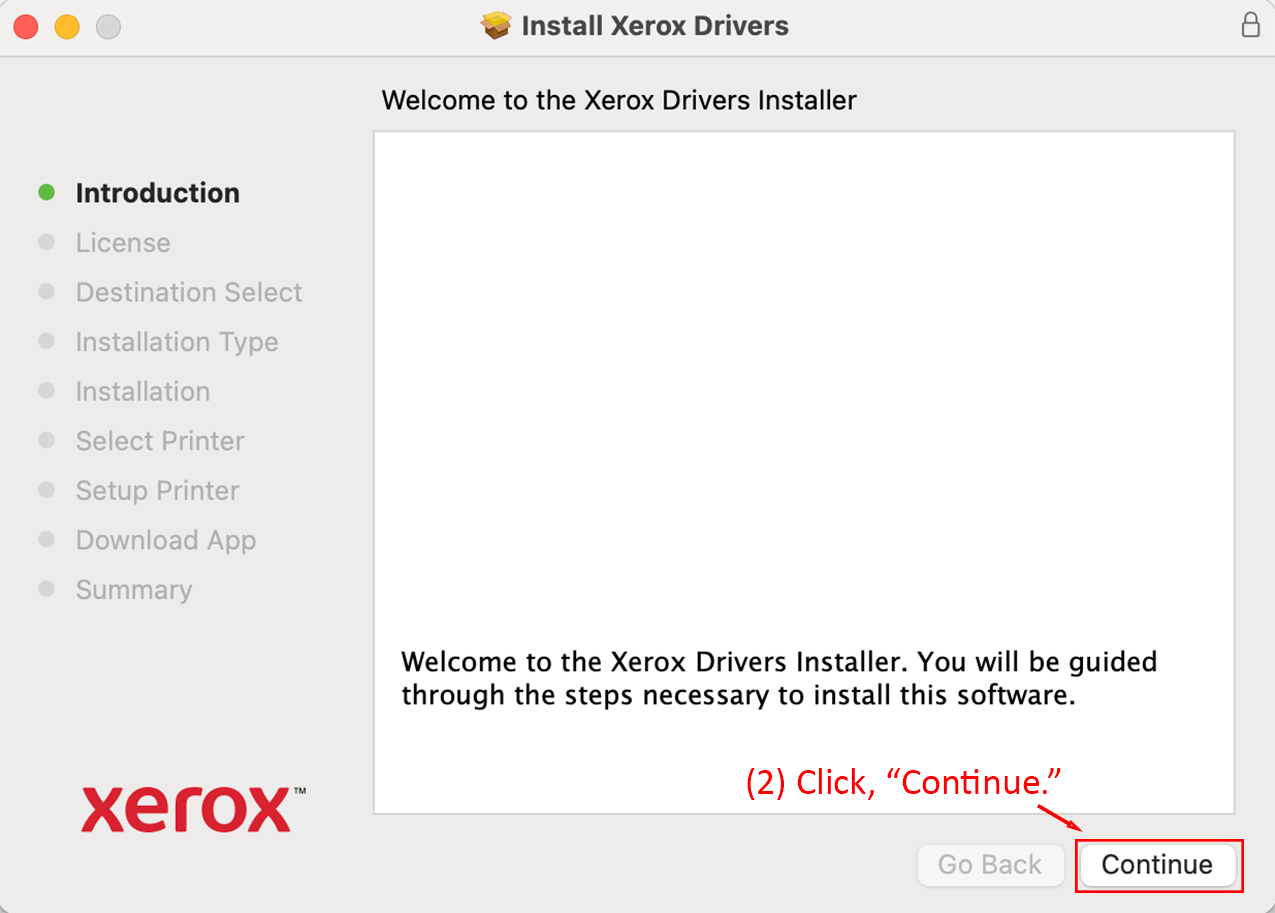
  1. Click, "Continue."
Xerox Drivers Installer introduction with Continue button highlighted.
Detailed Image Description

The image shows the Xerox Drivers Installer introduction page in macOS 15. The left panel lists the installation steps, with "Introduction" highlighted in green. The main content area welcomes the user to the installer and describes the steps required to install the software. At the bottom-right corner, the "Continue" button is outlined in red and annotated as Step 2, instructing the user to proceed. The "Go Back" button is located to the left of "Continue."

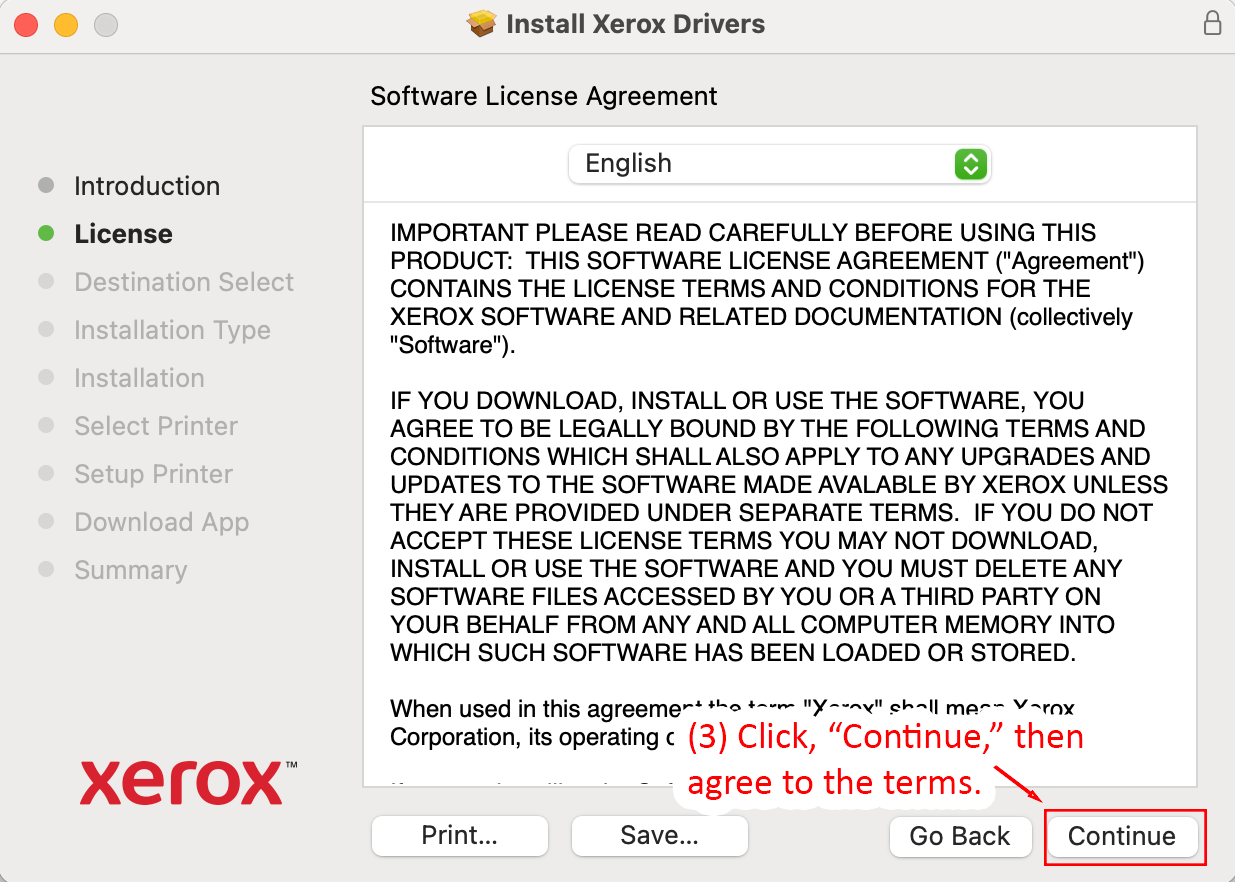
  1. Click, "Continue," then agree to the terms.
Software License Agreement page with Continue button highlighted.
Detailed Image Description

The image displays the Software License Agreement page of the Xerox Drivers Installer in macOS 15. The left panel lists the installation steps, with "License" highlighted in green. The main content area contains the license agreement text with a dropdown menu for language selection, currently set to "English." At the bottom-right corner, the "Continue" button is outlined in red and annotated as Step 3, instructing the user to agree to the terms and proceed. The "Go Back" button is located to the left of "Continue."

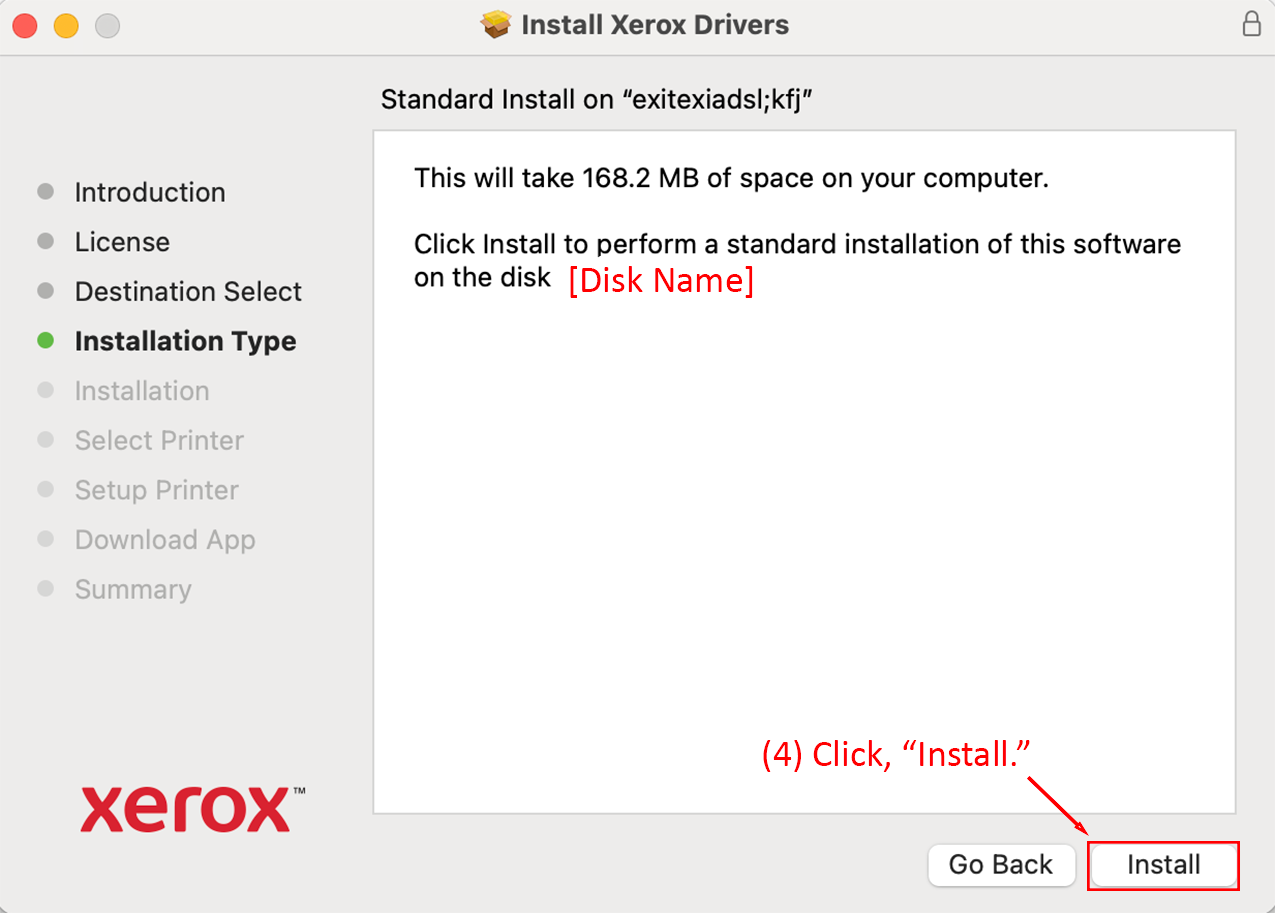
  1. Click, "Install."
Standard install confirmation with Install button highlighted.
Detailed Image Description

The image shows the Standard Install confirmation page of the Xerox Drivers Installer in macOS 15. The left panel lists the installation steps, with "Installation Type" highlighted in green. The main content area specifies the disk name and the space required for installation. At the bottom-right corner, the "Install" button is outlined in red and annotated as Step 4, instructing the user to confirm the installation. The "Go Back" button is located to the left of "Install."

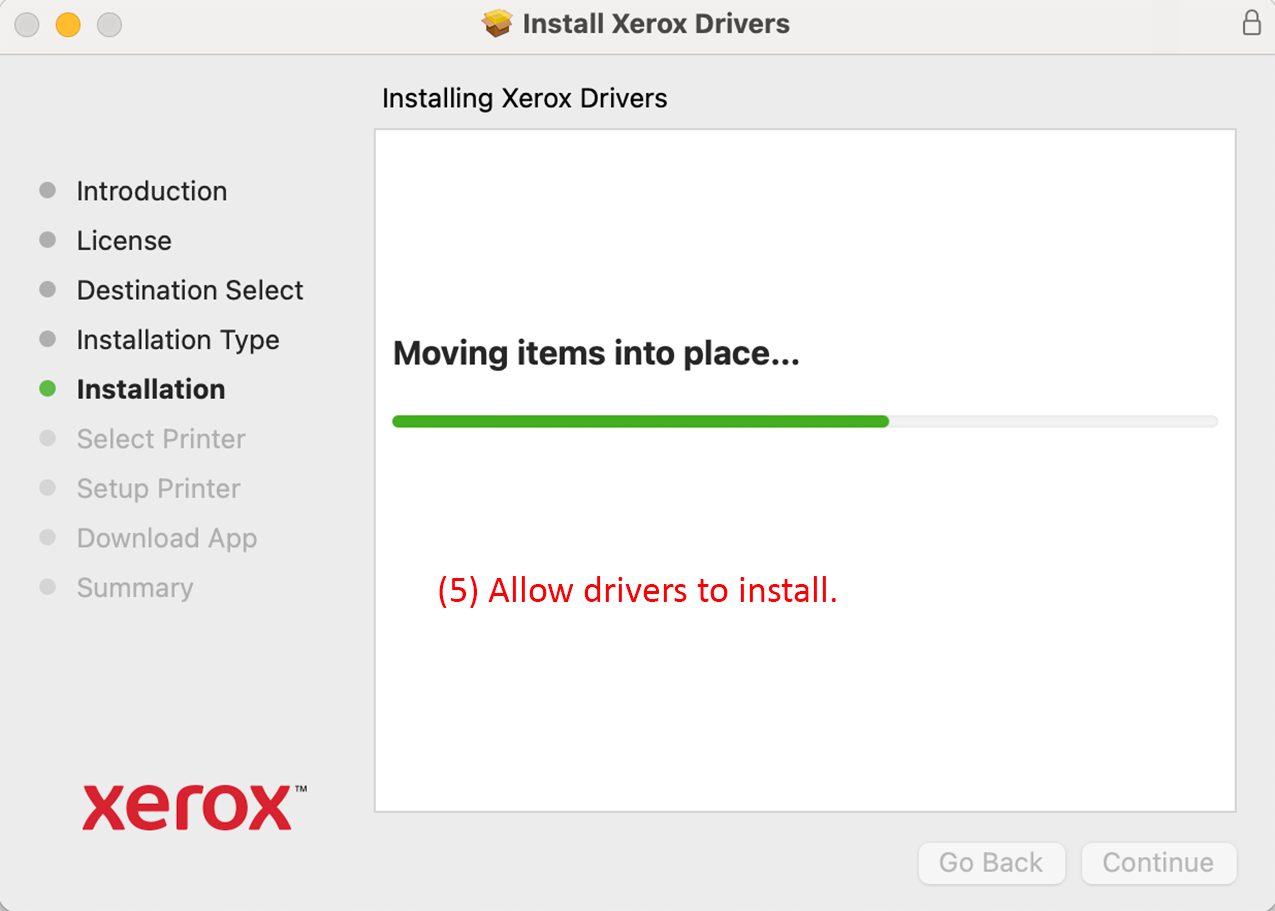
  1. Allow drivers to install.
Installation progress screen displaying a green progress bar.
Detailed Image Description

The image displays the installation progress screen of the Xerox Drivers Installer in macOS 15. The left panel lists the installation steps, with "Installation" highlighted in green. The main content area shows the message "Moving items into place..." with a green progress bar below it. The bottom area includes inactive "Go Back" and "Continue" buttons. The process is annotated as Step 5, instructing the user to allow the drivers to install.

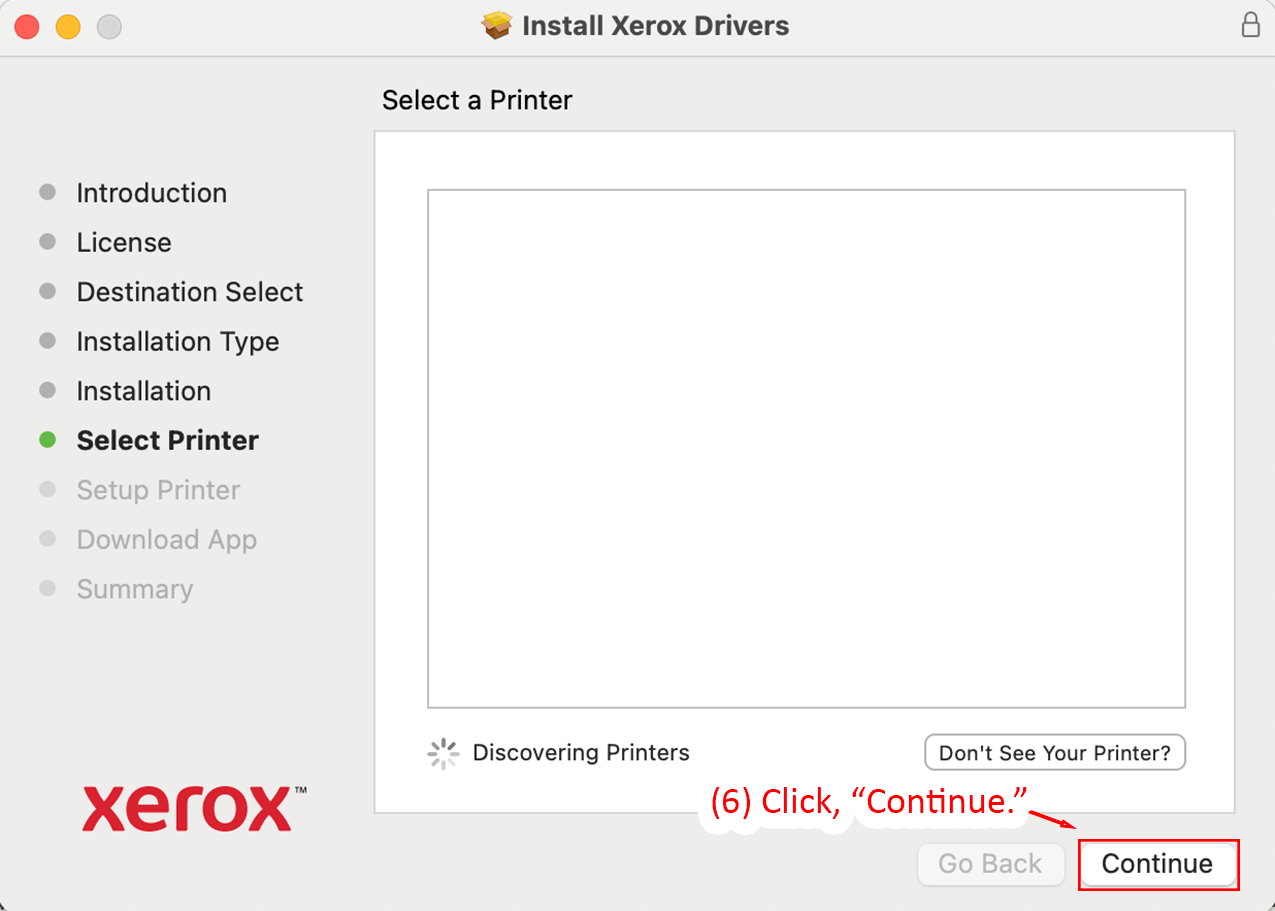
  1. Do not install a printer with the Xerox Application, click, "Continue."
Select Printer dialog with Continue button highlighted.
Detailed Image Description

The image shows the Select Printer screen of the Xerox Drivers Installer in macOS 15. The left panel lists the installation steps, with "Select Printer" highlighted in green. The main content area is empty with the text "Discovering Printers" at the bottom, accompanied by a loading spinner. At the bottom-right corner, the "Continue" button is outlined in red and annotated as Step 6, instructing the user to proceed. The "Go Back" button is located to the left of "Continue."

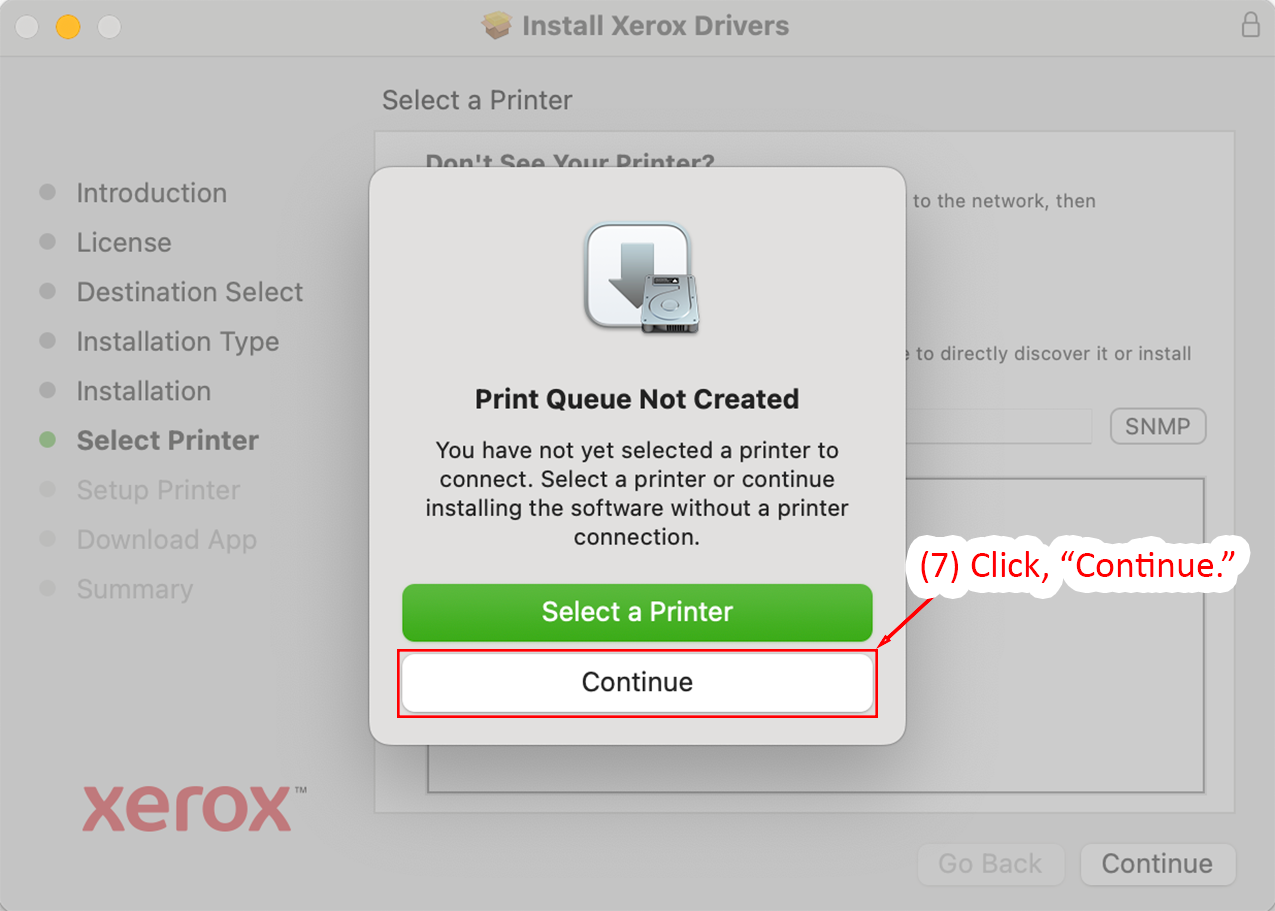
  1. Do not install a printer with the Xerox Application, click, "Continue."
Select Printer dialog with Continue button highlighted.
Detailed Image Description

The image shows the Select Printer dialog in the Xerox Drivers Installer in macOS 15. The message "Print Queue Not Created" appears, explaining that no printer has been selected. Below the message are two buttons: "Select a Printer" in green and "Continue" in white. The "Continue" button is outlined in red and annotated as Step 7, instructing the user to proceed without selecting a printer.

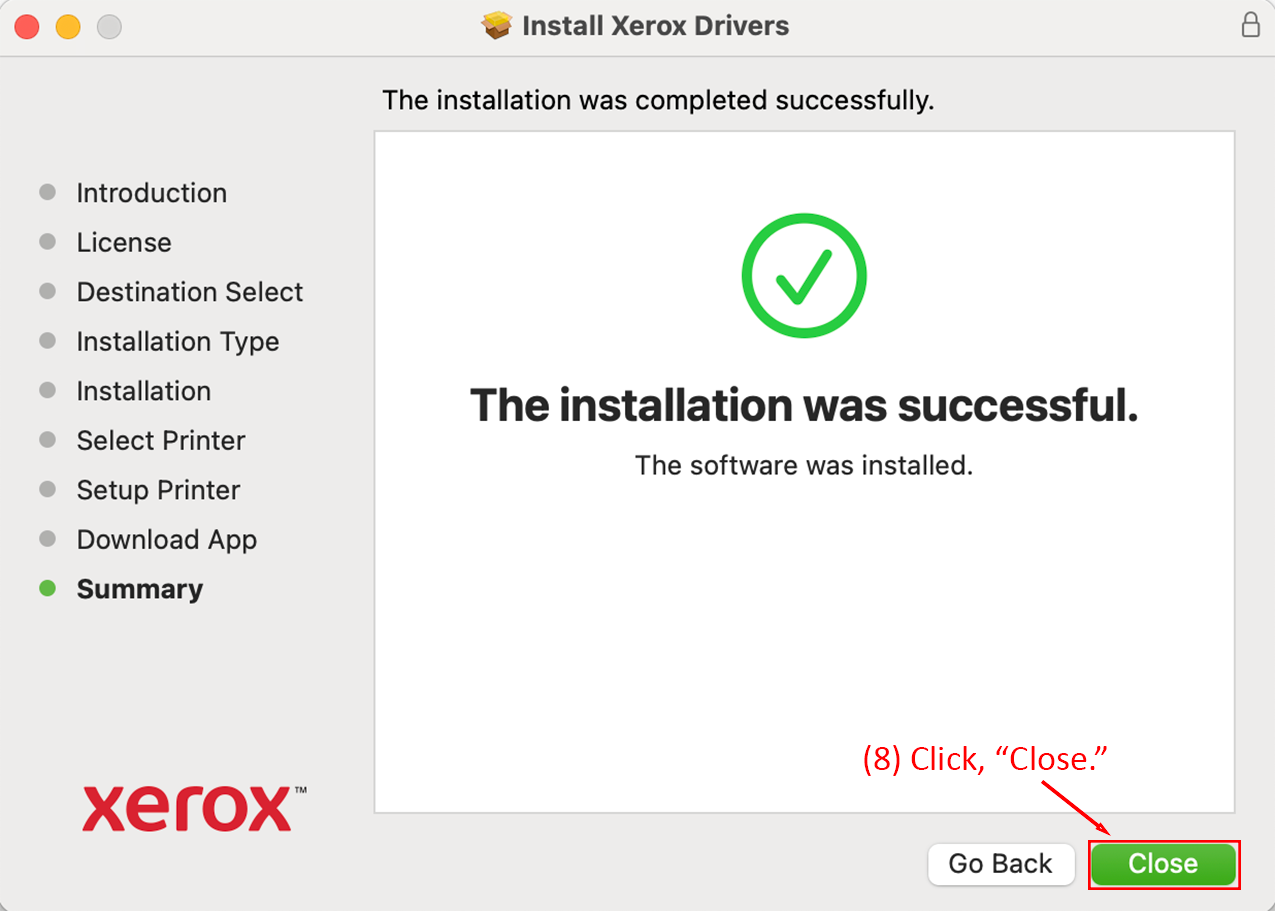
  1. The installation is complete, click, "Close."
Xerox Drivers installation summary with Close button highlighted.
Detailed Image Description

The image displays the summary page of the Xerox Drivers Installer in macOS 15. The left panel lists the installation steps, with "Summary" highlighted in green. The main content area shows a large green checkmark and the message "The installation was completed successfully." At the bottom-right corner, the "Close" button is outlined in red and annotated as Step 8, instructing the user to finish the installation process. The "Go Back" button is located to the left of "Close."

Adding the Xerox Color Printer

The following set of instructions will guide you in installing the Library Color printer on a macOS 26 Tahoe computer. This process may vary slightly on different versions of macOS, however the printer configuration options will remain the same (e.g. hostname and port configuration in steps). If you run into problems installing the printer, please contact the NMU Help Desk for alternative instructions.

  1. Click on the Apple Icon, in the top-left of the screen.
  2. Click, "System Settings...".
Apple menu showing System Settings
Detailed Image Description

The image displays the macOS 15 Apple menu in the top-left corner of the screen, with a forest background visible behind the dropdown. Two steps are annotated in red text with arrows. Step 1 directs users to click the Apple icon, and Step 2 highlights the "System Settings..." option, shown with a green background in the dropdown menu.

  1. In the search box, search for, "Printers & Scanners."
  2. When the results load, click on, "Printers & Scanners."
Search for and select Printers and Scanners
Detailed Image Description

The image shows the System Settings window in macOS 15. A search bar in the top-left corner contains the term "Printer," highlighted with a red outline. Below the search bar, the "Printers & Scanners" option is also outlined in red and annotated as Step 4. On the right side, the General settings page is displayed, with various options such as About, Software Update, and Storage visible in a list. Steps 3 and 4 are marked in red text and arrows to guide the user to search for and click on "Printers & Scanners."

  1. Click, "Add Printer, Scanner, or Fax...".
Printers and Scanners page with Add Printer option highlighted.
Detailed Image Description

The image shows the Printers & Scanners settings page in macOS 15. On the left side, the "Printers & Scanners" option is highlighted in green within the System Settings menu. The right side of the window lists two printers: Jacobetti Laser and PEIF Laser, both marked as idle. Above the printer list, default printer and paper size settings are displayed. At the bottom-right, the "Add Printer, Scanner, or Fax..." button is outlined in red and annotated as Step 5 with a red arrow and text.

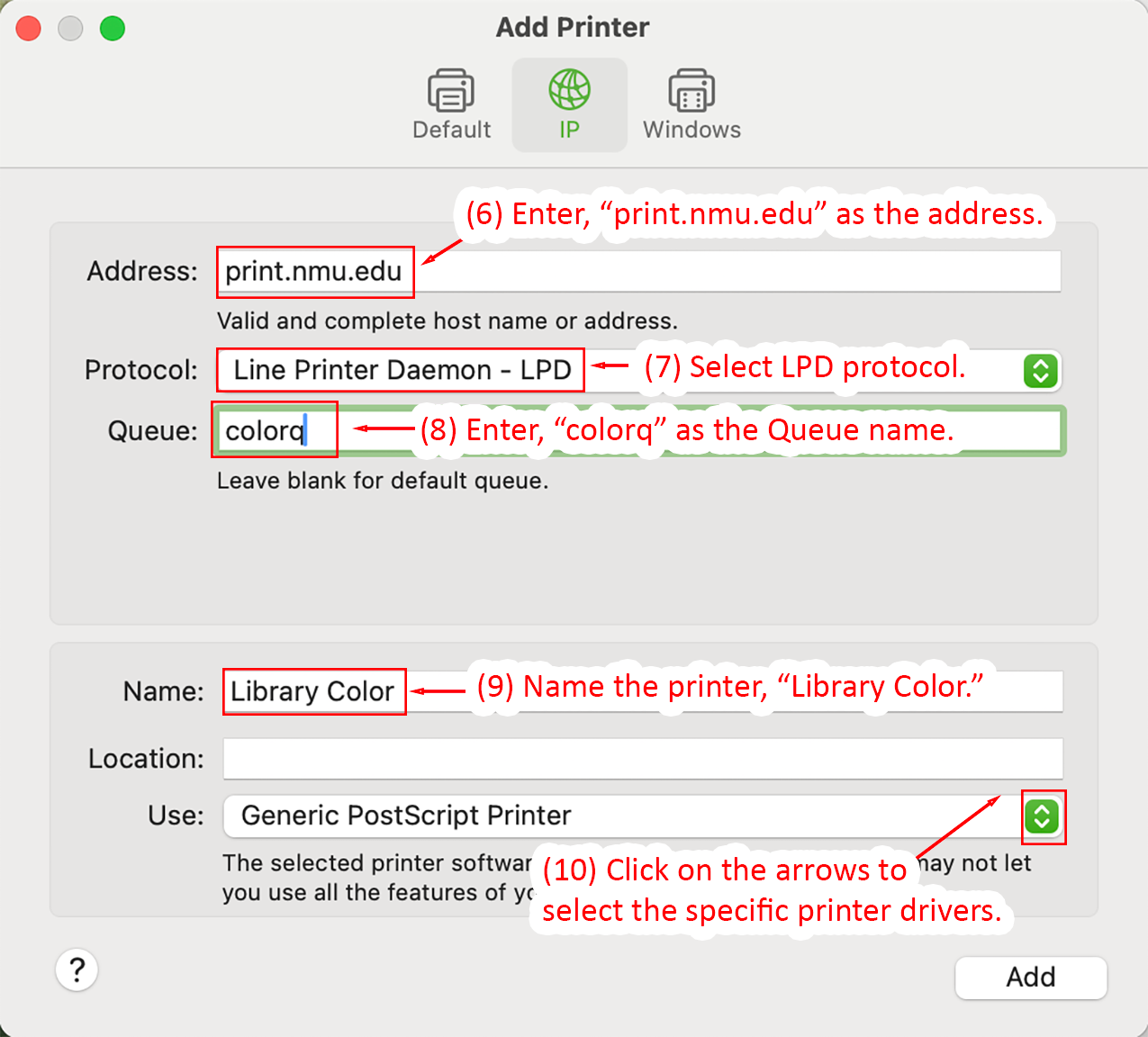
  1. Enter, "print.nmu.edu" as the address.
  2. Select LPD protocol.
  3. Enter, "colorq" as the Queue name.
  4. Name the printer, "Library Color."
  5. In the Use section, click on the arrows to select the specific printer drivers.
Add Printer window with fields for a color printer configuration.
Detailed Image Description

The image shows the Add Printer window in macOS 15 with the "IP" tab selected. The fields are filled with specific details for configuring a color printer:

  • Address: "print.nmu.edu" is entered in the Address field, annotated as Step 6.
  • Protocol: "Line Printer Daemon - LPD" is selected in the Protocol dropdown, annotated as Step 7.
  • Queue: "colorq" is entered in the Queue field, annotated as Step 8.
  • Name: "Library Color" is entered in the Name field, annotated as Step 9.

At the bottom, the "Use" dropdown is set to "Generic PostScript Printer," with an arrow icon outlined in red and annotated as Step 10 for selecting specific printer drivers. The "Add" button is visible in the bottom-right corner.

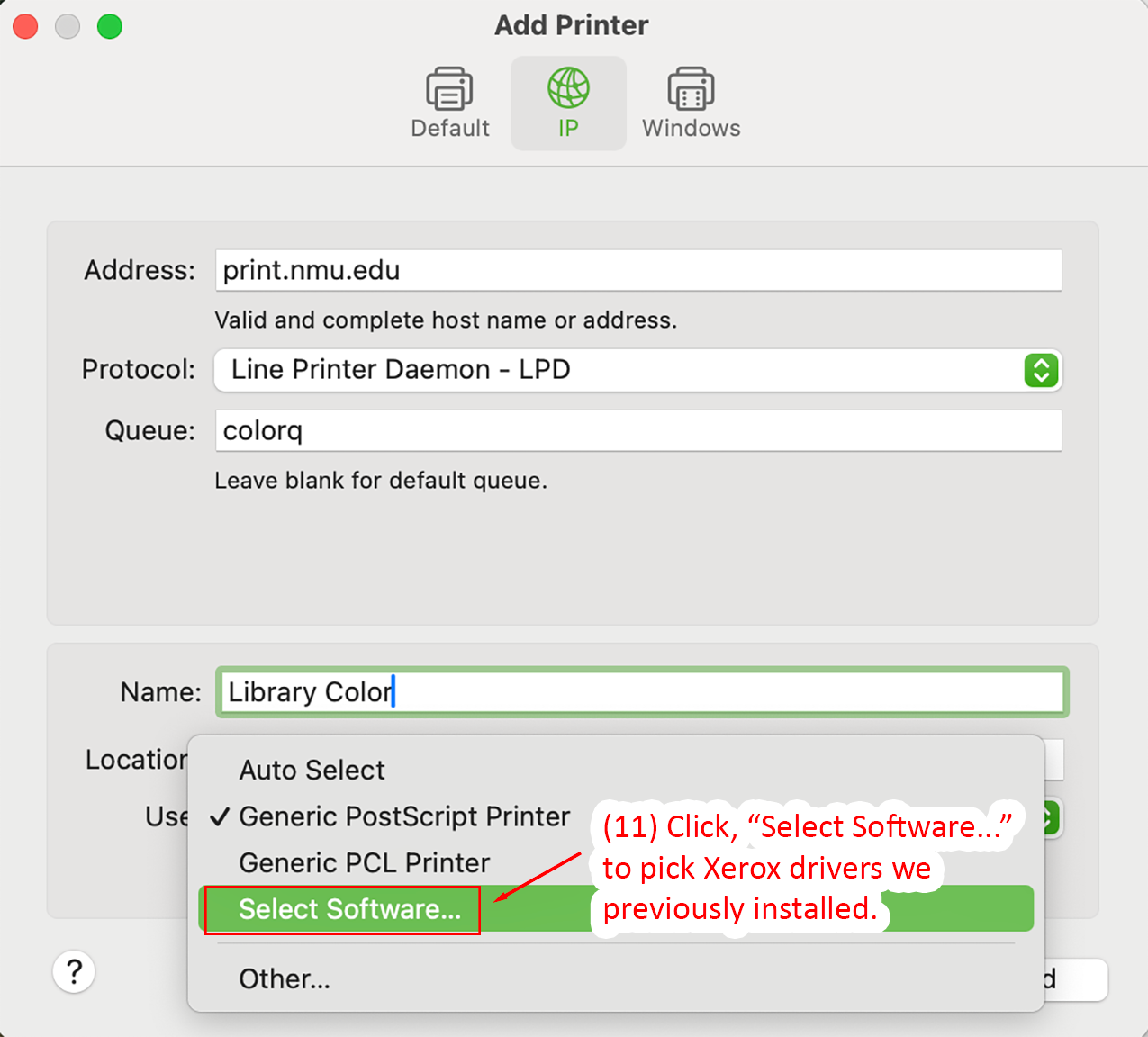
  1. Click, "Select Software..." to pick Xerox drivers we previously installed.
Add Printer window highlighting Select Software option for color printer.
Detailed Image Description

The image shows the Add Printer window in macOS 15 with the "IP" tab selected. The fields are configured for a color printer:

  • Address: "print.nmu.edu" is entered in the Address field.
  • Protocol: "Line Printer Daemon - LPD" is selected in the Protocol dropdown.
  • Queue: "colorq" is entered in the Queue field.
  • Name: "Library Color" is entered in the Name field.

At the bottom, the "Use" dropdown menu is open. The "Select Software..." option is highlighted in green and outlined in red, annotated as Step 11, instructing the user to pick the Xerox drivers previously installed. Other options in the dropdown include "Generic PostScript Printer," "Generic PCL Printer," and "Auto Select."

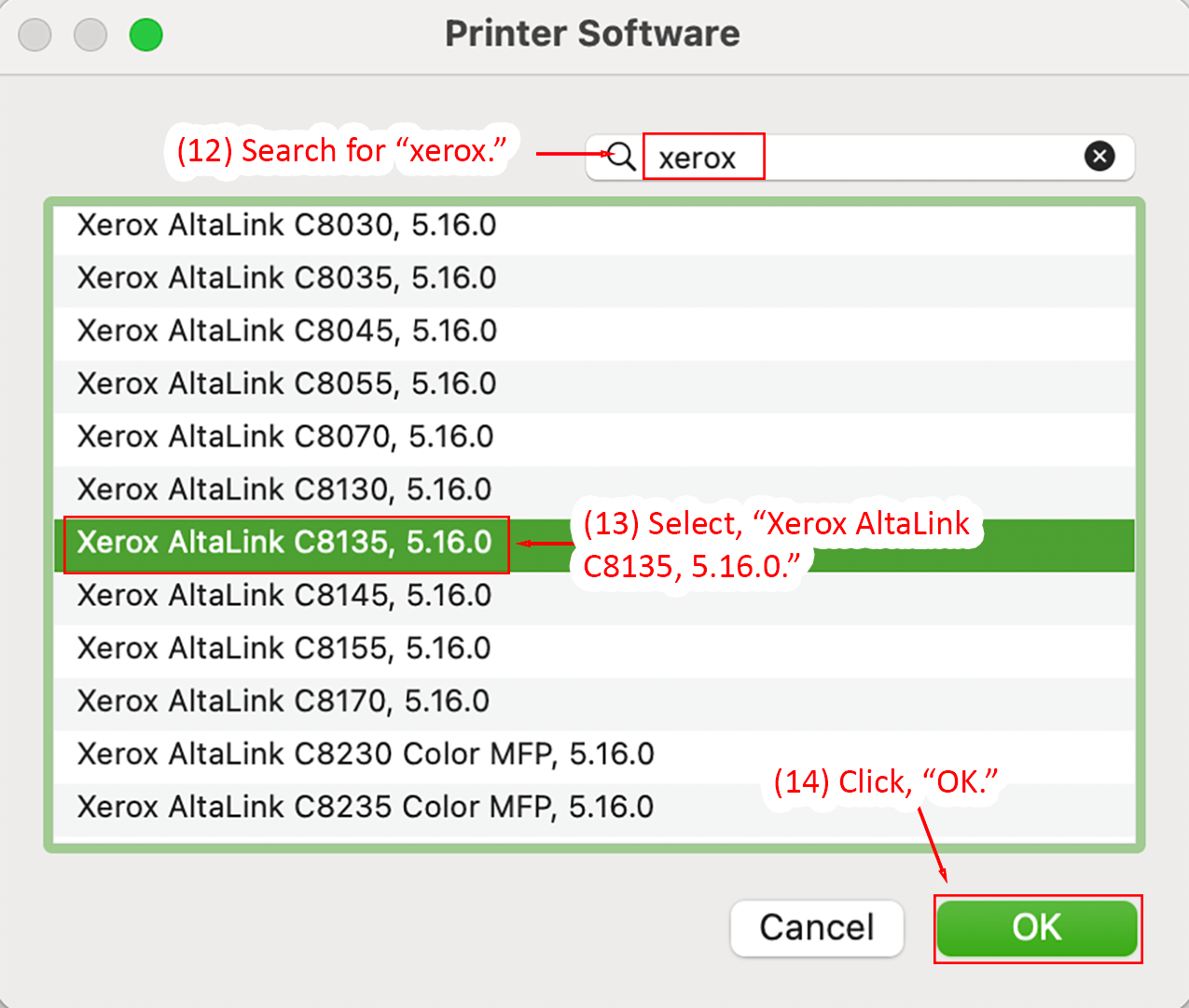
  1. Click, "Select Software..." to pick Xerox drivers we previously installed.
  2. Select, "Xerox AltaLink C8135." NOTE - the version may have advanced.
  3. Click, "OK."
Printer Software window with Xerox AltaLink C8135 selected.
Detailed Image Description

The image shows the Printer Software window in macOS 15. At the top, a search field contains the term "xerox," annotated as Step 12, instructing the user to search for Xerox printer software. Below the search bar, a list of printer drivers is displayed, with "Xerox AltaLink C8135, 5.16.0" highlighted in green and outlined in red, annotated as Step 13. At the bottom-right corner, the "OK" button is outlined in red and annotated as Step 14, instructing the user to confirm the selection. The "Cancel" button is located to the left of "OK."

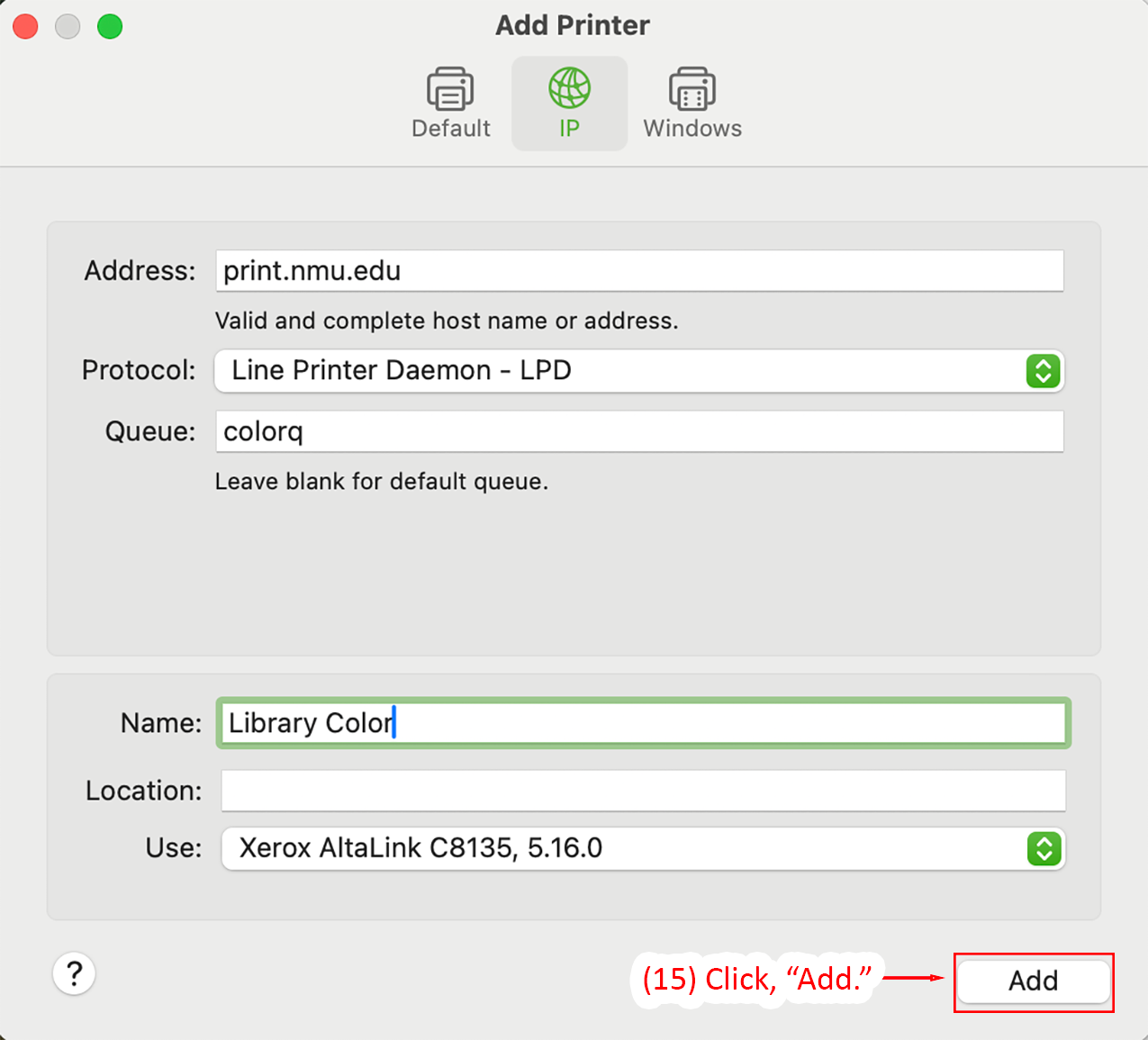
  1. Click, "Add."
Add Printer window with Add button highlighted for color printer.
Detailed Image Description

The image shows the Add Printer window in macOS 15 with the "IP" tab selected. The fields are configured for a color printer:

The Address field contains "print.nmu.edu," the Protocol is set to "Line Printer Daemon - LPD," and the Queue field contains "colorq." The Name field displays "Library Color," and the Use dropdown shows "Xerox AltaLink C8135, 5.16.0." At the bottom-right corner, the "Add" button is outlined in red and annotated as Step 15, instructing the user to finalize adding the printer.

Congratulations, the Library Color printer is now installed and ready to use.