
Detailed Image Description
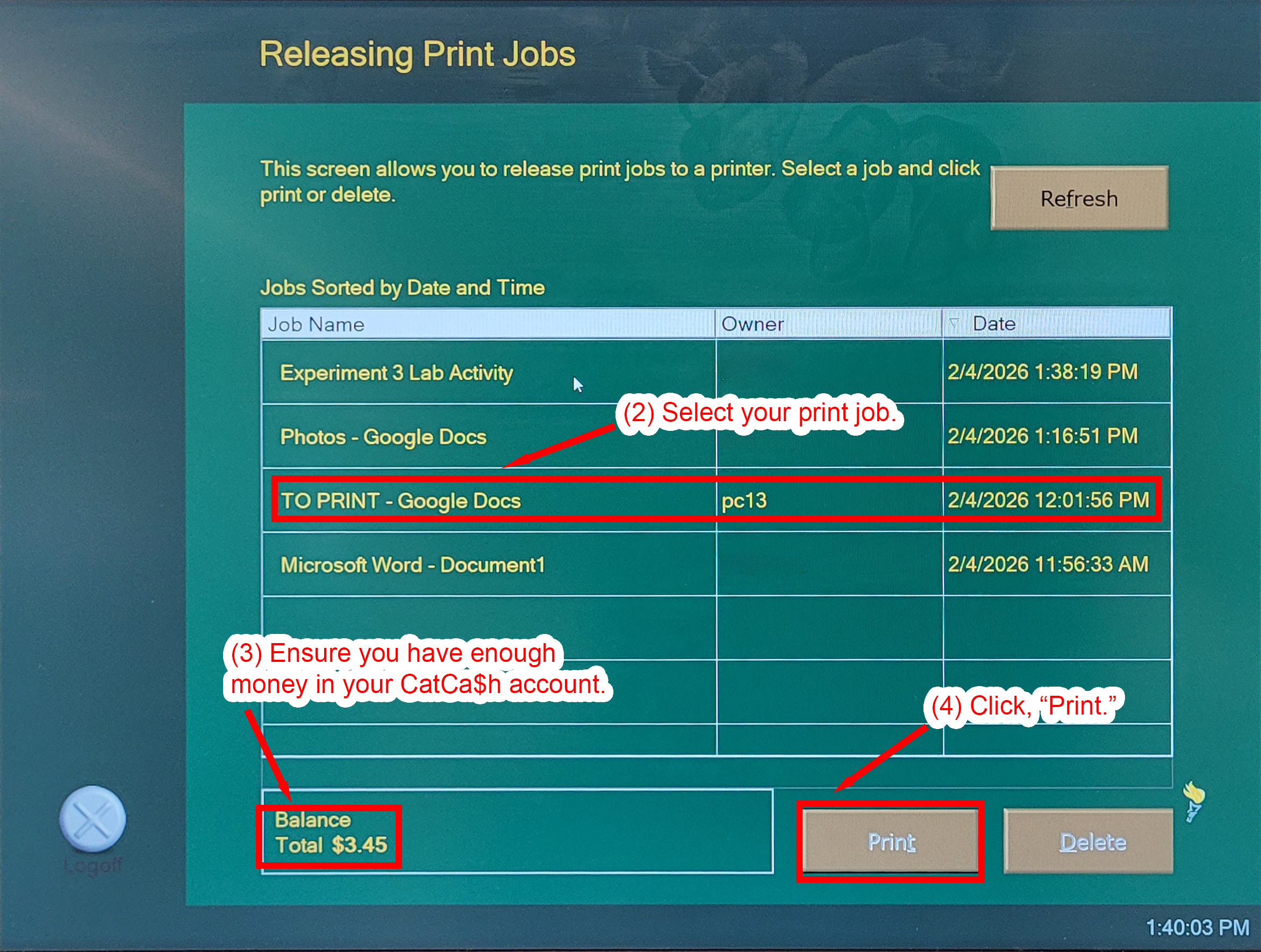
The image shows the “Releasing Print Jobs” screen of the Northern Michigan University print release system. The background is teal with gold and white text. At the top of the screen, a heading reads “Releasing Print Jobs.” A brief instruction explains that users can select a job and choose to print or delete it.
A table labeled “Jobs Sorted by Date and Time” lists multiple print jobs in rows. The table includes columns for:
- Job Name
- Owner
- Date
Visible job titles include:
- Experiment 3 Lab Activity
- Photos – Google Docs
- TO PRINT – Google Docs (highlighted with a red box)
- Microsoft Word – Document1
A red arrow and callout labeled “(2) Select your print job.” points to the highlighted row, indicating that the user must first choose the correct document from the list.
In the lower left corner of the screen, a boxed section labeled “Balance” shows “Total $3.45.” A red callout labeled “(3) Ensure you have enough money in your CatCa$h account.” points to this balance display, emphasizing the need for sufficient funds before printing.
In the lower right corner, two large buttons are visible: “Print” and “Delete.” A red callout labeled “(4) Click, ‘Print.’” points to the Print button, indicating the final step in releasing the selected job.
A “Logoff” button appears in the lower left corner of the interface, and a “Refresh” button appears in the upper right. The image demonstrates the step-by-step process of selecting a print job, confirming account balance, and clicking Print to release the document.